

Connect Industrial Devices and Systems Part 2
- 0 replies
- 1009 views
- Translate All
Step 5: Bind Industrial Tag
Now that you've established a connection, you can use ThingWorx Foundation to inspect all available information on ThingWorx Kepware Server.
ThingWorx Kepware Server includes some information by default to assist you with verifying a valid connection with ThingWorx Foundation.
Create New Thing
- In ThingWorx Foundation, click Browse > Modeling > Industrial Connections.
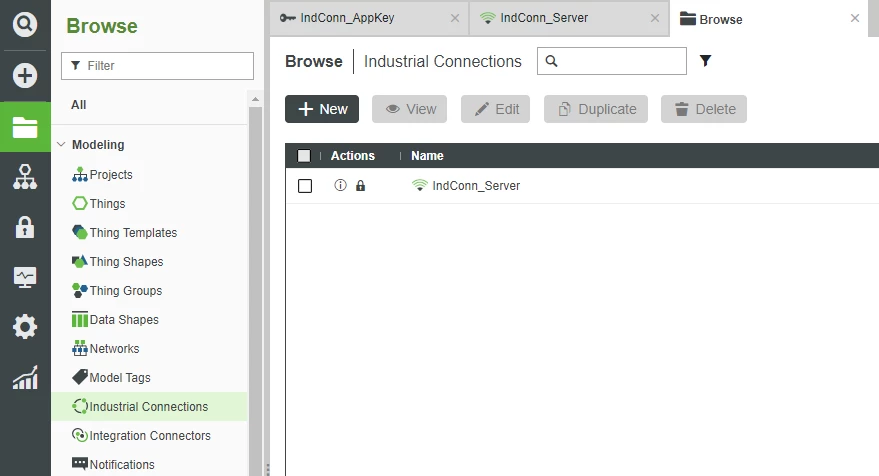
- Click IndConn_Server.
At the top, click Discover.
- The Discover option is exclusive to Things inheriting the IndustrialGateway Thing Template and displays information coming from ThingWorx Kepware Server.
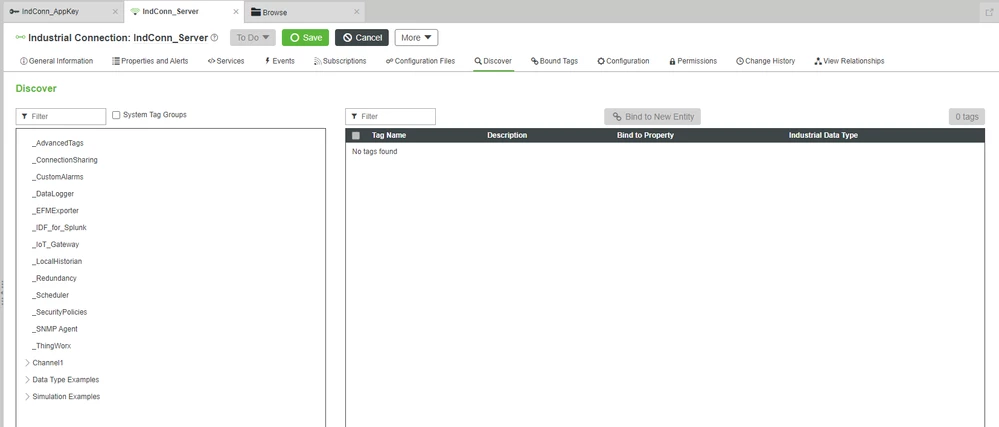
- Expand Channel1.
Click Device1.
- On the right, you’ll see Tag1 and Tag2, which are pre-defined Tags to assist with connectivity testing.
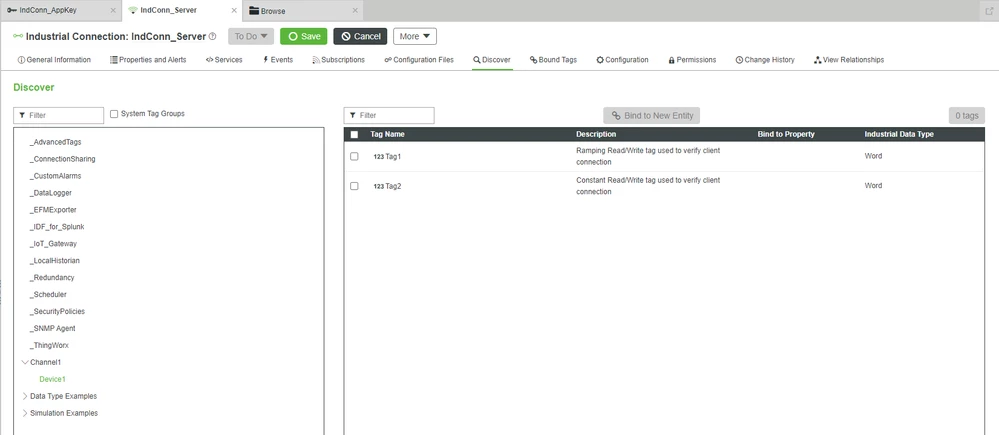
- On the right, you’ll see Tag1 and Tag2, which are pre-defined Tags to assist with connectivity testing.
- Click the checkbox next to Tag1.
- Click Bind to New Entity.
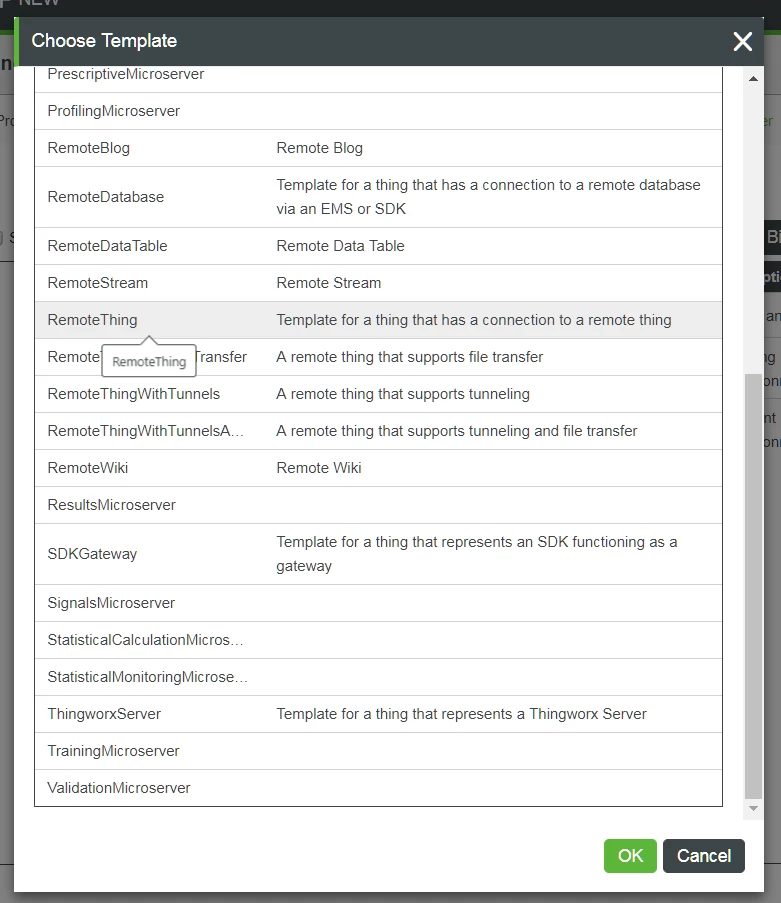
- In the Choose Template pop-up, select RemoteThing and click OK.
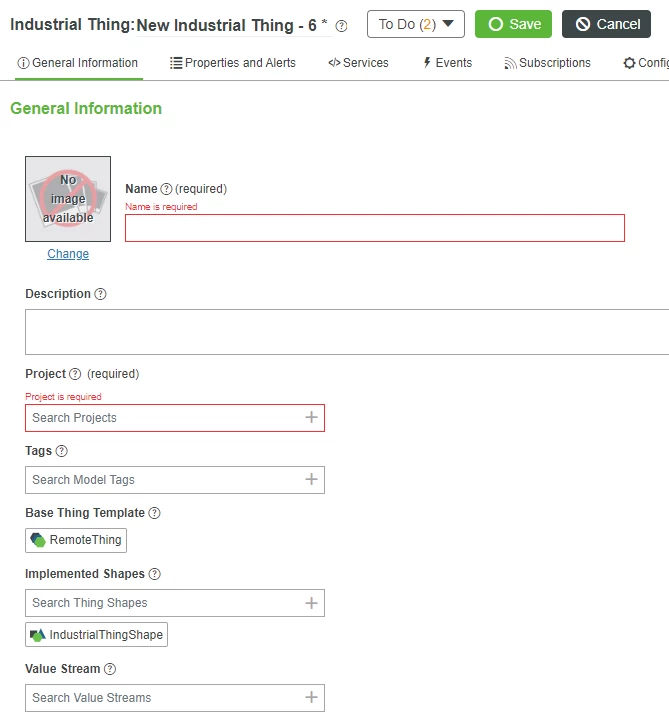
Finalize New RemoteThing
You’ll now be in an interface to create a new Thing with a predefined Property based on ThingWorx Kepware Server Tag1.
- Type IndConn_Tag1 in the Name field.
In the Description field, enter an appropriate description, such as Thing with a property fed from an Kepware Server Tag.
- The Base Thing Template has been automatically set to RemoteThing.
- The Implemented Shapes has been automatically set to IndustrialThingShape.
- If Project is not already set, search for and select PTCDefaultProject.
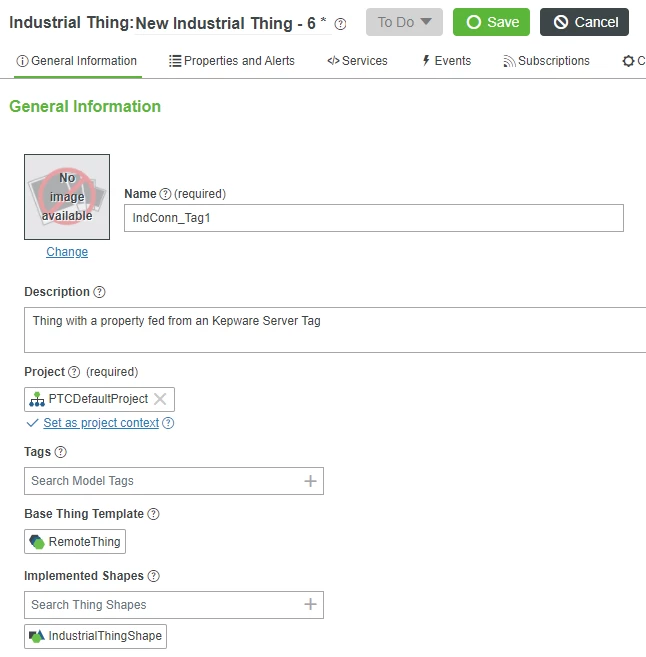
- Click Save.
Test Connection
The IndConn_Tag1 Thing you created now has a Property with a value that will change with each update from ThingWorx Kepware Server.
The Tag1 we utilized is a 'ramp' and therefore, the value will increase at regular intervals.
- At the top, click Properties and Alerts.
- Under Inherited Properties, you will see entries for both RemoteThing and IndustrialThingShape.
- The Property isConnected is checked, indicating a connection from Foundation to ThingWorx Kepware Server.
- The Property IndustrialThing has been automatically set to IndConn_Server.
- Notice the predefined Property named Channel1_Device1_Tag1.
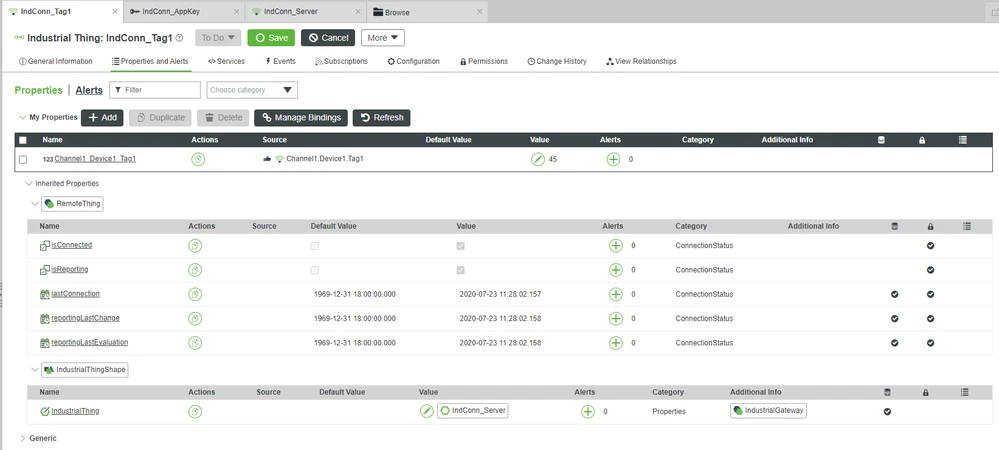
- Click Refresh repeatedly.
- You’ll see the value increase with each Refresh. This represents data being simulated in ThingWorx Kepware Server.
Step 6: Log to Value Stream
Now that you have explored the Properties of IndConn_Tag1, you’ve seen how ThingWorx Kepware Server feeds information to ThingWorx Foundation.
To get an even better indication of changes and confirm continued connectivity, we will log the changes to a Value Stream in order to record the values with a TimeStamp.
Create Value Stream
- In ThingWorx Foundation, click Browse > Data Storage > Value Streams.
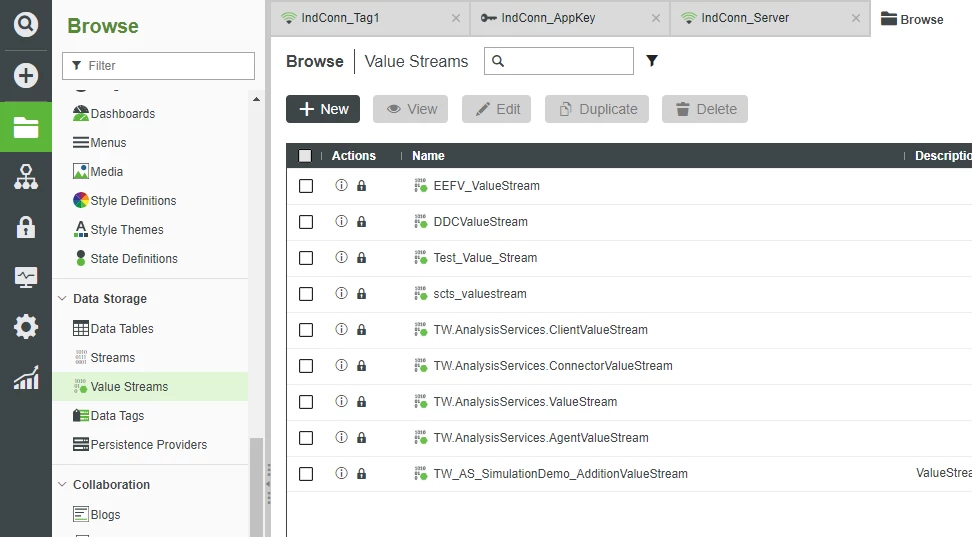
- Click + New.
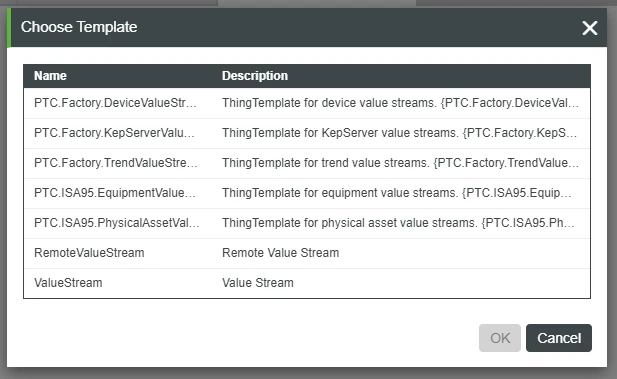
- In the Choose Template pop-up, select ValueStream.
- Click OK.
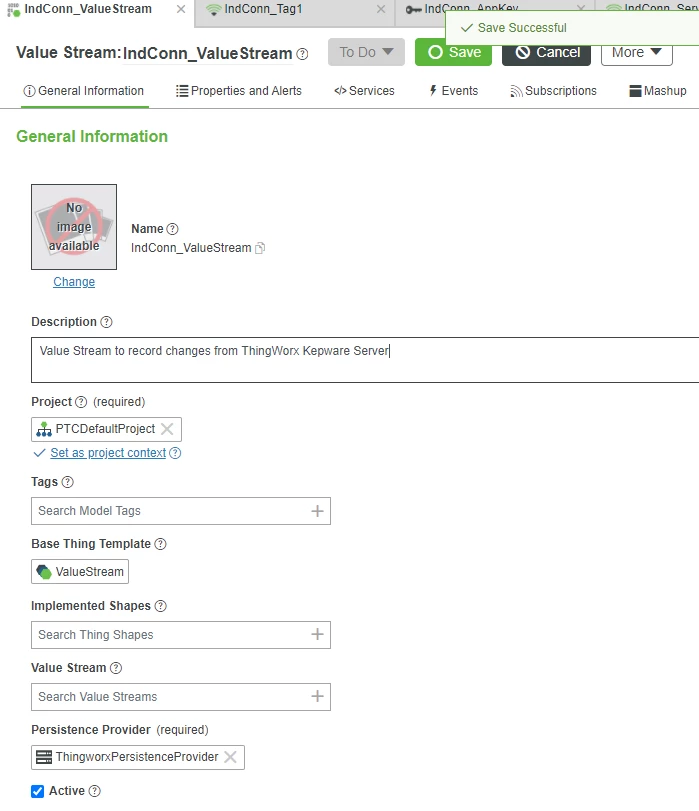
- Type IndConn_ValueStream in the Name field.
- In the Description field, enter an appropriate description, such as Value Stream to record changes from ThingWorx Kepware Server.
- If Project is not already set, search for and select PTCDefaultProject.
- Click Save.
Bind Value Stream
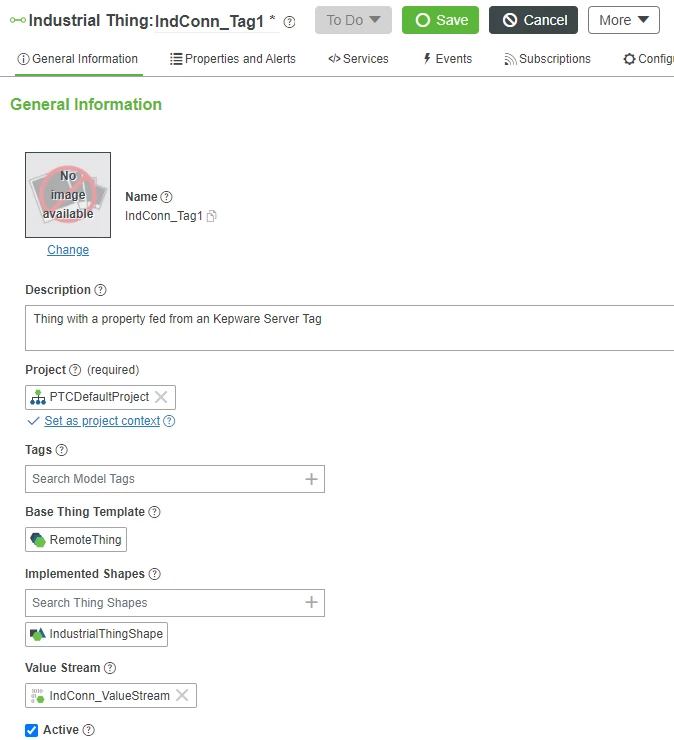
- Return to the IndConn_Tag1 Thing.
- At the top, select General Information.
- In the Value Stream field, search for and select IndConn_ValueStream.
- At the top, select Properties and Alerts.
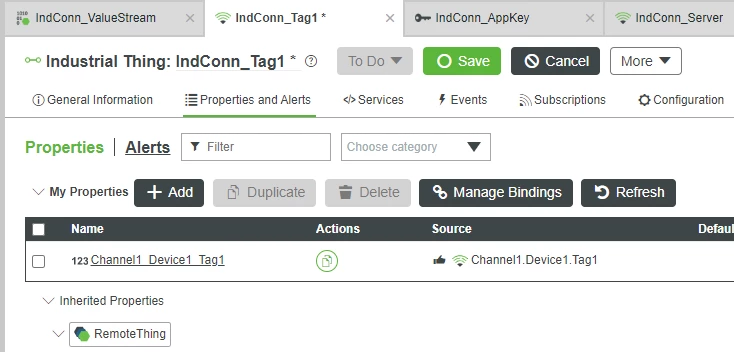
Click Channel1_Device1_Tag1.
- A new set of options will expand from the right.
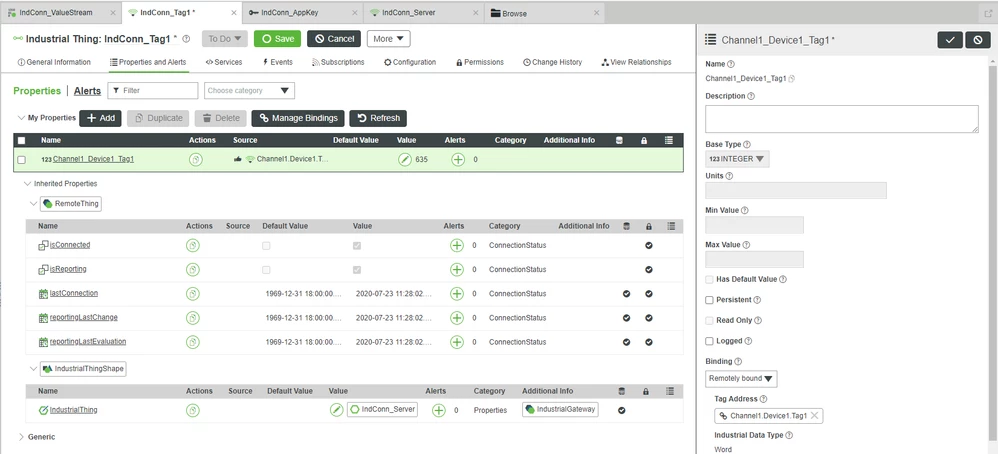
- A new set of options will expand from the right.
- Check the box for Persistent.
- Check the box for Logged.
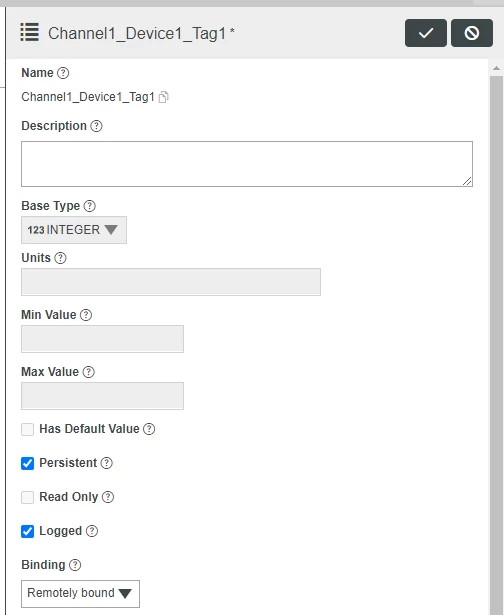
- In the top-right, click the Check button to close the expanded options.
- Click Save.
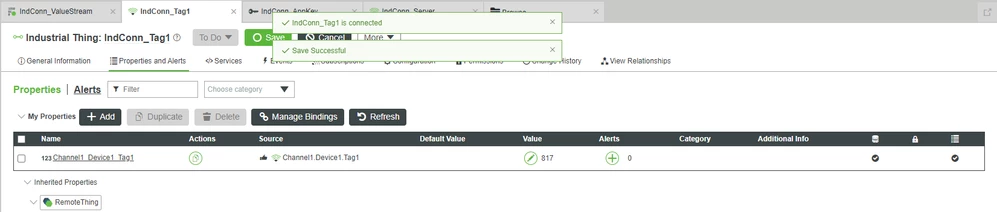
All changes to the Tag1 Property fed from ThingWorx Kepware Server are now stored and TimeStamped to the IndConn_ValueStream.
Step 7: Visualize the Data
We'll now create a Mashup to visualize the record of information from ThingWorx Kepware Server.
- In ThingWorx Foundation, click Browse > Visualization > Mashups.
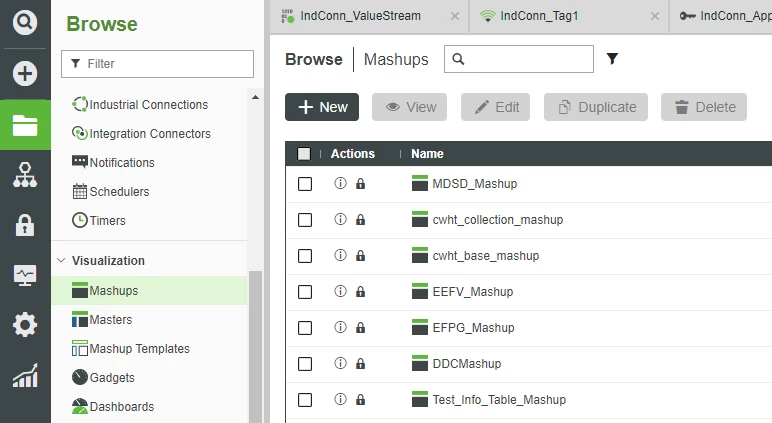
- Click +New.
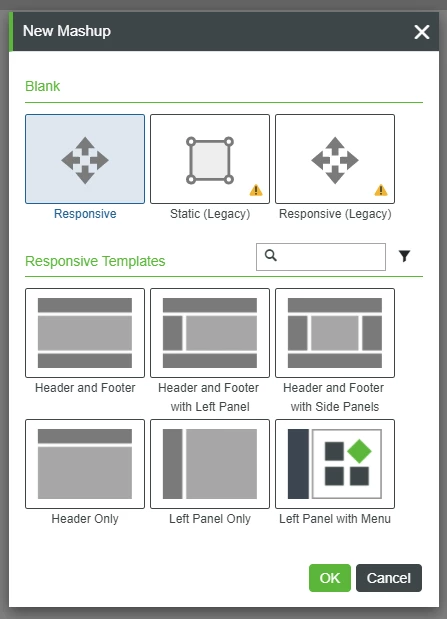
- In the New Mashup pop-up, leave the default selections and click OK.
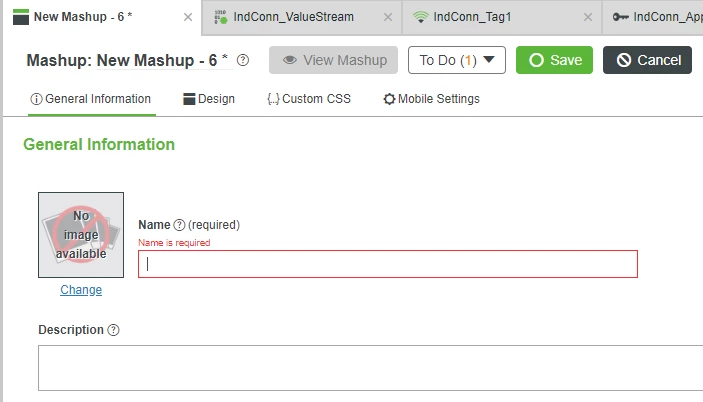
- In the Name field, type IndConn_Mashup.
- If Project is not already set, search for and select PTCDefaultProject.
- At the top, click Save.
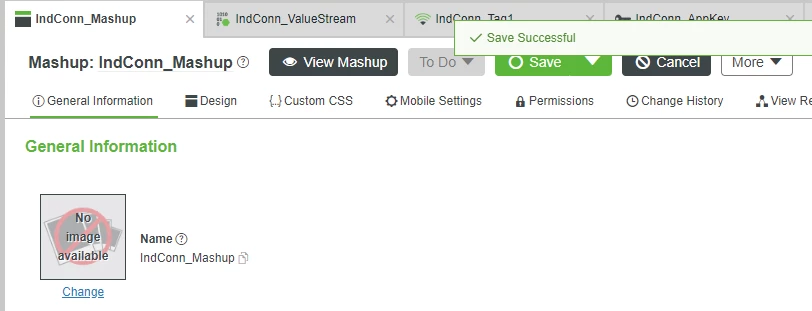
- At the top, click Design.
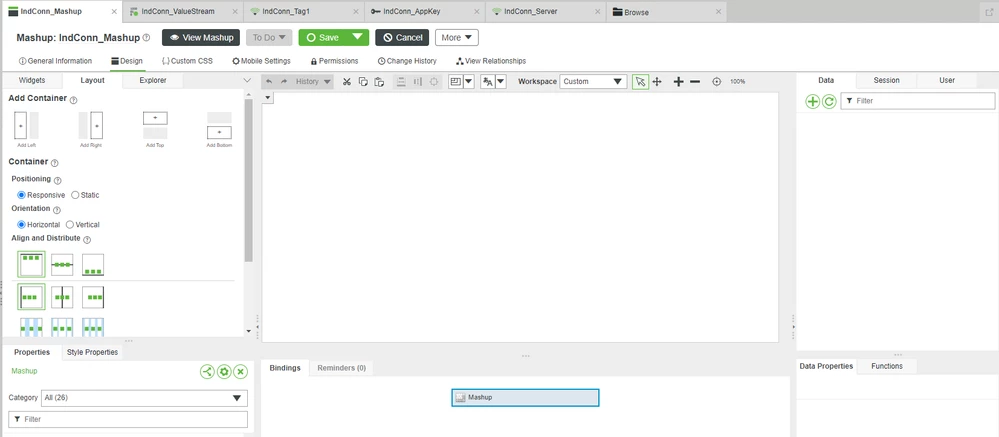
- At the top-left, ensure the Widgets tab is selected.
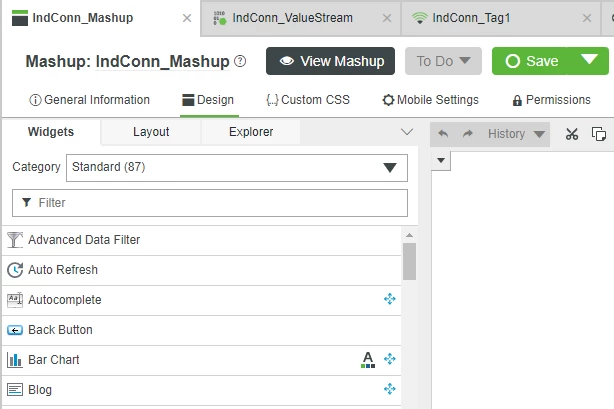
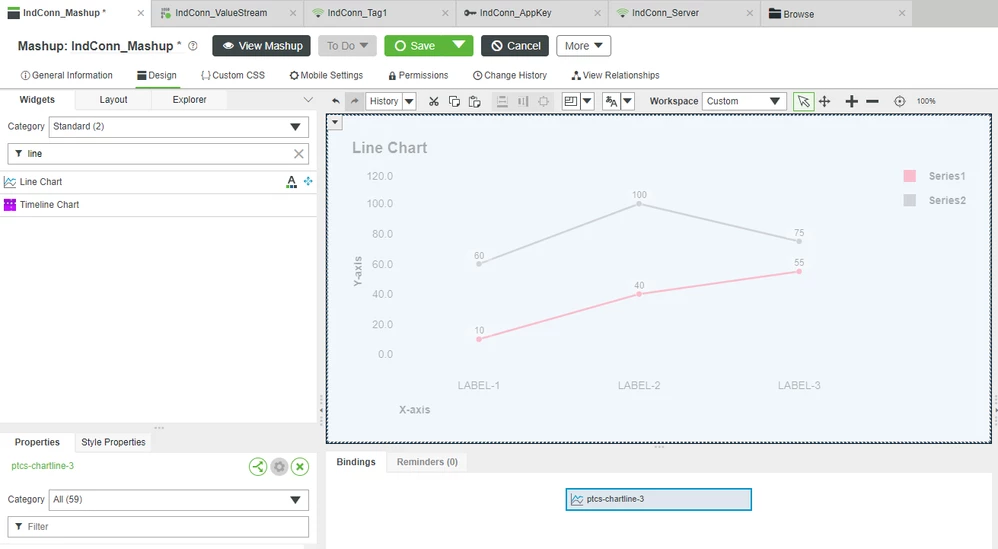
- In the Filter Widgets field at the top-left, type line.
- Drag-and-drop a Line Chart onto the central canvas area.
Add Data
- At the top-right, ensure the Data tab is active.
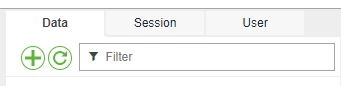
- Click the + button.
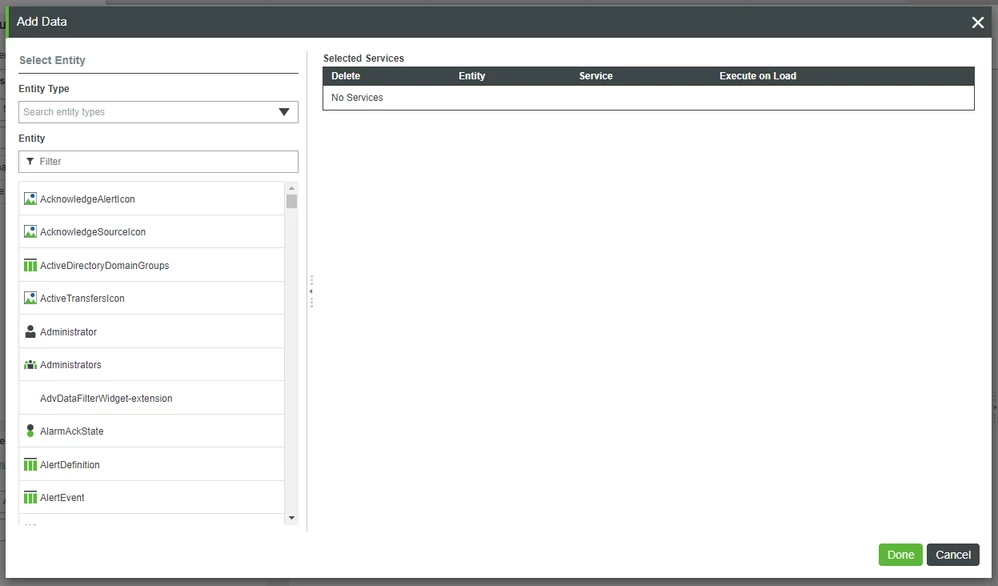
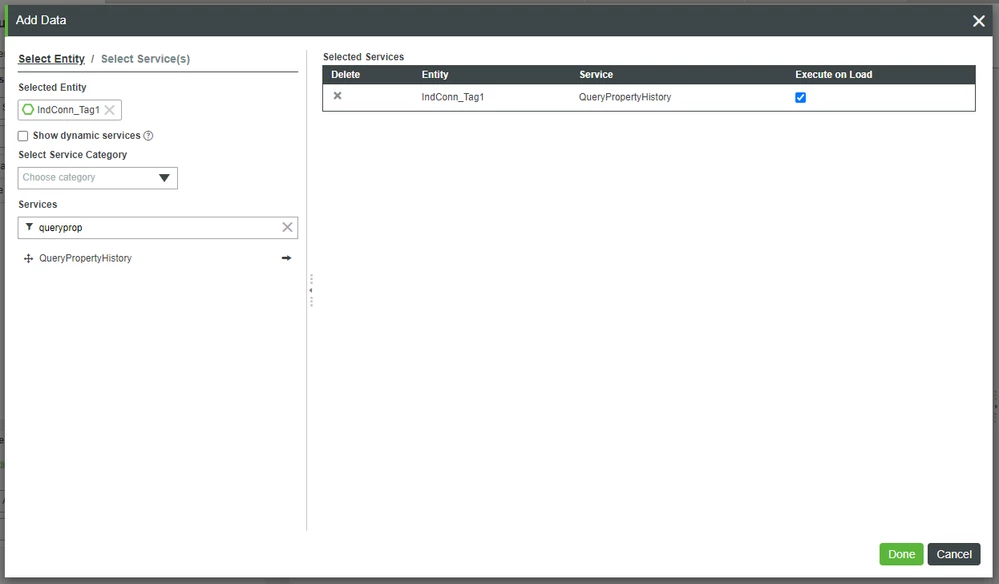
- In the Entity Filter field, search for and select IndConn_Tag1.
- In the Services Filter field, type queryprop.
- Click the right-arrow button beside QueryPropertyHistory.
- The QueryPropertyHistory Service of the IndConn_Tag1 Thing will appear on the right in the Selected Services field.
- Check the box under Execute on Load in the Selected Services field.
- Click Done.
- Note that the QueryPropertyHistory Service now appears on the right side Data tab.
- On the top-right Data tab, expand Things_IndConn_Tag1 > QueryPropertyHistory > Returned Data.
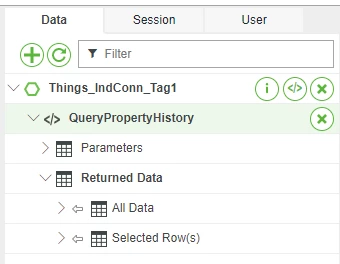
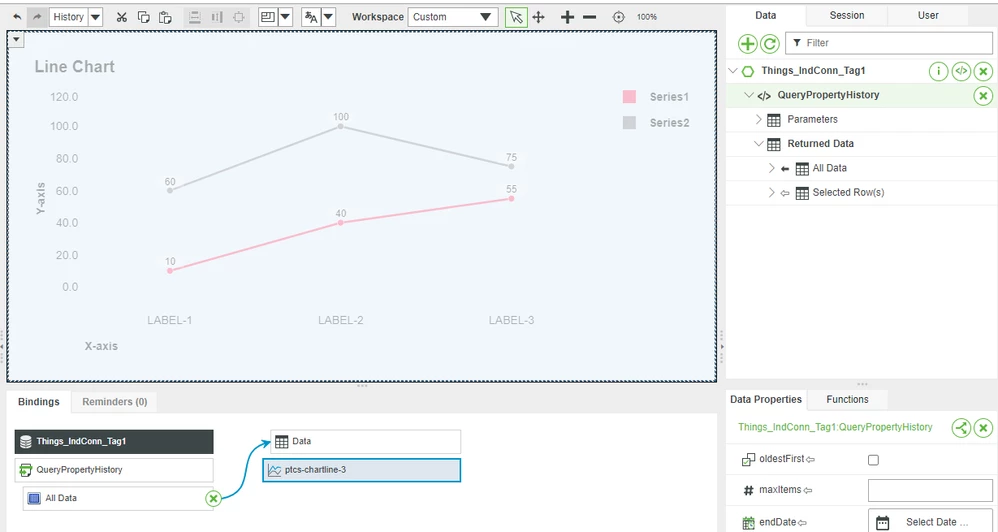
- Drag-and-drop All Data from the QueryPropertyHistory Service from the right onto the Line Chart in the center.
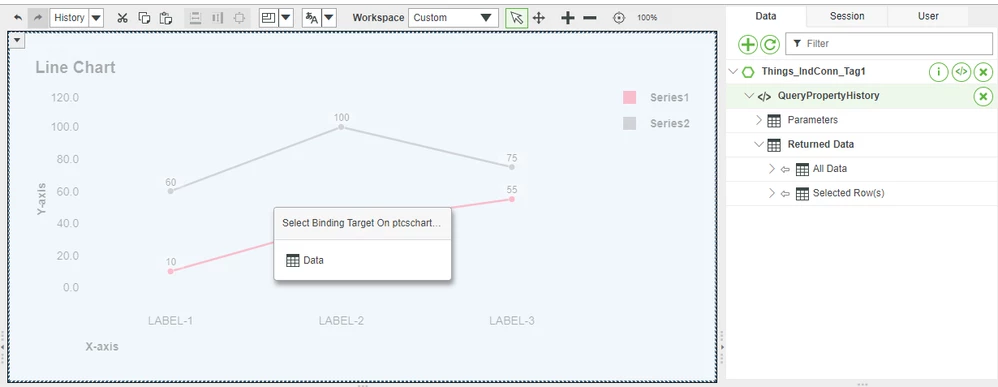
- In the Select Binding Target pop-up, select Data.
Configure Chart Properties
- Click the Line Chart to select it.
- In the bottom-left Properties, type xaxisfield in the filter.
- Expand the drop-down for XAxisField.
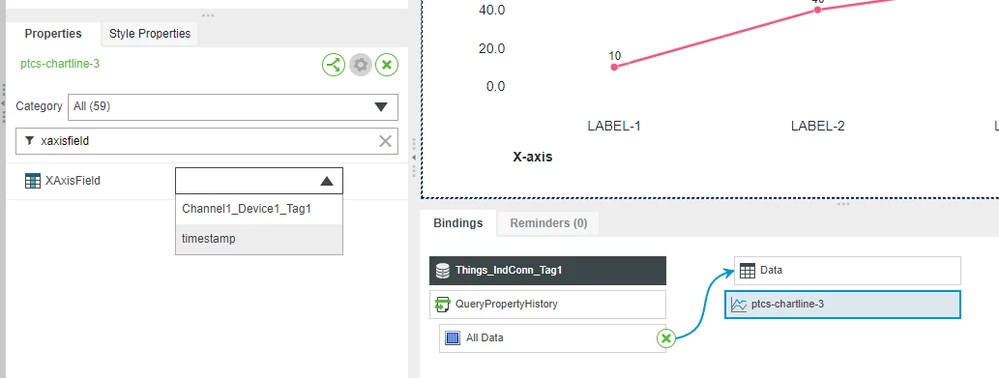
- Select timestamp.
- At the top, click Save.
- Click View Mashup. (You may have to enable pop-ups in your browser.)
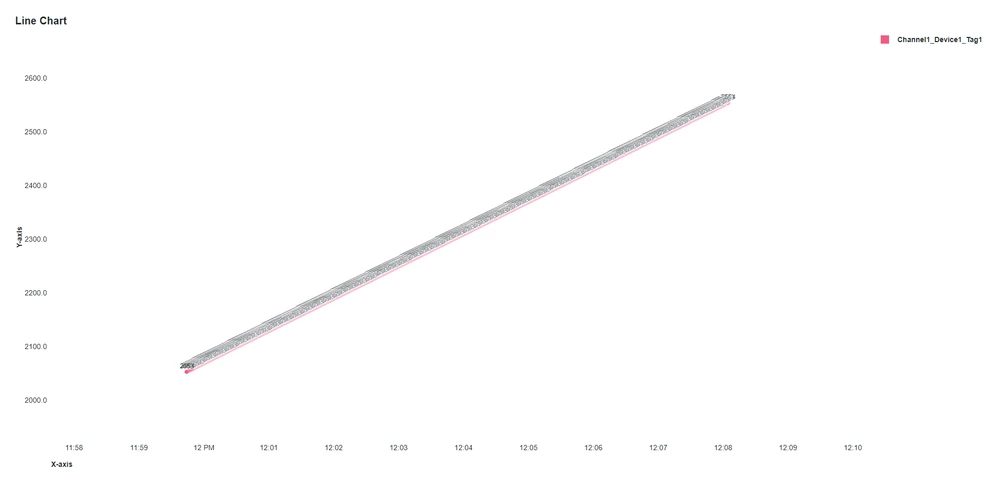
The IndConn_Mashup will show you the recorded history of Property changes that came from ThingWorx Kepware Server.
Because the Tag1 Example is a ramp, you’ll notice a slowly-increasing value in the Line Chart.
Reload the Mashup's browser-tab to see the value increase even further.
NOTE: If the Mashup visualization is blank, confirm your connection to ThingWorx Kepware Server. Return to the Test Connection section of the "Bind Industrial Tag" step.
Step 8: Next Steps
Congratulations! You've successfully completed the Connect Industrial Devices and Systems guide.
You've learned how to:
- Connect ThingWorx Kepware Server to ThingWorx Foundation
- Secure the connection with an Application Key
- Create an IndustrialGateway Thing
- Map ThingWorx Kepware Server Tags to ThingWorx Foundation Thing Properties
- Visualize Data from connected digital assets
Learn More
| Capability | Resource |
| Connect | Connect to an Allen-Bradley PLC |
Additional Resources
For additional information on ThingWorx Kepware Server:
| Resource | Link |
| Documentation | Kepware documentation |
| Support | Kepware Support site |