

17-Peridot
May 12, 2016
Question

Mapkey Writing/Editing Tips

  • May 12, 2016
  • 22 replies
  • 90273 views

I've created several mapkeys lately so I thought I'd share some general tips I learned to write it down for next time. Please share your own tips below to expand the collection.

This was done on Creo 3 M060 but the ideas should hopefully be not specific to that.

Mapkey Writing/Editing Tips

General Tips:

  • Mapkeys often break when upgrading between Creo Versions (Creo 3 vs Creo 1) but they can save you a lot of time in the year or two between versions.
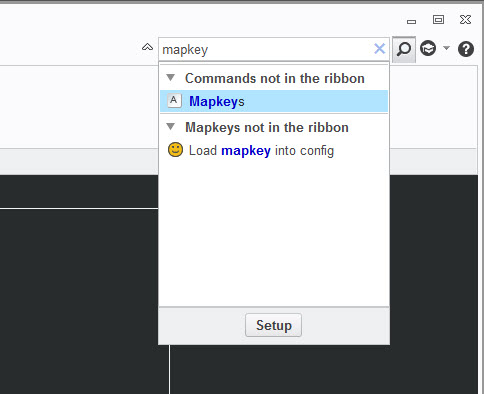
  • Open the mapkey menu by searching for Mapkeys in the upper right. Also, if someone knows how find the Mapkey menu behind when its behind other Creo Windows, please share.
          Launch Mapkey Menu.jpg

  • Record commands from the RMB or the Quick Access Toolbar to eliminate extra Mapkey lines that just moves around Creo for no reason. Most commands can be launched without being on a specific interface tab.
  • Mapkeys skip any commands they cannot execute. This lets users add in some logic to close menus that sometime popup or delete items if that would cause an error (e.g. view4dxf view gets deleted if it exists to always allow view4dxf view to get added without throwing an error).
  • When editing mapkey text, always create a backup or copy of the original code so you can copy and paste back in as needed. I usually keep Notepad open to copy and paste code into before changing mapkeys.
  • As far as I know, mapkeys cannot have comment lines except at the start and cannot have blank lines. Please share if someone has a way to do this.
  • Mapkeys seem to have a minimum and maximum number of characters per line. I usually just visually compare to other mapkey lines to make sure it’ll work. Someone might know the exact limits.
  • Every line except the last line of a mapkey needs to end with a \
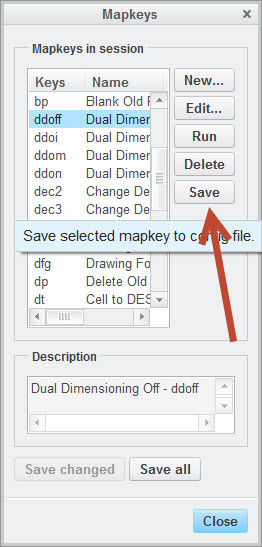
  • I like to record mapkeys and then save just that specific mapkey as a text file to my desktop to copy into my actual config.pro. You can give it a relevant name to find it easier like pdf.pro. This will save only the mapkey you have selected into a text file.
          record mapkey.jpg

Quickly Update Mapkeys in the Current Creo Session

THIS WAS MY BIGGEST DISCOVERY FOR MAPKEYS TESTING! Originally, I would update the config.pro text file and close Creo to update my mapkeys. However, you can just reimport the newly saved config.pro from within Creo so you don’t destroy your test setup. I wrote a mapkey to do that called UPMAP that uses my working directing config.pro. My working directory is in the C:\Users\Public\Documents location. Hopefully this works for you but I make no promises. Make sure to save your work before trying any new mapkeys.

mapkey upmap @MAPKEY_LABELUpdate Config.Pro - upmap;\

mapkey(continued) ~ Command `ProCmdRibbonOptionsDlg`;\

mapkey(continued) ~ Select `ribbon_options_dialog` `PageSwitcherPageList` 1 `ConfigLayout`;\

mapkey(continued) ~ Select `ribbon_options_dialog` `ConfigLayout.ImportExportBtn`;\

mapkey(continued) ~ Close `ribbon_options_dialog` `ConfigLayout.ImportExportBtn`;\

mapkey(continued) ~ Activate `ribbon_options_dialog` `ConfigLayout.Open`;\

mapkey(continued) ~ Trail `UI Desktop` `UI Desktop` `DLG_PREVIEW_POST` `file_open`;\

mapkey(continued) ~ Activate `file_open` `Current Dir`;\

mapkey(continued) ~ Select `file_open` `Ph_list.Filelist` 1 `config.pro`;\

mapkey(continued) ~ Command `ProFileSelPushOpen_Standard@context_dlg_open_cmd`;\

mapkey(continued) ~ Activate `ribbon_options_dialog` `OkPshBtn`;

Execute Multiple Mapkeys in one Mapkey:

I’ve only done this once so bear with me here with some help from James post linked below. This example calls >storetmp then >partnamesave followed by >loadconf mapkeys. Note the ~ is not required.

mapkey(continued) %>storetmpfile;%>partnamesave;%>loadconf;\

mapkey(continued) ~ Activate `ribbon_options_dialog` `CancelPshBtn`;\

How to create a drawing with same name as active model with Mapkeys


Getting Input from Users

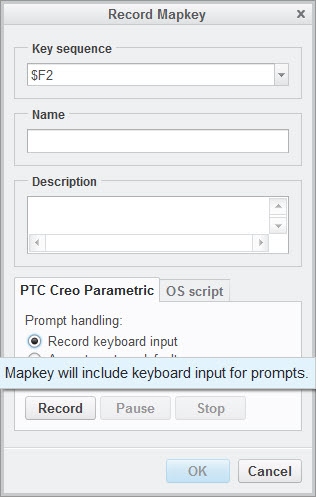
Sometimes you need to get input from users before continuing. You can change how the mapkey records input, but I haven’t played with this too much.
get input.jpg

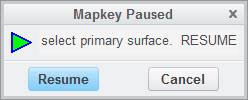
I usually just leave it at the default and add code in as needed. The two commands I know about are @MANUAL_PAUSE and @PAUSE_FOR_SCREEN_PICK. @MANUAL_PAUSE lets you tell users what they’re supposed to do but make sure you tell them to RESUME and not click any Creo menus as needed. Sometimes you need a @MANUAL_PAUSE with @PAUSE_FOR_ SCREEN_PICK.
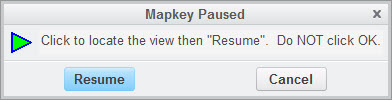
1.jpg2.jpg 

mapkey(continued) ~ Activate `visual_dlg0` `Edit`;@MANUAL_PAUSESelect primary surface. RESUME;\

mapkey(continued) @MANUAL_PAUSESelect the bottom edge or surface. RESUME;@PAUSE_FOR_SCREEN_PICK;\

Removing Duplicate Code from Mapkeys:

When inputting keyboard values, Mapkeys can create many extra lines which can make it tedious to edit later. Remove if possible but test as you go as some items cannot be simplified.

mapkey(continued) ~ Activate `visual_dlg0` `ZoneNmCreate`;\

mapkey(continued) ~ Input `visual_dlg0` `Table_INPUT` `v`;\

mapkey(continued) ~ Input `visual_dlg0` `Table_INPUT` `vi`;\

mapkey(continued) ~ Input `visual_dlg0` `Table_INPUT` `vie`;\

mapkey(continued) ~ Input `visual_dlg0` `Table_INPUT` `view`;\

mapkey(continued) ~ Input `visual_dlg0` `Table_INPUT` `view4`;\

mapkey(continued) ~ Input `visual_dlg0` `Table_INPUT` `view4d`;\

mapkey(continued) ~ Input `visual_dlg0` `Table_INPUT` `view4dx`;\

mapkey(continued) ~ Input `visual_dlg0` `Table_INPUT` `view4dxf`;\

mapkey(continued) ~ Update `visual_dlg0` `Table_INPUT` `view4dxf`;\

mapkey(continued) ~ Activate `visual_dlg0` `Table_INPUT`;\

The RMB menu commands open and closes before executing. Remove these lines and go straight to the command.

mapkey(continued) ~ Timer `UI Desktop` `UI Desktop` `popupMenuRMBTimerCB`;\

mapkey(continued) ~ Close `rmb_popup` `PopupMenu`;\

mapkey(continued) ~ Command `ProCmdDwgPageSetup@PopupMenuGraphicWinStack`;\

In general, the ARM and DISARM commands when paired next to each other do nothing:

mapkey(continued) ~ Arm `relation_dlg` `ParamsPHLay.ParTable` 2 `rowCUBE` `name`;\

mapkey(continued) ~ Disarm `relation_dlg` `ParamsPHLay.ParTable` 2 `rowCUBE` `name`;\

mapkey(continued) ~ Select `relation_dlg` `ParamsPHLay.ParTable` 2 `rowCUBE` `name`;\

In general, the OPEN and CLOSE commands when paired next to each other do nothing:

mapkey(continued) ~ Open `main_dlg_cur` `LayerActionMenu`;\

mapkey(continued) ~ Close `main_dlg_cur` `LayerActionMenu`;\

mapkey(continued) ~ Command `ProCmdLayer_SelectLayers`;\

When selecting items sometimes additional lines get added. Here’s an example where I select a parameter and designate it to Windchill:

mapkey(continued) ~ Select `relation_dlg` `ParamsPHLay.ParTable` 2 `rowDESCP` `value`;\

mapkey(continued) ~ RButtonArm `relation_dlg` `ParamsPHLay.ParTable` 2 `rowDESCP` `value`;\

mapkey(continued) ~ PopupOver `relation_dlg` `ParamsPHLay.ParamUtils` 1 `ParamsPHLay.ParTable`;\

mapkey(continued) ~ Activate `relation_dlg` `ParamsPHLay.PBUtilDesignate`;\

OS Script or executing system CMD lines

I have limited experience with using this. The final mapkey code can become hard to read as it needs \n between CMD line commands – try to space it out to multiple make it legible. James has a good example here:

How to create a drawing with same name as active model with Mapkeys

I haven’t found the ability to toggle @SYSTEM with regular mapkey commands (I’m sure it’s possible). For now, I just call it at the end of the mapkey or create a separate mapkey just to do @system commands like in James’ example.

Creating mapkeys from Trail Files

You can also copy Creo mapkey code from trail files but keep in mind there will be a lot of trail file code you don’t want in a mapkey. I would only do this once you know how to read and write mapkeys. I strongly recommend sticking with the normal mapkey method I described above in the General Tips for most cases. Here’s an example:

Re: Can a mapkey delete itself?

If you have some additional tips, please share below.

22 replies

1-Visitor
September 1, 2017

When my mapkey window dissapears behind the other Creo windows, I simply minimizes and maximizes creo in Windows, by clicking on the windows toolbar twice 🙂

regards Torkil 

1-Visitor
September 6, 2017

Here's a way of writing a helpful text message to the end-user by displaying

multiple lines of text in the PAUSE dialog box, by using the newline code \n :


mapkey xx @MAPKEY_NAMEDemo of multi-line pause;\
mapkey(continued) @MAPKEY_LABELDemo;\
@MANUAL_PAUSEInstructions for end-user:\n\n\
Use the newline character " \\n "\n\
to add lines to your text displayed in\n\
the PAUSE dialog box\n\n\
Like you see in this example.;

Results in:

multi-line-pause-dialog.png

17-Peridot
April 1, 2019

Looks like the original mapkey discussion around creating/opening a drawing with the same name disappeared at some point. Here are mapkeys for Creo 4 M040 to open drawing with same name (ODRW) and create new drawing with same name (NDRW). ODRW should work with Windchill. You will need to include the mapkeys between the !============ for ODRW and NDRW to work. As usual with mapkeys, you will have to test/validate with your specific build of Creo.


mapkey odrw @MAPKEY_NAMEOpen drawing with same name as active model or selected assembly part;\
mapkey(continued) @MAPKEY_LABELOpen Drawing w/ Same Name (odrw);\
mapkey(continued) ~ Command `ProCmdOpenModel@PopupMenuGraphicWinStack`;\
mapkey(continued) ~ Activate `open_instance` `open`;\
mapkey(continued) %>storetmpfile;%>partnameopen;%>loadconf;\
mapkey(continued) ~ Command `ProCmdModelOpen`;\
mapkey(continued) ~ Activate `file_open` `workspace_pb`;\
mapkey(continued) %partnameopen;\
mapkey(continued) ~ Activate `file_open` `Inputname`;

mapkey ndrw @MAPKEY_LABELNew Drawing w/ Same Name (ndrw);\
mapkey(continued) %>storetmpfile;%>partnamenew;%>loadconf;\
mapkey(continued) ~ Command `ProCmdModelNew`;\
mapkey(continued) ~ Select `new` `Type` 1 `Drawing`;\
mapkey(continued) ~ Activate `new` `chk_use_default_template`0 ;\
mapkey(continued) %partnamenew;\
mapkey(continued) @MANUAL_PAUSEName drawing and Resume.;\
mapkey(continued) ~ Activate `new` `OK`;\
mapkey(continued) ~ Select `dwg_create` `rad_format` 1 `1`;

!======================
mapkey >storetmpfile @MAPKEY_LABELStore model name to temp file;\
mapkey(continued) ~ Command `ProCmdModelSaveAs` ;\
mapkey(continued) #CURRENT VALS;\
mapkey(continued) ~ Activate `storage_conflicts` `Close_PushButton`;\
mapkey(continued) ~ Select `file_saveas` `type_option` 1 `db_129`;\
mapkey(continued) ~ Activate `file_saveas` `check_is_secondary` 0;\
mapkey(continued) ~ Activate `file_saveas` `Current Dir`;\
mapkey(continued) ~ Activate `file_saveas` `OK`;\
mapkey(continued) ~ Activate `UI Message Dialog` `ok`;

mapkey >partnameopen @MAPKEY_LABELGets partname to open drawing;\
mapkey(continued) @SYSTEMdel sw.pro\n\
mapkey(continued) dir /b *.pic>\%temp\%\\filename.txt\n\
mapkey(continued) set /p VAR1=<\%temp\%\\filename.txt\n\
mapkey(continued) del \%temp\%\\filename.txt\n\
mapkey(continued) set FILENAME=\%VAR1:\~0,-4\%\n\
mapkey(continued) echo mapkey partnameopen \~ Update `file_open` \
mapkey(continued) `Inputname` `\%FILENAME\%.drw`\;>>sw.pro\n\
mapkey(continued) del *.pic;
mapkey >partnamenew @MAPKEY_LABELGets partname for new part;\
mapkey(continued) @SYSTEMdel sw.pro\n\
mapkey(continued) dir /b *.pic>\%temp\%\\filename.txt\n\
mapkey(continued) set /p VAR1=<\%temp\%\\filename.txt\n\
mapkey(continued) del \%temp\%\\filename.txt\n\
mapkey(continued) set FILENAME=\%VAR1:\~0,-4\%\n\
mapkey(continued) echo mapkey partnamenew \~ Input `new` \
mapkey(continued) `InputPanel1` `\%FILENAME\%`\;>>sw.pro\n\
mapkey(continued) del *.pic;

mapkey >loadconf @MAPKEY_LABELLoad mapkey into session;\
mapkey(continued) ~ Command `ProCmdRibbonOptionsDlg`;\
mapkey(continued) ~ Select `ribbon_options_dialog` `PageSwitcherPageList` 1 `ConfigLayout`;\
mapkey(continued) ~ Activate `ribbon_options_dialog` `ConfigLayout.Open`;\
mapkey(continued) ~ Activate `file_open` `Current Dir`;\
mapkey(continued) ~ Update `file_open` `Inputname` `sw.pro`;\
mapkey(continued) ~ Command `ProFileSelPushOpen@context_dlg_open_cmd`;\
mapkey(continued) ~ Activate `ribbon_options_dialog` `OkPshBtn`;\
mapkey(continued) ~ Activate `UITools Msg Dialog Future` `no`;\
mapkey(continued) @SYSTEMDel sw.pro;
!======================

10-Marble
August 29, 2019

Thank you very much for this solution! It's works also with Creo3.

18-Opal
October 28, 2019


  1. Use Notepad++ for extra capability
  2. Add a custom language to Notepad++ with Mapkey syntax for color coding...HUGE HELP!https://community.ptc.com/t5/System-Administration/Notepad-User-Defined-Language-files-for-Creo-Parametric-and-Pro/m-p/451745 
1-Visitor
April 23, 2020
There are sentence in the mapkeys like ”@SYSTEMdel sw.pro\n\ dir /b *.pic>\%temp\%\\filename.txt\n\ set /p VAR1=<\%temp\%\\filename.txt\n\ del \%temp\%\\filename.txt\n\ ”, the commands “set” “del” “dir” and all the sentences,are they Batch commands which usually used in “*.bat” files?
17-Peridot
April 23, 2020

In a mapkey you can call batch commands - which is awesome! They get a little difficult to read/write in Notepad because you have to use a \ to 'break' before any odd characters so I like to create the batch/mapkey text via the Mapkey OS script tab. Then I can save to be able to copy/paste the mapkey appropriate text as needed - even in the middle of a mapkey.


Create Batch Commands in a Mapkey.jpg


The batch command above results in this code below with the \ added to break/escape as needed. \n or \n\ between lines.


mapkey >partnamedxf @MAPKEY_LABELGets partname for new DXF;\
mapkey(continued) @SYSTEMdel sw.pro\n\
mapkey(continued) dir /b *.pic>\%temp\%\\filename.txt\n\
mapkey(continued) set /p VAR1=<\%temp\%\\filename.txt\n\
mapkey(continued) del \%temp\%\\filename.txt\n\
mapkey(continued) set FILENAME=\%VAR1:\~0,-4\%\n\
mapkey(continued) echo mapkey partnamedxf1 \~ Input `new` \
mapkey(continued) `InputPanel1` `\%FILENAME\%_dxf`\;>>sw.pro\n\
mapkey(continued) echo mapkey partnamedxf2 \~ Input `new` \
mapkey(continued) `InputPanel1` `\%FILENAME\%__dxf`\;>>sw.pro\n\
mapkey(continued) del *.pic;


You can have a batch command in the middle of a mapkey:


mapkey(continued) ~ Activate `UITools Msg Dialog Future` `no`;\
mapkey(continued) @SYSTEMif not exist C:\\Users\\Public\\Documents\\Creo_BOM_Export \
mapkey(continued) md C:\\Users\\Public\\Documents\\Creo_BOM_Export\n\
mapkey(continued) cd C:\\Users\\Public\\Documents\\Creo_BOM_Export\n\
mapkey(continued) del *.bom*\n\
mapkey(continued) del *.csv*\n\
mapkey(continued) cd C:\\Users\\Public\\Documents\n\
mapkey(continued) del *.bom*;\
mapkey(continued) ~ Command `ProCmdInfoBom`;\

18-Opal
May 8, 2020

After many hours of troubleshooting a few overlapping issues, I just discovered that the commenting feature exclamation mark "!" does NOT work 100%!  I.e. Mapkeys that are commented out can break subsequent mapkeys!


If you comment out a mapkey and that comment doesn't have a blank line after it, it can break the mapkey it touches!  So now we need to leave empty spaces between mapkeys and their comments in case something in the comment may break what follows!  In addition this means we should probably always leave a blank space between mapkeys as well.


How annoying.  Examples below:


  • Creo Doesn't recognize this:
    !mapkey breakme @MAPKEY_NAMEName;@MAPKEY_LABELLabel;\
    mapkey 5test @MAPKEY_NAMEName;@MAPKEY_LABELLabel;\
    mapkey(continued) %openops;


  • but it DOES recognize this one (because space between comment line and actual mapkey):
    "
    !mapkey breakme @MAPKEY_NAMEName;@MAPKEY_LABELLabel;\

    mapkey 5test @MAPKEY_NAMEName;@MAPKEY_LABELLabel;\
    mapkey(continued) %openops;
    "
  • and Creo also recognizes (note the slash messing from the end of the "commented" out mapkey)

    "

    !mapkey breakme @MAPKEY_NAMEName;@MAPKEY_LABELLabel;
    mapkey 5test @MAPKEY_NAMEName;@MAPKEY_LABELLabel;\
    mapkey(continued) %openops;

    "


Although I finally figured it out, I am simultaneously very frustrated and annoyed.

10-Marble
May 11, 2020

The solution works also with Creo 6 !!!

18-Opal
May 11, 2020

@ggalli, Thanks for letting us know...Has this ever caused you problems with your config/Mapkeys, or were you only testing for Creo6?

12-Amethyst
September 13, 2021

@lhoogeveen wrote:

Removing Duplicate Code from Mapkeys:


When inputting keyboard values, Mapkeys can create many extra lines which can make it tedious to edit later. Remove if possible but test as you go as some items cannot be simplified.


mapkey(continued) ~ Activate `visual_dlg0` `ZoneNmCreate`;\

mapkey(continued) ~ Input `visual_dlg0` `Table_INPUT` `v`;\

mapkey(continued) ~ Input `visual_dlg0` `Table_INPUT` `vi`;\

mapkey(continued) ~ Input `visual_dlg0` `Table_INPUT` `vie`;\

mapkey(continued) ~ Input `visual_dlg0` `Table_INPUT` `view`;\

mapkey(continued) ~ Input `visual_dlg0` `Table_INPUT` `view4`;\

mapkey(continued) ~ Input `visual_dlg0` `Table_INPUT` `view4d`;\

mapkey(continued) ~ Input `visual_dlg0` `Table_INPUT` `view4dx`;\

mapkey(continued) ~ Input `visual_dlg0` `Table_INPUT` `view4dxf`;\

mapkey(continued) ~ Update `visual_dlg0` `Table_INPUT` `view4dxf`;\

mapkey(continued) ~ Activate `visual_dlg0` `Table_INPUT`;\


Thank you for such a comprehensive tutorial!  I'm trying to shave down the keyboard input section of my mapkeys as you mention above.  I'm hoping this isn't one of the "some items cannot be simplified" things you mention.  I'm trying to edit the name of a parameter:

mapkey(continued) ~ Select `relation_dlg` `ParamsPHLay.ParTable` 2 `rowPARAMETER_1` \
mapkey(continued) `name`;\~ Key `relation_dlg` `ParamsPHLay.ParTable` 5046349 `M`;\
mapkey(continued) ~ Update `relation_dlg` `ParamsPHLay.ParTable_INPUT` `M`;\
mapkey(continued) ~ Key `relation_dlg` `ParamsPHLay.ParTable` 4587590 `F`;\
mapkey(continued) ~ Update `relation_dlg` `ParamsPHLay.ParTable_INPUT` `MF`;\
mapkey(continued) ~ Key `relation_dlg` `ParamsPHLay.ParTable` 19726431 `Shift+-`;\
mapkey(continued) ~ Update `relation_dlg` `ParamsPHLay.ParTable_INPUT` `MF_`;\
mapkey(continued) ~ Key `relation_dlg` `ParamsPHLay.ParTable` 5046349 `M`;\
mapkey(continued) ~ Update `relation_dlg` `ParamsPHLay.ParTable_INPUT` `MF_M`;\
mapkey(continued) ~ Key `relation_dlg` `ParamsPHLay.ParTable` 4259905 `A`;\
mapkey(continued) ~ Update `relation_dlg` `ParamsPHLay.ParTable_INPUT` `MF_MA`;\
mapkey(continued) ~ Key `relation_dlg` `ParamsPHLay.ParTable` 5505108 `T`;\
mapkey(continued) ~ Update `relation_dlg` `ParamsPHLay.ParTable_INPUT` `MF_MAT`;\
mapkey(continued) ~ Key `relation_dlg` `ParamsPHLay.ParTable` 4522053 `E`;\
mapkey(continued) ~ Update `relation_dlg` `ParamsPHLay.ParTable_INPUT` `MF_MATE`;\
mapkey(continued) ~ Key `relation_dlg` `ParamsPHLay.ParTable` 5374034 `R`;\
mapkey(continued) ~ Update `relation_dlg` `ParamsPHLay.ParTable_INPUT` `MF_MATER`;\
mapkey(continued) ~ Key `relation_dlg` `ParamsPHLay.ParTable` 4784201 `I`;\
mapkey(continued) ~ Update `relation_dlg` `ParamsPHLay.ParTable_INPUT` `MF_MATERI`;\
mapkey(continued) ~ Key `relation_dlg` `ParamsPHLay.ParTable` 4259905 `A`;\
mapkey(continued) ~ Update `relation_dlg` `ParamsPHLay.ParTable_INPUT` `MF_MATERIA`;\
mapkey(continued) ~ Key `relation_dlg` `ParamsPHLay.ParTable` 4980812 `L`;\
mapkey(continued) ~ Update `relation_dlg` `ParamsPHLay.ParTable_INPUT` `MF_MATERIAL`;\
mapkey(continued) ~ Key `relation_dlg` `ParamsPHLay.ParTable` 851978 `Enter`;\


I've played around a bit but can't seem to get it to work. I'm not 100% on the syntax for a name change - do I use some form of Set, or do I need to call out the name some how?  Is there a list somewhere of functions/commands to be used within the mapkeys? Any help is greatly appreciated!

12-Amethyst
September 13, 2021

Figured it out:

mapkey(continued) ~ Select `relation_dlg` `ParamsPHLay.ParTable` 2 `rowPARAMETER_1` \
mapkey(continued) `name`;~ Input `relation_dlg` `ParamsPHLay.ParTable_INPUT` `MF_MATERIAL`;\
mapkey(continued) ~ Key `relation_dlg` `ParamsPHLay.ParTable` 851978 `Enter`;\


I was mistyping " ` " as " ' "... dope!

18-Opal
September 13, 2021

LOL!  Easy mistake! I did that early on in my mapkey days too! 🙂  If you use the config.pro formatting file in Notepad++ that is mentioned on this community it will help avoid visual mistakes because it won't be color-coded correctly!

https://community.ptc.com/t5/System-Administration/Notepad-User-Defined-Language-files-for-Creo-Parametric-and-Pro/m-p/451745 

12-Amethyst
September 15, 2021

Does anybody know if it's possible to use the PageUp and PageDown keys as a Mapkey-trigger?
For the function-keys F1 to F12 you have to use $F1 to $F12. But what to do to use the PageUp and PageDown keys?


Thanks!

14-Alexandrite
September 15, 2021

Short answer no.


Long answer is yes. With third part software tricks. AutoHotkey software can be used to redirect the pageup/down keystroke to send a different key combo that would trigger a mapkey. Other software and methods exists as well. I worked on a solution to run a second(or more) keyboards to trigger mapkeys so I could label the keys and not have to recall key combos as I develop out my mapkey set. https://github.com/Ballganda/mkbx to understand that one you may need to watch LTT youtube videos hosted by Taran on multi keyboard setups. Taran's end all best solution cost money for some special hardware. Mine is free if you have second keyboard to plug in. Link to playlist of Taran's/LTT main videos - https://www.youtube.com/watch?v=Arn8ExQ2Gjg&list=PLxX9ScV8X5gAzOFQmxUR37SmdSnkJ4Iw3 


I have found these keys have default shortcuts "a d l p q r s x"

This link has details on usable keys in CREO
https://en.wikibooks.org/wiki/Pro_Engineer/Mapkeys
Below is from the link
"

Mapkeys are not necessarily single keys, as the name suggests, but in fact are generally commands of multiple characters, and can can be up to 77-character-long strings consisting of all the visible typed characters.

ABCDEFGHIJKLMNOPQRSTUVWXYZ
abcdefghijklmnopqrstuvwxyz
1234567890`-=~!@#$%^&*()_+[]\{}|;':",./<>? 

Spaces, tabs, and newlines cannot be used. There is no distinction made for numpad keys, and the keys cannot be extended by Ctrl, Alt, Shift, or other meta combinations. This makes the above alphabetic characters case-insensitive.

Alternatively, Mapkeys may be invoked by the function keys F1-F12. In this case, they must be single keypresses; the function keys cannot be combined with other letters, numbers, or symbols. These are specified by leading the desired function key with a dollar sign, e.g. $F5

Mapkeys commands are always typed on the keyboard and are executed immediately upon pressing the final character of the command. Visual feedback of entered keys (other than the function keys) is shown in the lower left status bar until the command is complete. Mapkeys are not executed until their entire command strings are typed completely, and as of Pro/Engineer Wildfire 2, there is no automatic completion mechanism available. If a Mapkeys command is typed incorrectly, such that a nonexistent command has been entered, Pro/Engineer does not offer any warning. In this case it is up to the user to notice that the typed characters remain in the status bar. If excess characters remain in the Mapkeys status bar after typing a command incorrectly, they must be manually cleared by pressing Enter or by taking focus away from the Pro/Engineer window before Mapkeys may be used again. For these reasons, Mapkeys commands are best kept as short as possible. Users should be cautious about pressing spacebar while using Pro/Engineer because, although spaces are not allowed to be part of a Mapkeys command, this is only enforced in the creation dialog. Spaces are allowed to be typed during regular program use. If a space leads the front of a command, it will keep it from working. The user may waste time not noticing the invisible space causing the failure.

There is a bug in Pro/Engineer that if the 77 characters have been filled, Enter does not clear them. Press Backspace to erase one character first."

14-Alexandrite
October 14, 2021

Still getting the basics down it seems. I was playing with different ways to comment my mapkey code so they can be understood in the future which is a huge problem if you get a big mapkey dumped on you(or one you made long ago). I found the following syntax style change interesting. It is working on my CREO 7.0.3 build.


I removed all the "mapkey(continued) " from the beginning of lines. I was semi manually hacking this together and pasting "mapkey(continued) " at the beginning of each line was annoying. Turns out not required.


I then experimented around adding inline comments(which are not a comment (!mapkey) that shows on the config manager).

I settled on


! the inline comment here ;\


"!" at the start of a line makes it ignored and ";\" at the end tell the mapkey reader to continue to next line

Also wanted to add some whitespace. Cannot have a blank line but can tell the mapkey reader to go to next line with ";\"


mapkey es @MAPKEY_LABEL[es]EDIT SKETCH;\
! Edits sketch for selected Sketch,Extrude,Revolve,Sweep,HelicalSweep,;\
! VolumeHelicalSweep,SweptBlend,Blend,RotationalBlend,Wrap,;\
! Trajectory Rib, Profile Rib;\
;\
! Edit Definition default shortcut ctrl+e;\
~ Command `ProCmdRedefine`;\
;\
! Extrude- opens placement tab;\
~ Activate `main_dlg_cur` `chkbn.extrev_1_placement.0` 1;\
;\
! Extrude- selects edit sketch in placement tab;\
~ Activate `extrev_1_placement.1.0` `PH.Sketch`;\
;\
! Revolve- opens placement tab;\
~ Activate `main_dlg_cur` `chkbn.revolve_1_placement.0` 1;\
;\
! Revolve- selects edit sketch in placement tab;\
~ Activate `revolve_1_placement.1.0` `PH.Sketch`;\
;\
! Sweep- selects edit sketch on the ribbon;\
~ Activate `main_dlg_cur` `maindashInst0.Sketch`;\
;\
! Helical Sweep- selects edit sketch on the ribbon;\
~ Activate `main_dlg_cur` `maindashInst0.int_sketch`;\
;\
! Volume H Sweep- opens section tab;\ 
~ Activate `main_dlg_cur` `chkbn.swp3d_section.0` 1;\
;\
! Volume H Sweep- opens sketch;\
~ Activate `swp3d_section.1.0` `PH.DepSketch`;\
;\
! Trajectory Rib- opens placement tab;\
~ Activate `main_dlg_cur` `chkbn.plrib_settings.0` 1;\
;\
! Trajectory Rib- selects edit sketch in placement tab;\
~ Activate `plrib_settings.1.0` `PH.sketchrepresentator_btn`;\
;\
! Profile Rib- opens references tab;\
~ Activate `main_dlg_cur` `chkbn.rib_refs.0` 1;\
;\
! Profile Rib- selects edit sketch;\
~ Activate `rib_refs.1.0` `PH.Sketch`;\
;\
! Orient to sketching plane;\
~ Command `ProCmdViewSketchView`;\
;\
! Sweep Blend- open the sketch select and edit menu;\
~ Activate `main_dlg_cur` `chkbn.swpbln_sections_panel.0` 1;\
;\
! Blend and Rot. Blend- open the sketch select and edit menu;\
~ Activate `main_dlg_cur` `chkbn.blend_sectionspage.0` 1;\
;\
! Zoom Refit;\
~ Command `ProCmdViewRefit`;
!
!


The mapkey used as the example here may be confusing to some. It was to me before watching a video about it. I'll try to explain. Here I want to open the sketch of the selected feature even though the selects/pick/clicks are different to get to the sketch on some of these features. The trick > CREO can ignore/error past the commands that are not currently relevant to where you are in the program. So in this "ES" mapkey CREO first tries to do extrude commands but if you had a revolve selected it cannot do those commands and ignores/errors past them and tries the next commands which are revolve commands. Those run. Then CREO errors past the sweep specific commands until it gets to something it can do. Which in this case is the orient to sketching plane and then zoom to selection. I how to make this mapkey from https://www.youtube.com/watch?v=vqUO7v8Nv9I


18-Opal
October 18, 2021

That is a good tip on how to do the comments and also enjoyed the video link to the eac video on how to combine mapkeys.  We often use this technique in the middle of mapkeys in a similar way.

3-Newcomer
February 8, 2024

I am trying to create a mapkey that allows me to assemble components.
The text of the mapkey is as follows:
mapkey qq1 ~ Command ProCmdCompAssem ;
mapkey(continued) ~ Trail UI Desktop UI Desktop DLG_PREVIEW_POST file_open;
mapkey(continued) ~ Update file_open Inputname a0205.ASM;
mapkey(continued) ~ Command ProFileSelPushOpen_Standard@context_dlg_open_cmd ;
mapkey(continued) ~ Activate file_open Inputname;@PAUSE_FOR_SCREEN_PICK;
mapkey(continued) ~ Select main_dlg_cur maindashInst0.constr_offset_type_2 1 Default;
mapkey(continued) ~ Activate main_dlg_cur dashInst0.stdbtn_1;
mapkey(continued) ~ Command ProCmdCompAssem ;
mapkey(continued) ~ Trail UI Desktop UI Desktop DLG_PREVIEW_POST file_open;
mapkey(continued) ~ Update file_open Inputname x172167.asm;
mapkey(continued) ~ Command ProFileSelPushOpen_Standard@context_dlg_open_cmd ;
mapkey(continued) ~ Activate storage_conflicts OK_PushButton;@PAUSE_FOR_SCREEN_PICK;
mapkey(continued) ~ Select main_dlg_cur maindashInst0.constr_offset_type_2 1 Default;
mapkey(continued) ~ Activate main_dlg_cur dashInst0.stdbtn_1;

I would like to remove the commands @PAUSE_FOR_SCREEN_PICK; and replace them by simulating a screen click. Is it possible?

21-Topaz I
February 12, 2024

Not with mapkeys no. You can't click with a mapkey. You can only call Creo commands.


However, you can have a mapkey load a trail file and a trail file can click for you. Lots of caveats here most important of which is that trail file modification is notoriously prone to causing Creo to crash and for that reason most people don't attempt it. If you went to the 2024 PTC/User conference here is an example in my slide deck on using a mapkey in conjunction with a trail file.


Other people have also used AutoHotKey which you could call from a mapkey as well I believe although I don't use that approach.

17-Peridot
March 14, 2025

Here's a link to a post where @Chris3 shared his slide deck from the 2025 PTC/User Presentation. Lots of good tips and tricks in there!

https://community.ptc.com/t5/System-Administration/Mapkey-with-scripts-in-the-middle/m-p/1004489#M31758