
12-Amethyst
January 3, 2025
Solved

2D Drawing Axis crosshair orientation.

  • January 3, 2025
  • 1 reply
  • 3501 views

I have a circular part  with a rectangular keyway in the front plane.

I have created an axis in the part normal to the front plane and referencing the right and top planes with 0.0 offsets. This is prior to creating any geometry.
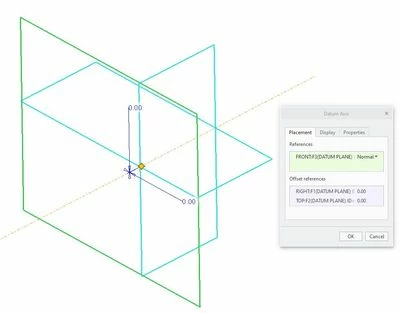
Axis.JPG

In the drawing of the part the axis crosshair is shown in the vertical plane and horizontal plane parallel to the keyway when the view is shown as front.
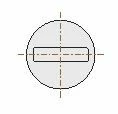
axis_part.JPG

If I rotate the front view by axis angle 45°, the axis crosshair are no longer shown as referencing the right and top of the part and parallel / perpendicular to the slot.
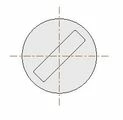
axis2_part.JPG

Is there a way to have the axis cross hair fixed to the datums in the part, so that when the part is installed in an assembly , the angular dimensions can be called out  depending on the position of the keyway. And if the part is rotated in the drawing the axis stay aligned to the keyway.


Any help on this would be greatly appreciated.

Best answer by Paul6

Hi All,

Thanks for your suggestions on how to show a cross hair in a drawing of the axis in a model.

I understand now that what I was hoping to display in a drawing or model, is not the default for creo. 

It appears that I would require additional feature / axis etc in the model, to achieve the desired ability to measure the clocking angle. 


1 reply

kdirth
21-Topaz I
21-Topaz I
January 3, 2025

Select axis, RMB, Edit Attachment


Menu will pop up to select desired attachment.

There is always more to learn.
Paul612-AmethystAuthor
12-Amethyst
January 6, 2025

The axis attachment is already aligned to the top and right datum planes in the part..

What are you suggesting should be selected as references? 

This is the view I am wanting when the part is rotated.

axis3_part.JPG

In the drawing I can manually rotate the axis, but that requires knowing the angle the part is rotated.

As the drawing will have multiple views of the parts movement, with variable angles this would not be a suitable solution.

21-Topaz II
January 6, 2025

What he meant is you can select the offending axis, then hold down the right mouse button, and the option to "edit attachment" will come up. Select that, then pick one of the short sides of the slot. It will orient the axis to be perpendicular to the selected edge. This is only going to affect the axis display in the specific view in which you do the modification.

Alternatively, you could define a set of axes that lie in the front plane of your part, and are normal to both faces of your slot. If this is only one such feature you need to display axes for, it might be the simplest approach, since the axes will always be oriented as you wish.