1-Visitor
March 19, 2025
Solved

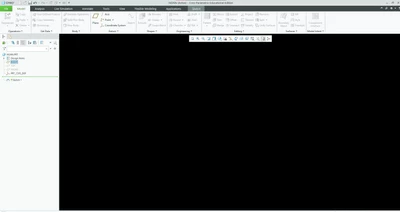
Black screen on Creo
  • March 19, 2025
  • 5 replies
  • 2876 views

LK_13027707_0-1742391821826.png

Hi, I use creo 11.0 edition. When I want to select plane nothing happens

 

Best answer by BenLoosli

Try using graphics win32_gdi in a clean local config.pro.

Also try this solution: Article - CS348177 - The graphics window is black with the Model Tree displaying the model in Creo Parametric

We have 1 workstation that works fine with Creo 9 but gets the black screen with Creo 11.

Also try update your graphics drivers. What graphics card is in your computer?

5 replies

Dale_Rosema
23-Emerald III
23-Emerald III
March 19, 2025

Your top & front plane seem to be hidden. Is you right plane hidden as well?

BenLoosli23-Emerald IIIAnswer
23-Emerald III
March 19, 2025

Try using graphics win32_gdi in a clean local config.pro.

Also try this solution: Article - CS348177 - The graphics window is black with the Model Tree displaying the model in Creo Parametric

We have 1 workstation that works fine with Creo 9 but gets the black screen with Creo 11.

Also try update your graphics drivers. What graphics card is in your computer?

1-Visitor
March 19, 2025

Hello, i added graphics win32_gdi to config.pro file and run it and it works

Dale_Rosema
23-Emerald III
23-Emerald III
March 19, 2025

The is then showing you that it is a video card / video drivers issue.

win32_gdi just clears everything out to help you with diagnosis.

Now you have to take it (win_gdi) out and find out if the video card and drivers are PTC approved.

Typically the latest and greatest drivers have not been proven out and should not be automatically updated.


You'll take a performance hit if you leave it in your config.pro.

24-Ruby III
March 20, 2025

Hi,

what graphic card is installed in your computer?

1-Visitor
March 20, 2025
I have nvidia 1650
23-Emerald III
March 20, 2025

Its a gaming card, so it's not supported. That doesn't mean you won't be able to get it working.

You will have to experiment with driver downloads. Sometimes the latest driver is all you need, sometimes you have to try random drivers for your card/system. Trial and error is your best bet to really fix the problem.

The graphic win32_gdi option will work but if you do anything other than simple stuff, it will be slow to continue to use.

If you do testing on drivers, remove the option from your config.pro before testing. You can always re-add it back if you don't find any working drivers or until you find one.

24-Ruby III
March 20, 2025

Hi,

you can also add following options into config.pro file and test their influence.


enable_opengl_fbo no
enable_opengl_vbo no
enable_opengl_shader no

16-Pearl
March 21, 2025

Hello @LK_13027707 


This looks like an antialiasing setting issue like that described in CS348177.  In Creo 11.0, the default value of config.pro option enable_fsaa was changed from off to 8 so consider changing this back or exploring other values.  This option can also be changed in File > Options > Entity Display > Anti-Aliasing


Mike