

Can you edit the name of a valve in Spec Driven Piping?
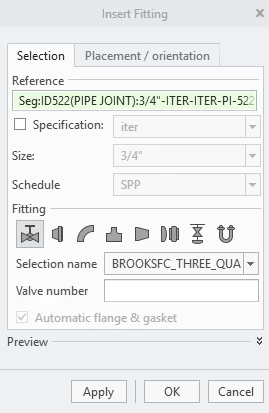
When in the Spec Driven Piping Application in Creo, you can add a valve to your piping assembly by going to the Fitting Section of the application window, selecting Insert Fitting, and selecting the pipeline you want to attach your fitting to. You are then given the option to select what type of fitting (in this case a valve) you want to add to your pipeline and what name you want to that valve before hitting OK and adding it to you model, as shown below:
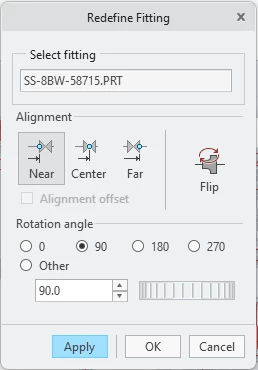
However, if you later realize you want to change the name of this valve (or if you never added a name to the valve when you originally placed it), it appears that there is no option to modify the valve number after placement. For example, if you went to edit the definition of the valve, you are only able to edit the placement of the valve along the pipeline:
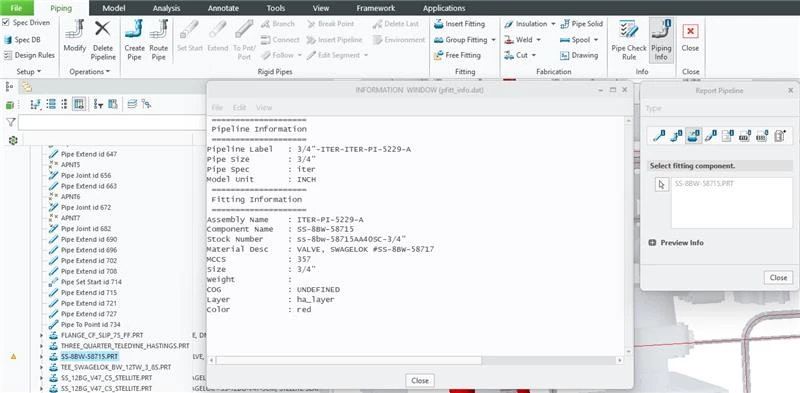
You can try pulling up the Piping Information of the valve (by going to the Info section of the Piping Application, selecting Piping Info, selecting Fitting Report, and selecting the given valve) and editing the valve information to change or add a valve number, but hitting File>Save appears to do nothing, and no modified information for this part can be saved.
Is the only way to add or update a valve number in Creo’s Spec Driven Piping Application to delete the existing valve and replace it with a new one with that new valve-naming information? Or is there a way to edit the valve number without replacing the valve?