1-Visitor
April 5, 2014
Question

Creo Sheetmetal Unbend Feature Failure

  • April 5, 2014
  • 3 replies
  • 9040 views

Hi,

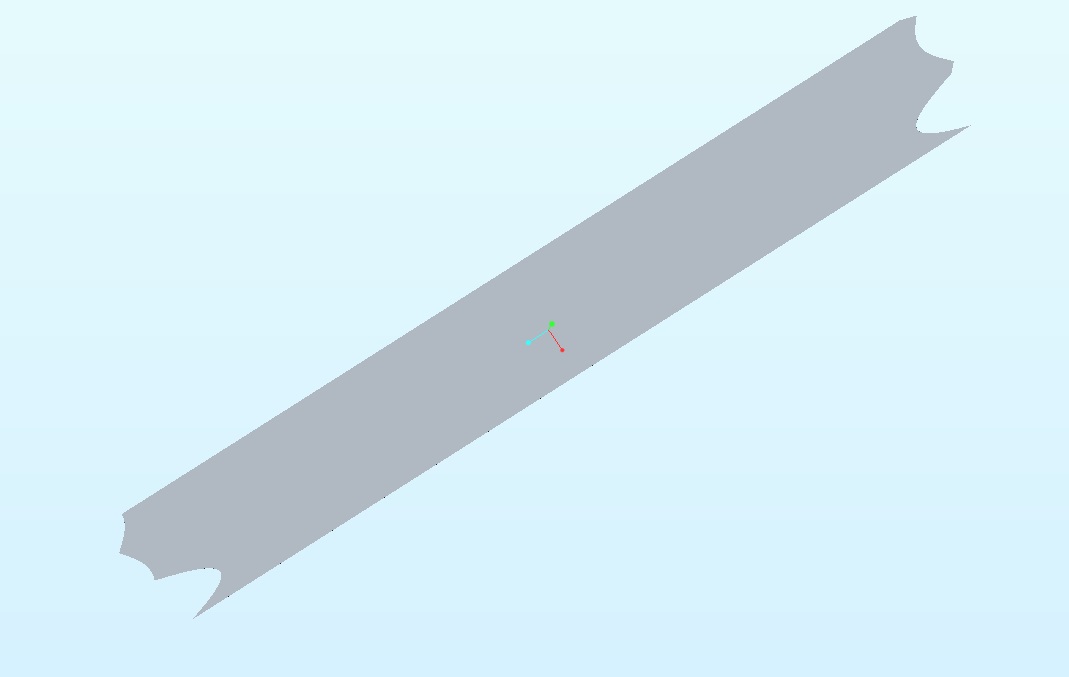
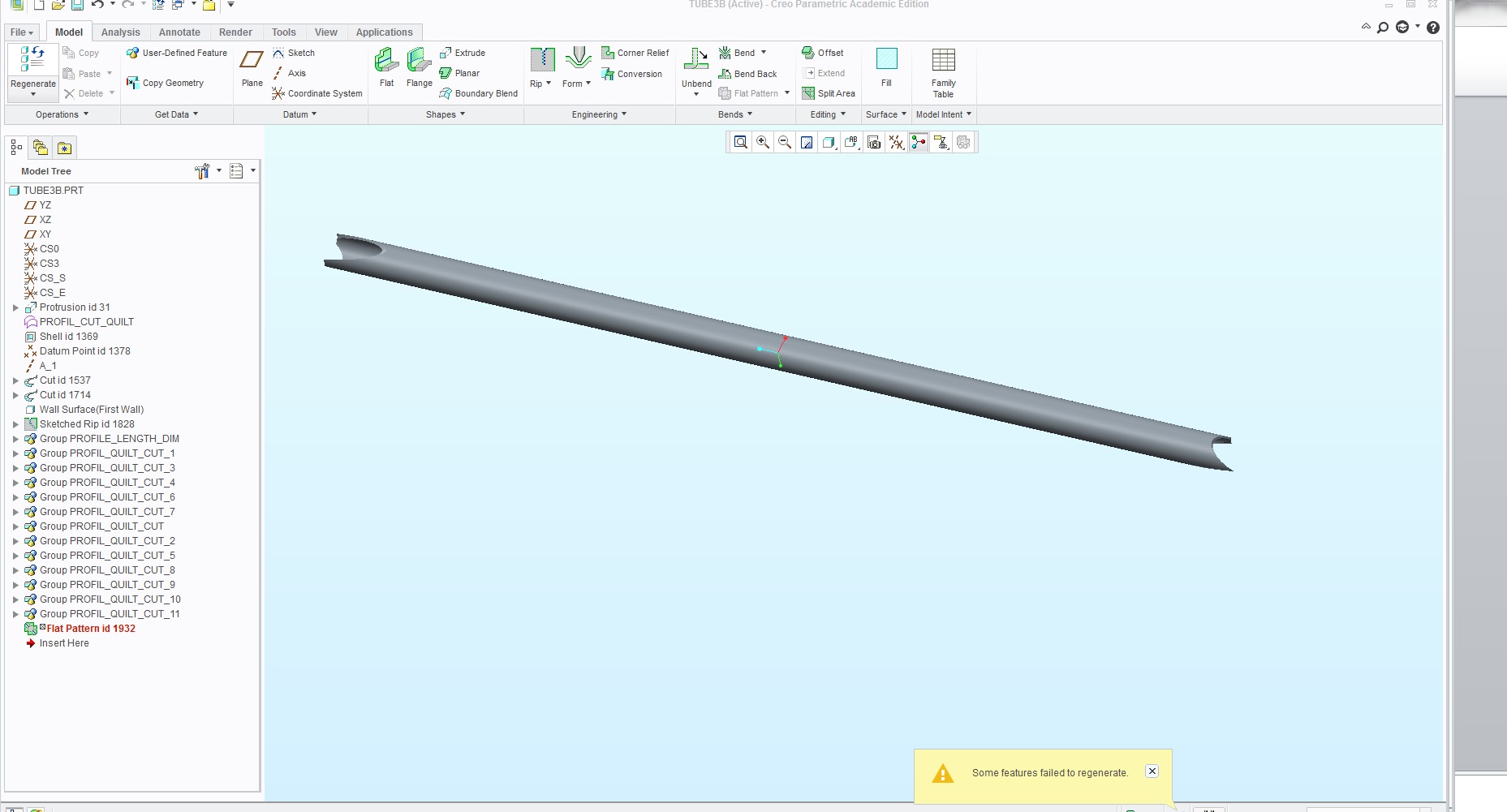
We are trying to unroll tubes from a chassis created in the AFX extension in order to produce templates for tube notching. The way we do this is by opening up the part for the tube and operations>Resume all to unsupress the flat pattern ID. This works for some of our tubes but fails for others. Does anyone know why this occurs? For example:

1) Rolled
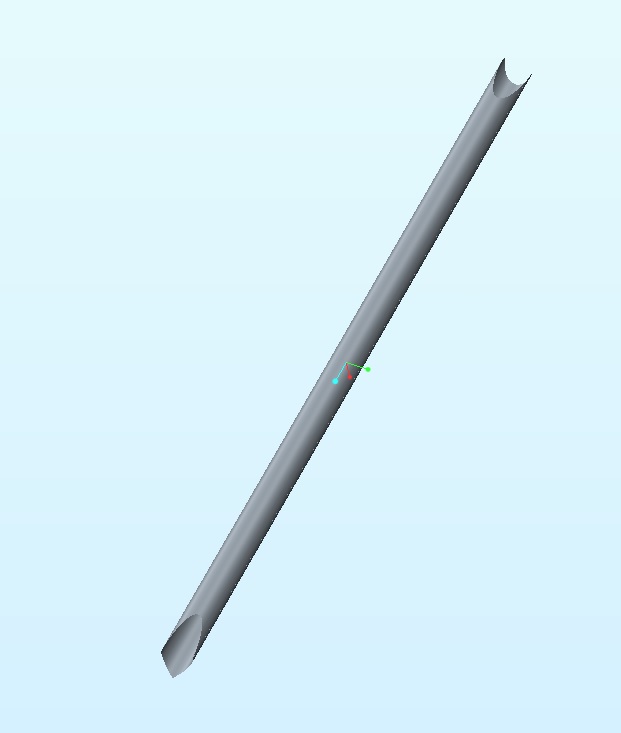
Rolled1.jpg

2) Unrolled

unrolled1.jpg

This works for the tube above but fails for the tube below. Flat does not regenerate when unsupressed.

1) rolled
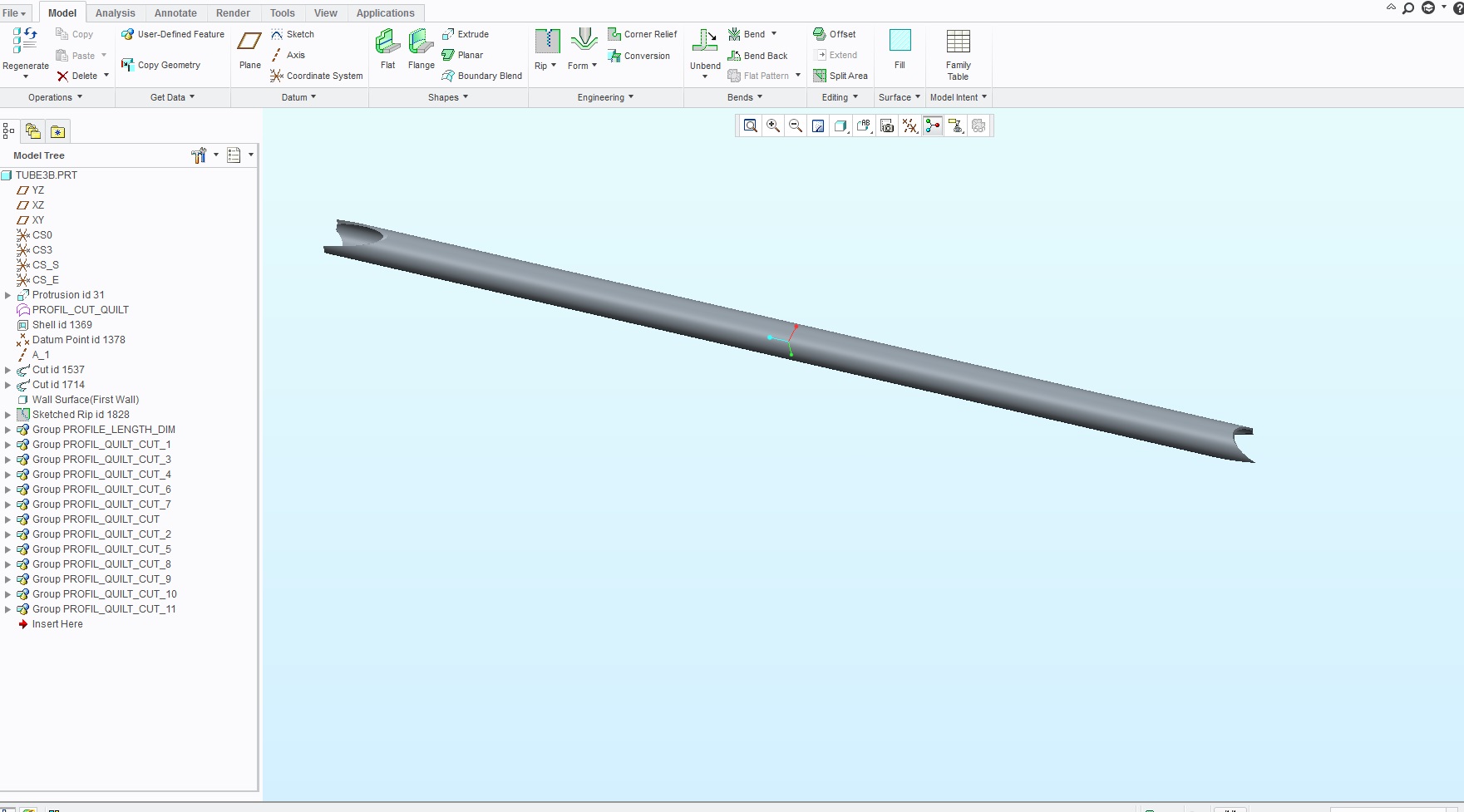
rolled2.jpg

2) Failure to unroll

unrolled2.jpg

So the question stands What would allow one tube to display the flat when unsupressed but cause the flat to fail when unsupressed for another. Both of the tubes have multiple profile cutouts in each end. Looking to resolve this as soon as possible.

Thank You

Hafeez


This thread is inactive and closed by the PTC Community Management Team. If you would like to provide a reply and re-open this thread, please notify the moderator and reference the thread. You may also use "Start a topic" button to ask a new question. Please be sure to include what version of the PTC product you are using so another community member knowledgeable about your version may be able to assist.

3 replies

17-Peridot
April 5, 2014

Flat patterns can be very fussy. You need to go in and redefine the flat pattern and see if you can find the error.

I tend to use the bend and bend back more often for simple operations such as this.

1-Visitor
April 6, 2014

I haven't been able to do any of this properly. I can't bend back any of the tubes (ones where the unsupressed flat pattern regenerated and ones where it didn't). Also I can't get sketched rips to work on any of the tubes, including the ones where the flat pattern already exist. To do a sketched rip you just sketch a line along the outside of the tube if i'm not mistaken? Are their any video tutorials on this?

17-Peridot
April 6, 2014

That is my experience as well, Hafeez. I find it absolutely frustrating to try to use the advanced features where rip rarely does what I want it to do. However, some people can really shine with the package because they have learned exactly what to do and what order to do them in. I have gotten better, but I reserve sheetmetal for only simple fabrications.

I am going to suggest you want to start your tubes from a revolve (1st feature) that you know you can "unbend". Next "bend back" and create your cuts. Be very aware on which side you want the feature to intersect and be consistent. As you you add new cuts, be sure to test the Unbend just on a temporary basis by deleting or undo-ing the feature. As long as it will unbend, it should be able to flat pattern as well. You might have to turn off the bend relief features in the options dialog.

Are you actually forming the tubes and welding the seams or is there another reason you want to see the flat pattern?

1-Visitor
April 6, 2014

Try changing the part accuracy, possibly to absolute accuracy so that it matches across all the parts in the assembly.

14-Alexandrite
April 8, 2014

You can add custom profiles to AFX by following this. I did this to add lumber to mine so i could build a reloading workbench.

Title

How to add custom profile / beams to Expert Framework Extension (EFX)

Description

  • How to add custom profile / beams
  • How to customize EFX library (insert custom profiles)

Applies To

  • Expert Framework Extension 4.0 - 7.0
  • Advanced Framework Extension 2.0

Cause

Resolution

Currently this procedure supports for straight beams only.

Library directory structure

Notice ‘custom_start_beams‘ folder and ‘custom_start_beams.gif‘ at <efx loadpoint>\parts\profiles directory. Open ‘sel_list.txt‘ file <efx loadpoint>\parts\profiles directory and add the following line custom_start_beams dir

Similarly, create new subdirectory, make subdirectory_name.gif picture of company logo, add line to sel_list.txt

Make custom beams by using start parts

In <efx loadpoint>\parts\profiles\custom_start_beams directory find two start beams (one for mm and other inch), Use these as templates for custom beams. The directory contains a file called sel_list.txt, a content list of the directory. This directory contains 2 beams called efx_start_beam_mm and efx_start_beam_inch, so the file lists two lines for them plus one line ‘dir_up dir‘.

For each beam user needs,

  • A picture named <beam_name>.gif
  • A Pro/ENGINEER model <beam_name>.prt or <beam_name>.prt.1 (EFX takes always .prt or for .prt.1, remove the number from the file name end)
  • Optional a file <beam_name>.txt which lists different sizes and their dimensions if available

User can rename the custom_start_beam to your custom directory, make a .gif picture which shows the beam-x-section, copy and rename the file custom_start_beam.txt file if the beam has different sizes copy and modify sel_list.txt.

Modify beam model

Open the model custom_start_beam_mm or custom_start_beam_inch and make it a custom beam to modify the following,

Modify the section of the feature ‘BASIC_SHAPE‘, try to keep the four lines (do not delete, just trim them) if there is somehow a rectangular basic shape in the section. Deleting one of the four lines, the joint functionality will not detect automatically the correct attachment surface), however, one can use the joint type ‘sel_surface‘. After modifying the sections change the symbols of the important dimensions with dim-cosmetics

Modify the parameter BUW_NAME to the name of your beam

  • Add other parameters modify views, layers etc.
  • If user likes to see internal cuts only in detailed level of representation add a feature parameter named ‘BUW_REP_LEVEL‘ to the cut feature, the value is ‘MEDIUM_DETAIL‘ (the feature should be visible in medium and detailed at rep level) or ‘DETAIL‘ (the feature should be visible in detailed rep-level)


Modify size table file

Open the size table file. The first column shows the name of the size instance (it shows up in the selection interface), the following columns list the dimension values. The first column must have 25 characters (fill up with spaces at the beginning), the columns are separated by tabs. The headline lists the symbolic dimension names (also list model text parameters there).