
1-Visitor
February 11, 2016
Question

Datum tags - how to move them back?

  • February 11, 2016
  • 4 replies
  • 4222 views

By right clicking on a datum plane and selecting "Move Datum Tag", one can move the text location and Creo will connect the text with corner of the datum plane.

But how do you move this tag back to its default spot and remove this irksome line?
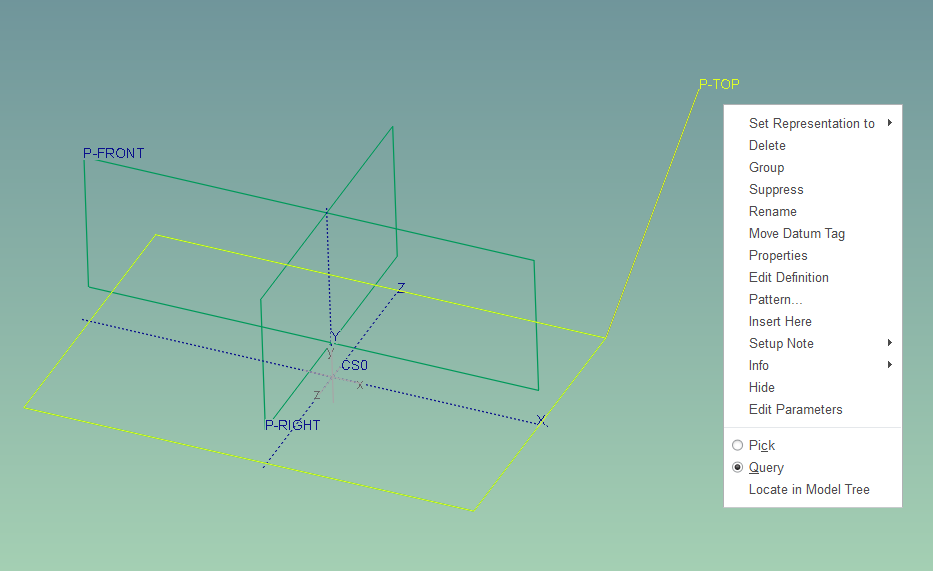
datum_tags.png

(Creo 2.0 M200)

4 replies

18-Opal
February 12, 2016

Paul,

I found an old case, from another user, asking about the same behavior.  Unfortunately, there isn't an easy way to do this.  You will have to select a location near the original location to move the datum tag to.

Amit

psobejko1-VisitorAuthor
1-Visitor
February 12, 2016

That doesn't actually remove the line.  Anyway, another little thing with Creo that is trivial and frustrating.

Why is there a line, anyway?  It just gets in the way, say on a drawing where one wanted to move the text of the tag in order to make a visual improvement.

If this is to be useful, you have to be able to move these tags / lines on the drawing, where it actually matters the most:

bad_tag_example.png

16-Pearl
April 4, 2017

I have got the same problem using Creo 3.0 M080.

HamsterNL
18-Opal
March 9, 2018

Facing the same issue, moved the Datum Tag by accident...


Can someone with active maintenance post the contents of this article?

https://www.ptc.com/en/support/article?n=CS264295


23-Emerald III
March 9, 2018

Not part of creo functionality and submit a product idea...not what you wanted to hear but that's what it says.

Patriot_1776
22-Sapphire II
March 9, 2018

The solution is:


Don't move the tag.  😉

HamsterNL
18-Opal
March 9, 2018

Or use the Undo button (CTRL+Z)...oh...wait... Smiley Sad