Here are a few of the most popular text mods:
- Overwrite Dimension: @O
- Box around text: @[***@]
- Superscript: @+***@#
- Subscript: @-***@#
- Super/Subscript {0:***}{1:@+***@#)@-***@#
- Multiple formats:
- To edit the style of one section of a note, first click to select the entire note, then click again to select just the section you want to change. You can then RMB -> Text Style... and change size etc. as required.
- This works directly with separate lines within a note, but to change just one part within a line you must first separate that section by adding {1: and } around the relevant text:
- {1:Large Text} Small Text
- Separate Line
- Then close the note editor and proceed as above.
- Round Parameter Value: add [.X] after the parameter name, X being the number of decimals.
- Leader Location on Note: add @O to line on note.
- Use & or @: Type twice in note e.g., && or @@
You can also look at Creo Help.
Text Strings (ptc.com) - Detailed Drawings > Annotating the Drawing > Working with Text and Notes > Modifying Note Text > Text Strings
There is always more to learn.


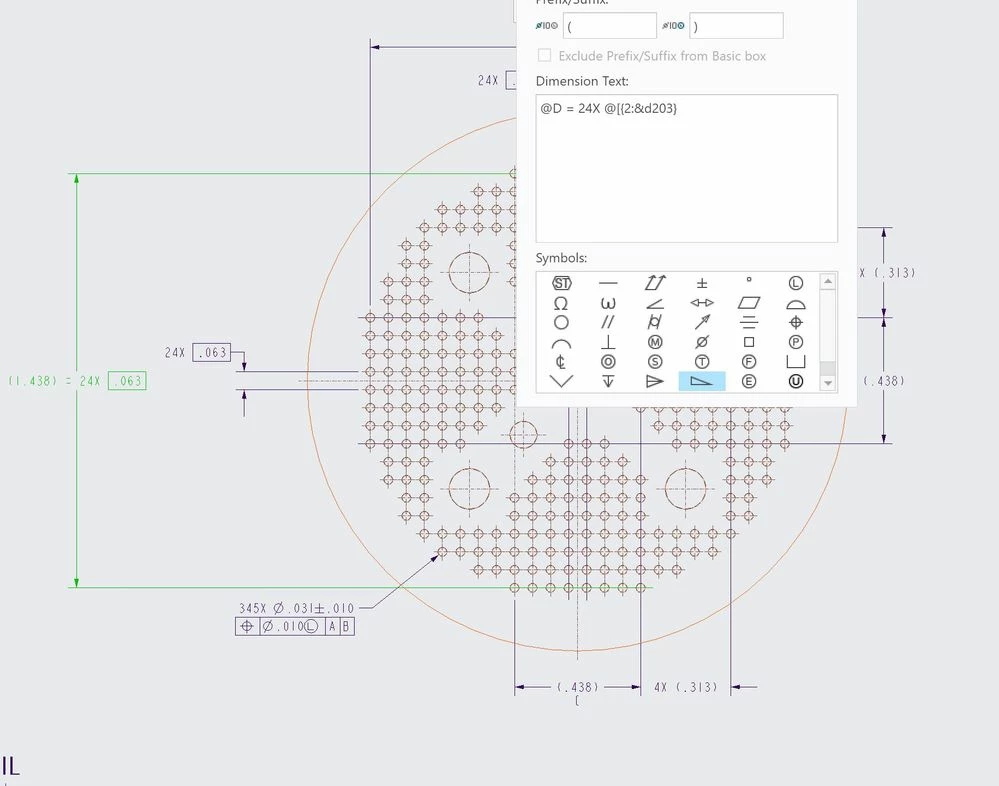 I am modifying dimension text in Creo 8. Is there a comprehensive list of text modifiers, such as @O for override or @[{&D203} to display dimension 203 as basic when being referenced inside another dimensions dimension text?