
17-Peridot
November 28, 2017
Solved

Dwg words Section and View same text hieght as label A-A

  • November 28, 2017
  • 3 replies
  • 3004 views

All,

When you create a section view the word SECTION is a different text height than the name A-A as seen in the image. The word SECTION is controlled in the .dtl by text_height while the label A-A is controlled by def_view_text_height. 
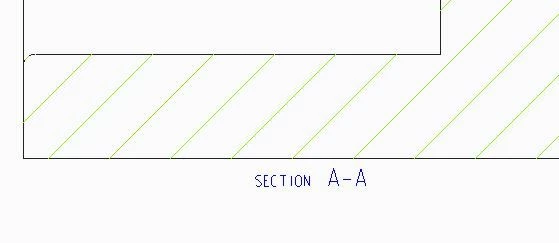
 

AA.JPG


ASME Y14.2_2012 shows the word SECTION and A-A as the same hieght. Currently the only way to achieve this without changing the rest of the text hieght on the drawing is to use a mapkey and invidually change each location on the drawing. A-A needs to be larger than the rest of the text on the drawing.


Does anyone have another workaround or know if this is fixed in Creo 4 or Creo 5?


Thank you,

Lance

Best answer by BenLoosli

The problem with this 'solution' is that ASME Y14.2 specifies that the section view naming letters should be 2X the standard lettering size. This solution makes dimensionas and section/detail viewlettering the same height.


PTC needs to add a new parameter to define the height of section/detail view lettering or use def_view_text_height for the whole view label.

3 replies

KenFarley
21-Topaz II
November 29, 2017

I'm using Creo 2.0, but I don't think the settings have changed, ever. It seems you need to set the value for "def_view_text_height" to the same value as your setting for "text_height". I tried it with a new drawing and it seems to work.

It's under File -> Prepare -> Drawing Properties -> Detail Options -> change

BenLoosli23-Emerald IIIAnswer
23-Emerald III
November 29, 2017

The problem with this 'solution' is that ASME Y14.2 specifies that the section view naming letters should be 2X the standard lettering size. This solution makes dimensionas and section/detail viewlettering the same height.


PTC needs to add a new parameter to define the height of section/detail view lettering or use def_view_text_height for the whole view label.

1-Visitor
November 29, 2017

I am using Creo 4, and while the two parts of the note are initially created at the different heights you specify, it's relatively easy to select "SECTION" and enter the desired new height in the format ribbon. This is simpler than using the "Note Properties" window where every segment of text at a different size required format instructions such as {1: }. I see the appeal in making them automatically the same height, especially when there are many views, but this is the next best thing. Select note, select smaller text, enter new text size.

gleonard3
14-Alexandrite
January 14, 2020

Set drawing setup option ‘def_view_text_height_scope’ to ‘all_view_text’.  This will not affect existing view labels, but any new views placed will conform to this.  There is also 'def_view_text_thickness_scope' to consider.