
10-Marble
June 21, 2022
Solved

Extrude axis Hide/Unhide visibility

  • June 21, 2022
  • 3 replies
  • 1608 views

Hello dear members, what are the ways in which I can hide and unhide the axis created by Extrusion? (The Axis display command controls the visibility of all axis together, I would like to control visibility for particular extrude feature). I tried to select the axis and did Hide, how can I unhide it again? Thanks.

Best answer by tbraxton

You can filter the display of features and datums by using layers. Organize your layers as required to filter the display needed.


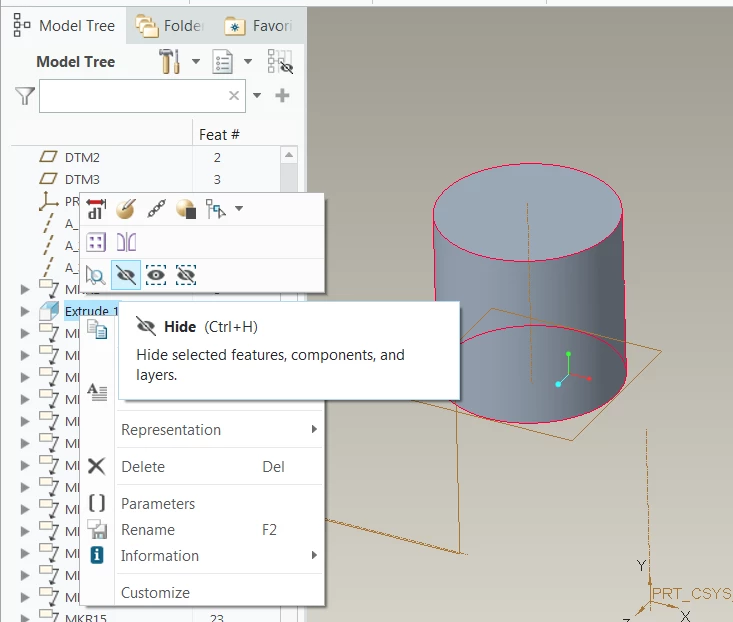
Note that for an axis created by an extruded feature you will need to select the feature and not the axis to control the display. By hiding the extrude feature the axis will not be displayed but the geometry will still appear.


Example shown here using the RMB to hide the feature in the model tree.

tbraxton_0-1655829352193.png


3 replies

StephenW
23-Emerald III
June 21, 2022

go to the layer tree and look under "hidden items". You can select the axis and unhide it.

tbraxton
tbraxton22-Sapphire IIAnswer
22-Sapphire II
June 21, 2022

You can filter the display of features and datums by using layers. Organize your layers as required to filter the display needed.


Note that for an axis created by an extruded feature you will need to select the feature and not the axis to control the display. By hiding the extrude feature the axis will not be displayed but the geometry will still appear.


Example shown here using the RMB to hide the feature in the model tree.

tbraxton_0-1655829352193.png


umg10-MarbleAuthor
10-Marble
June 21, 2022

Thanks @tbraxton , that will work.