
1-Visitor
June 28, 2021
Question

How to attach hole call out to cosmetic thread?

  • June 28, 2021
  • 3 replies
  • 3991 views

Hi all,

I am trying to use custom hole chart in Creo 7.

Everything is OK except that the call out of standard holes are not attached to the cosmetic threads.
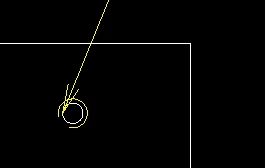
Hidetaka_0-1624846724924.png

Fig.1


According to our company standard, it should look as in Fig.2

(the arrow always points toward the center, and it is attached to the thread)

Is there any way to achieve this?
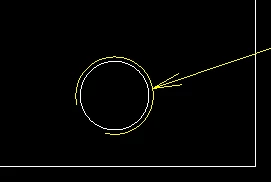
Hidetaka_1-1624846845709.png

Fig.2


If you have any ideas, please let me know. Thank you so much!


3 replies

tbraxton
22-Sapphire II
June 28, 2021

I have not tested this on a cosmetic thread surface but it may work,


Try this in the part model 

1) open the note's properties in the model

2) unplace the note

3) place the note, selecting normal leader option, and attaching the note to one of the two half-cylinder surfaces

Hidetaka1-VisitorAuthor
1-Visitor
June 28, 2021

Thank you for your answer.

It is possible to edit attachment every time, but it is very inconvenient.

Actually I am looking for kind of an "automatic" solution, like a config option or drawing option, or a change in .hol file.

It seems that others have the same problem and PTC does not really care...

tbraxton
22-Sapphire II
June 28, 2021

Two options come to mind to avoid manually updating the leader for each hole. Both are similar in approach.


Use the copy/paste functionality to paste a "correct" version of the hole with note. This would require the creation of a reference model with the note per your spec. You would then retrieve that model to get the hole into a given model.


You could also try using a UDF for your hole(s) where you have modified the leader attachment to your specification. You can then place the hole using UDF functionality and the note should be as defined in the UDF.

23-Emerald IV
June 28, 2021

Unfortunately this is how Creo (Pro/e) has worked forever and (so far), no one at PTC has been willing/able to change it.  There are a couple of open product ideas about that exact issue.  Go vote them up!

Hidetaka1-VisitorAuthor
1-Visitor
June 28, 2021

Thank you!

I upvoted both of them.

Hope that PTC does something about this soon.

kdirth
21-Topaz I
June 28, 2021

Try this:

  • Select note on drawing
  • RMB
  • Select Change Note Type then Normal Leader
  • Select Cosmetic Thread
  • MMB to place
  • Move note to desired location
  • Drag arrow approximately to normal position and it will snap to normal
There is always more to learn.
Hidetaka1-VisitorAuthor
1-Visitor
June 28, 2021

Thank you for your answer.

I am sorry I was not clear enough in my question.

Actually I am looking for a way to do it automatically, so that I don't need to edit the attachment every time.

Still no hope though...

kdirth
21-Topaz I
June 28, 2021

I could not find a setting that affects the default note style for hole tables.  It would be nice if they would add that to the detail options.


The only way I know of to speed this up would be to create a mapkey.

There is always more to learn.