5-Regular Member
July 17, 2026
Solved

How to select all reference faces in copy geometry

  • July 17, 2026
  • 3 replies
  • 92 views

Hey there,

I’m following the mouse tutorial (Link) and loosing my hair over the geometry import at 12m13s. I cannot rectangle select the faces nor does another online workaround I read about holding right mouse button on a face and “select all” appear. The only option I have atm is selecting every single face one after another holding control. Which on some models are thousands, so not feasible. I tried holding LMB and drag, tried it with RMB, MMB, holding shift, alt or ctrl in addition but no success.

Here’s how it looks (language is set to german by the company): 
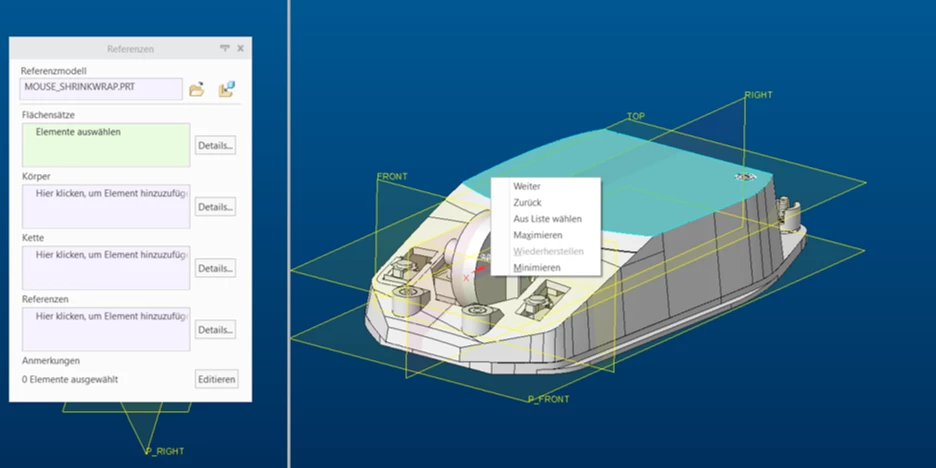
How can I select all of them? What could be the issue that I cannot rectangle select them?


Thanks and have a good day, 

Andy

Best answer by tbraxton

What version of Creo are you using? That may be the issue as the tutorial is documented to be using Creo 12.4. I can confirm that in Creo 10.0.9 the box select is not available in the copy geometry creation window when selecting the geometry from the source model during the feature definition.

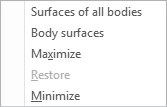
To get around this limitation manually select one surface in the source part and then RMB in the selection window of the source part this will provide a drop down list of options to get multiple surfaces with one operation. You should get something that looks like this with the RMB action. it is context sensitive so it may not look exactly like this example.

Selection options in the copy geom creation selection window


3 replies

kdirth
21-Topaz I
July 17, 2026

What is your selection filter set to?  The tutorial shows “All”

There is always more to learn.
AEB5-Regular MemberAuthor
5-Regular Member
July 17, 2026

Thanks, it’s set to all and all references set to visible too. I can select them individually, just not all of them or rectangle select. In the tutorial PDF it sais click and drag to select.


kdirth
21-Topaz I
July 17, 2026

Holding the Left mouse button and dragging should box select everything in the box.

There is always more to learn.
AEB5-Regular MemberAuthor
5-Regular Member
July 17, 2026

That does not work unfortunately. I can do it when working on the part but once I create the copy geometry feature and should select faces it does no longer create a box when I click and drag LMB.

tbraxton
tbraxton22-Sapphire IIAnswer
22-Sapphire II
July 17, 2026

What version of Creo are you using? That may be the issue as the tutorial is documented to be using Creo 12.4. I can confirm that in Creo 10.0.9 the box select is not available in the copy geometry creation window when selecting the geometry from the source model during the feature definition.

To get around this limitation manually select one surface in the source part and then RMB in the selection window of the source part this will provide a drop down list of options to get multiple surfaces with one operation. You should get something that looks like this with the RMB action. it is context sensitive so it may not look exactly like this example.

Selection options in the copy geom creation selection window


AEB5-Regular MemberAuthor
5-Regular Member
July 20, 2026

Thanks, it is indeed the Creo version. We just upgraded to 10.0.9 during the weekend and now I do get the “Surfaces of all bodies” option on RMB that was previously missing. And as you stated, box select is not available. The issue is resolved then, it’s not possible in older versions, thank you.