
1-Visitor
December 28, 2016
Solved

how to turn on neon effects for selected feature or dimension lines

  • December 28, 2016
  • 4 replies
  • 9163 views

As captured picture below, how can I turn on neon effects for selected feature or dimension lines?

Thank you.
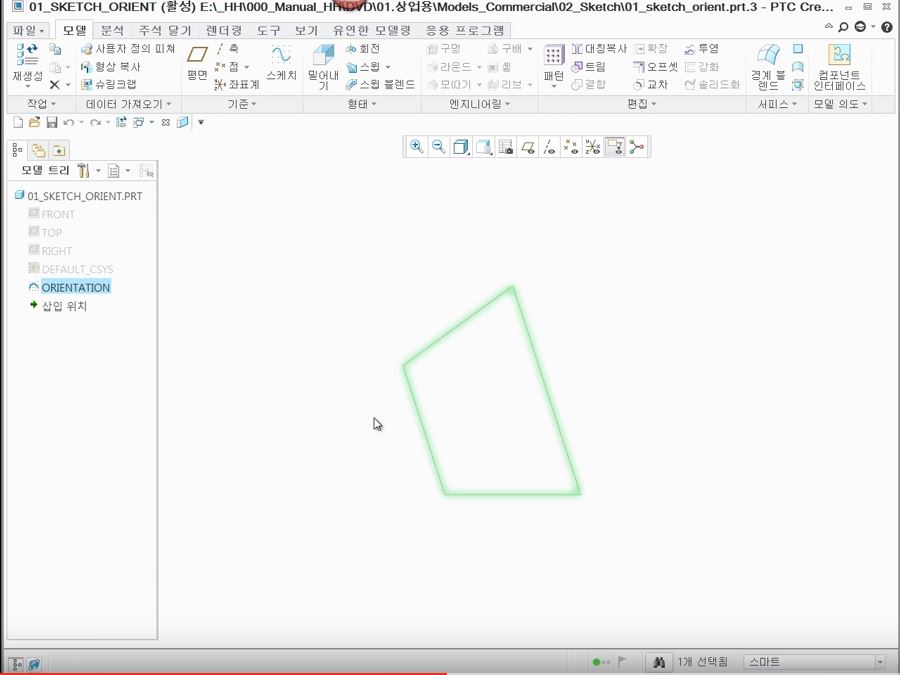
capture.JPG


This thread is inactive and closed by the PTC Community Management Team. If you would like to provide a reply and re-open this thread, please notify the moderator and reference the thread. You may also use "Start a topic" button to ask a new question. Please be sure to include what version of the PTC product you are using so another community member knowledgeable about your version may be able to assist.
Best answer by wchegal

You can turn on this option by inserting the following line in config.pro

enable_selection_glow yes

Thanks to James Lim in Digitek for giving this tip to me.

4 replies

wchegal1-VisitorAuthor
1-Visitor
December 28, 2016

capture2.JPG

17-Peridot
December 28, 2016

Interesting... we have neon? 

Dale_Rosema
23-Emerald III
23-Emerald III
December 28, 2016

Highlighted? (translation?)

wchegal1-VisitorAuthorAnswer
1-Visitor
December 29, 2016

You can turn on this option by inserting the following line in config.pro

enable_selection_glow yes

Thanks to James Lim in Digitek for giving this tip to me.

Patriot_1776
22-Sapphire II
December 29, 2016

Interesting, I'm on creo 3 and that option doesn't show up

wchegal1-VisitorAuthor
1-Visitor
December 29, 2016

It is a hidden option. Just type it in your config.pro with text editor.

21-Topaz II
December 29, 2016

Works in Creo 2 as well, at least in M230.  Not sure how I feel about it, but I'm going to give it a shot.

Patriot_1776
22-Sapphire II
December 29, 2016

I haven't used it much yet, but am liking it.  These old eyes need a little more highlight.

I posted all this here at work for all the ex-SW users now using Pro/E, maybe that will eliminate SOME of the whining.... 

Patriot_1776
22-Sapphire II
December 29, 2016

Ok, so, I wasn't able to see any change in drawing mode, though it was a quick check.  where I think I like it the most, is in sketcher mode.  It REALLY highlights constraints, sketched entities, and other objects well.  Again, just a quick test in sketcher, but I think I like this setting!

14-Alexandrite
December 30, 2016

For those that are using neon effect here are some extra neon display control options:

glow_blur_radius     1

glow_blur_sigma     internal

glow_blur_type        internal

glow_line_width      2

Patriot_1776
22-Sapphire II
December 30, 2016

The problem with hidden configs, is that there is no explanation as to what they do.  I tried the above configs, and didn't like them.

1-Visitor
December 30, 2016

glow_blur_type:

  • 1 fading glow, further from line, less intense
  • -1 flat glow, more like a wide-transparent flat line behind selected object  (my preference now)

glow_blur_radius:

  • width of the blur, but is dependent on the glow_line_width

glow_line_width:

  • width of the base highlight line that is blurred.  when blur-radius = 1 the selection will be wide and opaque.  when blur-radius larger, the glow-line will be more transparent but the wider the line_width the more opaque the highlight appears.

glow_blur_sigma:

  • [edit] default value was 6.3.
  • 0 gives no highlight
  • 1 barely any glow, only a thicker line
  • 3 starts to show a glow
  • 6 default look
  • 12 getting toward a more flat look
  • 24+ gives same basic effect to the glow_blur_type -1

sigma adjustment from 0-24+

2016-12-30_08h27_29.gif

Some examples of different values when changed.  Also note, I have my "selection color" set to a neon green because the magenta selection color is not as "highlighty" to my taste.

2016-12-30_07h59_24.png

2016-12-30_07h59_41.png

2016-12-30_08h00_27.png

2016-12-30_08h01_04.png

2016-12-30_08h01_34.png

2016-12-30_08h04_21.png

2016-12-30_08h04_47.png

2016-12-30_08h06_22.png

2016-12-30_08h05_18.png

2016-12-30_08h06_57.png