
10-Marble
October 17, 2024
Solved

Imported STP, IDD doesnt repair.

  • October 17, 2024
  • 4 replies
  • 1901 views

Have an imported STP file.  Using the IDD repair too, have selected Repair, Fix Tangency option.  Seems to  just make it worse every time I run it.  End up going from 7 'Bad 2 side edges' to 141.  


Can someone point me in a direction to solidify this part?  Path of least resistance, hopefully.
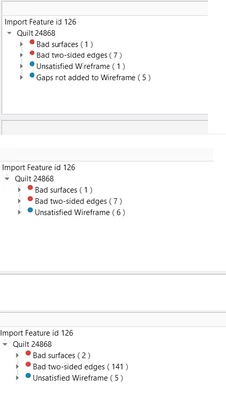
 

dbower2_0-1729177815123.png


Best answer by aputman

I took a couple of hours to repair your file.  It was a good exercise in expanding my understanding how to repair geometry. I suggest you also spend the time to do so. 


The import feature is suppressed to reduce file size.  Creo 8.

4 replies

13-Aquamarine
October 17, 2024

You have some really bad edges in this model.  Some of these are going to be really difficult to fix after import.  Your best bet is to isolate these locations in the original model and fix the geometry there.

aputman_0-1729183829747.png

Some of your errors can be fixed in Data Doctor, not with the automated fix routing (which never works for me), but instead using the Edit and Create functions to replace surfaces and edges.  Here's a quick example:

aputman_1-1729184046492.png

Delete this highlighted surface, but the remaining edge has a small curly section that will be problematic for recreating the surface.

aputman_2-1729184148512.png

So you want to use the UV-Curves to draw a curve between points.  That results in the blue curve shown here

aputman_3-1729184233479.png

Highlight the pink curly curve and use the Replace function and select the blue curve.  This will redraw the pink curve using the blue curve.  If the pink curve is split into two separate curves, highlight them both and use Merge Curves before replacing it with the blue curve. 

aputman_4-1729184361573.png

Now curly curve is replaced.  Repeat this for the opposite edge that is also curly.  Should end up with this....

aputman_5-1729184539047.png

Now select both pink curves and create a boundary blend feature. 

aputman_6-1729184644532.png

Click into the 2nd Direction box and add the 2 curves you just created.

aputman_7-1729184693581.png

Click OK.  Then merge the newly created surface into the main body quilt by dragging. 

aputman_8-1729184819885.png

That's one error down.  Use similar techniques to fix all the other issues.  Some will be much more difficult than this.  Good luck. 

dbower210-MarbleAuthor
10-Marble
October 28, 2024

Thanks for the detailed response.  Will dig a bit deeper when I get a chance.  Unable to get access to the original model.

tbraxton
22-Sapphire II
22-Sapphire II
October 17, 2024

IDD is not magic; it will not heal many models with one click. If you have access to the source model used to make the STEP then delete/suppress the rounds before STEP export. This will likely eliminate some of the problems.


If you can then solidify the model, then add native Creo rounds to the import geometry.

Community Manager
October 28, 2024

Hi @dbower2,


I wanted to see if you got the help you needed.

If so, please mark the appropriate reply as the Accepted Solution. It will help other members who may have the same question.
Please note that industry experts also review the replies and may eventually accept one of them as solution on your behalf.
Of course, if you have more to share on your issue, please pursue the conversation. 


Thanks,
Anurag 
 

aputman13-AquamarineAnswer
13-Aquamarine
October 29, 2024

I took a couple of hours to repair your file.  It was a good exercise in expanding my understanding how to repair geometry. I suggest you also spend the time to do so. 


The import feature is suppressed to reduce file size.  Creo 8.

dbower210-MarbleAuthor
10-Marble
October 29, 2024

Thank you Aputman!  I owe you a week of coffee.