
1-Visitor
May 10, 2013
Solved

Line weights and PDF files

  • May 10, 2013
  • 3 replies
  • 52415 views

I looked around for a solution but to no avail. Changing the config.pro pen_line_weight has no effect on my drawings. I tried using a pen table but did not get the results I was looking for. Using the pen table (I think) means that all geometry lines printed with pen 1 will all have the same line thickness. This means that, not only geometry lines but drawing border lines will be the same thickness... which I don't want.

PTC TPI 117022 suggests changing the line weight config.pro option which will not overwrite user-defined thickness. I have made sure that I have no table.prt files, the option to use pen tables is removed from config.pro and the option to use pen tables for PDF is removed.

Lines that have user-defined thickness print with correct weight but no matter what number I put in to the pen 1 and pen 2 options, geometry and dimension lines are not affected (too thick and too thin respectively).

Currently using Creo2.0 m50. What am I missing?


Thanks all.
Best answer by cgorni

To close this community thread on Line weights and PDF files


Summary of the exchanges and list of solutions:

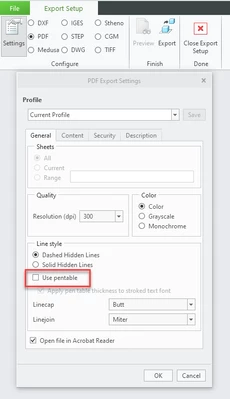
  • If no Pen Table is used, the line weights will be set "as displayed" on the screen in the PDF.
    • pen#_line_weight configuration options won’t affect the export (only plotters)

cgorni_0-1641915834182.png


  • In order to control the line thickness, you will need to use a Pen Table as explained in article CS25880, also some examples are provided in the different replies.
    • Then each line with a given System/Entity color (eg Geometry, Curve, etc) will get the properties defined in the corresponding pen.
    • User-defined colors will go to pen 1
    • The thickness defined on screen will be preserved if not explicitly defined on the pen, otherwise it will be overridden.
      • Therefore you cannot specify a new default thickness for objects assigned to the same pen and keep the manually entered weight in drawing for some of those lines.
      • Possible workaround:
        • Set lines with a defined weight to a different system/entity color that is assigned to a pen with no thickness argument.
        • If you need to specify a user defined color to those lines you may want to move the other system/entity colors (eg Geometry "drawing_color", Datum "datum_color", etc) that go to pen 1 to another pen (eg 4), and keep pen 1 for user defined color only.
        • For example only setting a black color as output:

pen 1 color 0.0 0.0 0.0

...

pen 4 thickness .035 cm; color 0.0 0.0 0.0; drawing_color; datum_color

3 replies

12-Amethyst
May 10, 2013

Hi Tony,

I went through this starting in WF4 and finally finished it a couple of years later in WF5 (now Creo Elements/Pro 5). Help was nebulous. In essence we had always used the old config pen weight commands per colour and I was concerned with making readable PDFs from within WF5/Creo.

With a lot of help from our VAR I got there in the end. The key to the solution was to delete or remark out the lineweights in the config and have the config use pdfpentable instead. We tried many lineweights in the pdfpentable till we got what worked to make clear PDFs for screen and print and especially checking A3 drawings being printed at A4. We make almost all of our drawings as A3 with some at A4 and just a few at A2 or A1. Thus our settings are biased in favour of A3 but these do work across those other sizes even when we tried reducing an A1 to A4 as a printout then photocopying that and copying the copy for five times (we did this test with all sizes).

Had to redo our formats and also our templates which call these up but that was OK as there were other aspects we wanted to improve there as well such as making the title block 100% auto-completed from the 3D model (which we hold as our master).

We also changed over to Truetype fonts for this PDF process (we picked Arial Narrow which is arialn from the windows font directory). It was a long and tedious process with three steps forward and two steps back most days but victory in the end. This also meant changing the symbols we had already made in our library with newer versions.

Kinda busy at the moment but can give you details over the next few days if you want.

Regards, Brent

1-Visitor
May 10, 2013

Thanks Brent. I'm attempting to do the same thing you did - trying to improve our formats and templates. Not sure what is "pdfpentable". Perhaps this is the config.pro setting I should be using, but I can't seem to locate it in the config editor.

The option"pdf_use_pentable" for pen 1 will change ALL lines including my drawing border meaning that geo lines will be very thick (like the border) or the border will be very thin (like the geometry lines). In other words, using a pen table will overwrite my user-defined line thicknesses.

My current work-around is to use the default line settings (user defined border), then after saving as PDF, open with Illustrator and correct the line weights and other stuff that looks OK in Creo but not as a PDF. Such as, centering numbers in balloons and moving drawing and table borders that seem to shift and text that gets out of position. What a hassle.

Thanks for your help.

17-Peridot
May 10, 2013

If the borders is the biggest problem, you can assign a line style from any of the other pentable options, for instance, change the linestyle in the format to Datums and assign a unique pen to this style. Now you have a separation between the border and the geometry when printing the drawing.

12-Amethyst
December 29, 2015

hey guys, I have a similar if not same issue, I just want to confirm that before I go changing everything.

I have a drawing of a dxf file, I change the line style width to 1.000 from 0.000, the line gets wider in the drawing and its what I want but when I print the dxf its really thin just like the rest of the lines.

below is what I want and then what I get after creating a pdf.

thanks in advance

Carlos

1-Visitor
November 24, 2020

Hi,


is there any solution for the issue below? 


Re: Line weights and PDF files


hey guys, I have a similar if not same issue, I just want to confirm that before I go changing everything.


I have a drawing of a dxf file, I change the line style width to 1.000 from 0.000, the line gets wider in the drawing and its what I want but when I print the dxf its really thin just like the rest of the lines.


below is what I want and then what I get after creating a pdf.


thanks in advance


Carlos


Jamil_0-1606204475377.png


Jamil_1-1606204475379.png


Tags (0)
 
 
cgorni16-PearlAnswer
16-Pearl
January 11, 2022

To close this community thread on Line weights and PDF files


Summary of the exchanges and list of solutions:

  • If no Pen Table is used, the line weights will be set "as displayed" on the screen in the PDF.
    • pen#_line_weight configuration options won’t affect the export (only plotters)

cgorni_0-1641915834182.png


  • In order to control the line thickness, you will need to use a Pen Table as explained in article CS25880, also some examples are provided in the different replies.
    • Then each line with a given System/Entity color (eg Geometry, Curve, etc) will get the properties defined in the corresponding pen.
    • User-defined colors will go to pen 1
    • The thickness defined on screen will be preserved if not explicitly defined on the pen, otherwise it will be overridden.
      • Therefore you cannot specify a new default thickness for objects assigned to the same pen and keep the manually entered weight in drawing for some of those lines.
      • Possible workaround:
        • Set lines with a defined weight to a different system/entity color that is assigned to a pen with no thickness argument.
        • If you need to specify a user defined color to those lines you may want to move the other system/entity colors (eg Geometry "drawing_color", Datum "datum_color", etc) that go to pen 1 to another pen (eg 4), and keep pen 1 for user defined color only.
        • For example only setting a black color as output:

pen 1 color 0.0 0.0 0.0

...

pen 4 thickness .035 cm; color 0.0 0.0 0.0; drawing_color; datum_color