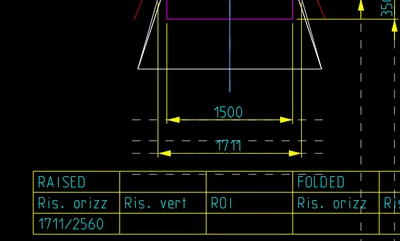
To create a table in Creo Parametric where a cell displays the result of a dimension (or quote) divided by a constant number (like 2560), you can use relations and parameters. Here’s a step-by-step guide on how to achieve this:
1. Create a Parameter for the Constant:
• Open the model or assembly where you want to create this table.
• Go to Tools > Parameters.
• Create a new parameter, name it (e.g., Constant), set its type to Number, and set its value to 2560.
2. Create a Relation for the Calculation:
• Go to Tools > Relations.
• Write a relation to perform the division. For example, if you have a dimension named d1, the relation could be:
Result = d1 / Constant
• Here, result is a new parameter that will store the value of d1 divided by your constant. Make sure Result is also defined in the parameters list.
3. Create or Modify a Table in the Drawing:
• In the drawing where you want to display this calculation, insert or select a table.
• In the cell where you want to display the result, you can reference the Result parameter.
• Use the syntax &Result to display the value of the Result parameter in the table cell.
4. Update and Regenerate:
• After setting up the relations and the table, regenerate the model to update the calculations.
• The table cell should now display the value of your dimension divided by 2560.
~ CreoVerse