1-Visitor
April 13, 2012
Solved

Suffix all parts?

  • April 13, 2012
  • 1 reply
  • 6313 views

Does anyone know a way to add a suffix to all parts and sub-assemblies within a top level assembly, without breaking anything?

Thanks

Best answer by BrianMartin

Hi David...

First let me apologize for contuining to refer to the "Save As" command. This has been renamed "Save a Copy". I didn't intend to confuse things more. Sometimes the command names change but my head doesn't get the memo.

There are several options for working with the template during a rename...

  • The config.pro option model_rename_template allows you to set a mapping template for performing a "Save a Copy" operation. This is done in advance of actually issuing the "Save a Copy" command
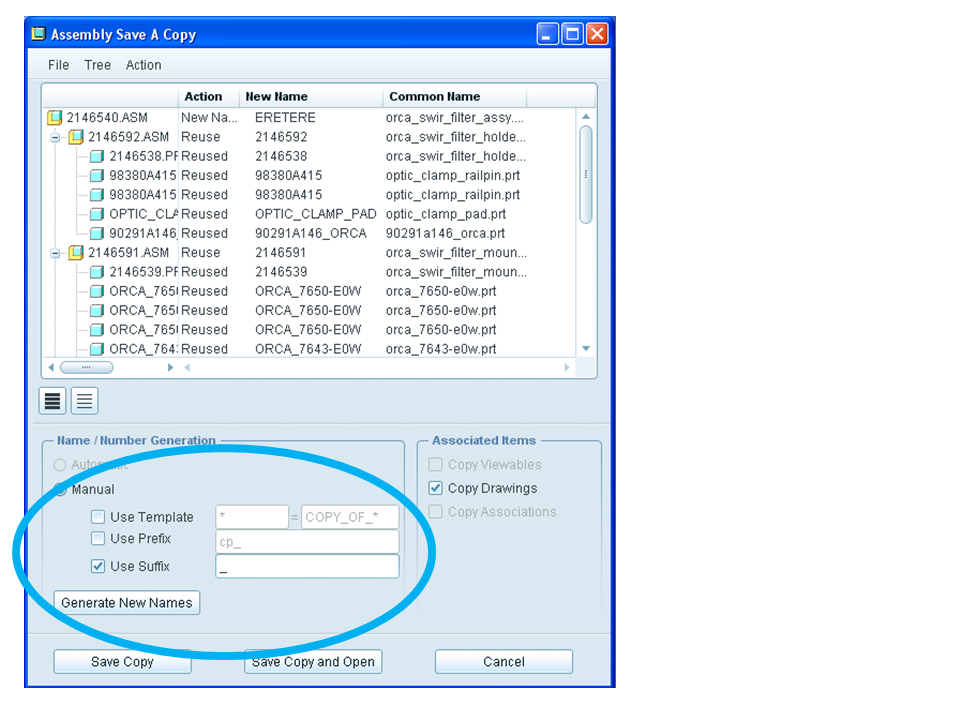
  • You can also specify a mapping template DURING the "Save a Copy" command through the tool that pops up. This is the best way to go. The WF5 version of this tool also features a "Suffix" command to automatically append characters at the end of files during the copy operation. The Save a Copy screen is shown below. You'll need to enter a name for your top level assembly first... but then this window will appear...
save_a_copy.png

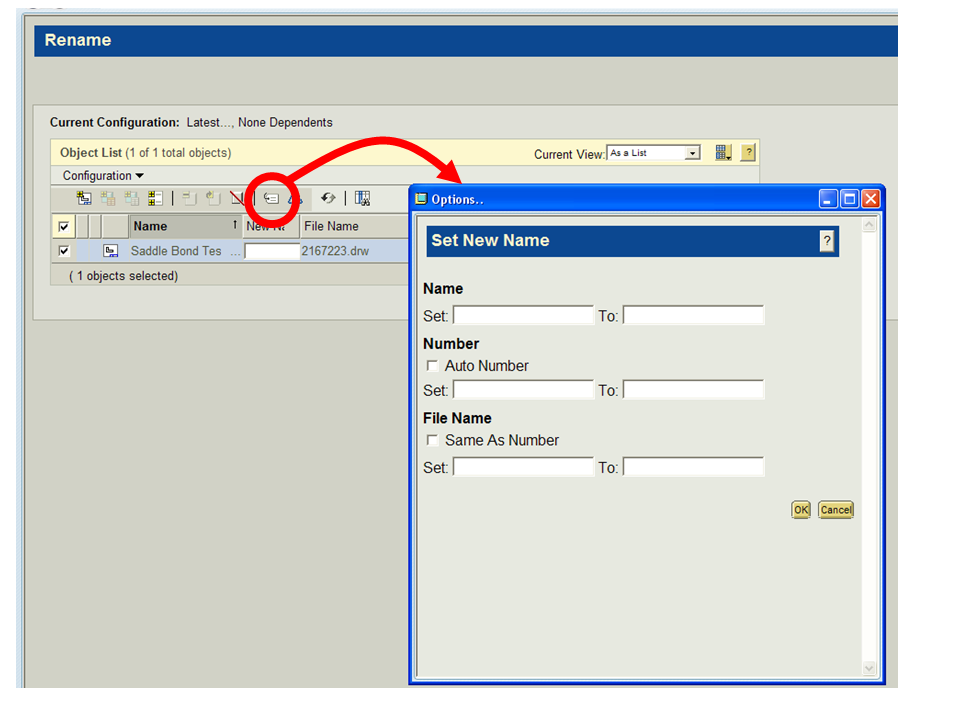
  • Finally, through Windchill or Pro/INTRALINK you can rename multiple objects at the same time using the "Set Name" function. A small tool will open that allows you to specify a "From" and "To" mapping template. The Rename tool and the icon to access the Set New Name function appear in the image below...
save_a_copy2.png

In all cases, you specify a template mapping by setting a From and To value. The From value is typically something like "*.*" The asterisk wildcard matches everything so "*.*" essentially matches everything. The To value would incorporate your suffix. A typical To value might be "*_new.*" This would append "_new" to every file matched by the template.

This gives you enough of the basics. If you're still having trouble, let me know and I'll try to explain in more depth.

Thanks!

-Brian

1 reply

13-Aquamarine
April 14, 2012

Hi David...

Sure... you can just do a Save As using the template command to rename everything with a suffix added. The template could be from "*.*" to "*-suffix.*" That would save a copy renaming everything to the old name with a dash and the suffix you specified.

If you don't want to save a copy, you can always perform a rename through Pro/INTRALINK or Windchill using the "Set Name" feature which also has a template style rename ability.

If you're not using Pro/INTRALINK... I'd suggest the "Save As" technique. Otherwise, the Intralink/Windchill method is easiest and safest.

If neither of these work for you, explain your situation a bit more. There are a few more ways I can think to accomplish this task but they get progressively more complex and will take longer to explain. The ones above are the easiest.

Thanks!

-Brian

David_M1-VisitorAuthor
1-Visitor
April 14, 2012

Hi Brian

What is the template command? Where would I find that?

Thanks

13-Aquamarine
April 14, 2012

Hi David...

First let me apologize for contuining to refer to the "Save As" command. This has been renamed "Save a Copy". I didn't intend to confuse things more. Sometimes the command names change but my head doesn't get the memo.

There are several options for working with the template during a rename...

  • The config.pro option model_rename_template allows you to set a mapping template for performing a "Save a Copy" operation. This is done in advance of actually issuing the "Save a Copy" command
  • You can also specify a mapping template DURING the "Save a Copy" command through the tool that pops up. This is the best way to go. The WF5 version of this tool also features a "Suffix" command to automatically append characters at the end of files during the copy operation. The Save a Copy screen is shown below. You'll need to enter a name for your top level assembly first... but then this window will appear...

save_a_copy.png

  • Finally, through Windchill or Pro/INTRALINK you can rename multiple objects at the same time using the "Set Name" function. A small tool will open that allows you to specify a "From" and "To" mapping template. The Rename tool and the icon to access the Set New Name function appear in the image below...

save_a_copy2.png

In all cases, you specify a template mapping by setting a From and To value. The From value is typically something like "*.*" The asterisk wildcard matches everything so "*.*" essentially matches everything. The To value would incorporate your suffix. A typical To value might be "*_new.*" This would append "_new" to every file matched by the template.

This gives you enough of the basics. If you're still having trouble, let me know and I'll try to explain in more depth.

Thanks!

-Brian
