1-Visitor
March 15, 2019
Question

use_path ignored? Can't get network paths working

  • March 15, 2019
  • 8 replies
  • 7300 views

Hi,


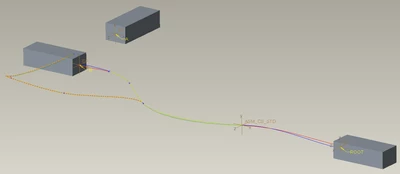
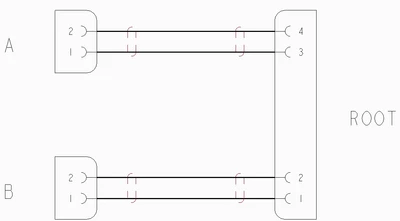
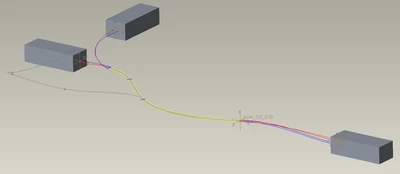
I'm trying to route two cables (obviously simplified example Smiley Tongue ). I got those modelled in Schematics and applied "USE_PATH"="PATH_A" to one cable ("ROOT" to "A").

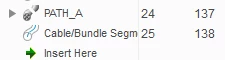
In Creo I created a network which is of a Y-shape. As connector "A" has to have a location which is _real_ close to the other connector, Creo Cabling wants to autoroute via this location, which I don't like. So I created a "Network Path" from the "ROOT" connector to the "A" connector and named it "PATH_A".

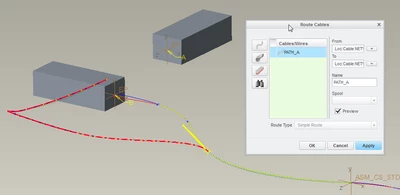
Creo Cabling doesn't seem to like it, the icon shows broken in the model tree and the cable is still routed the same way as before. In the "Route Cables" menu, the path can be selected via the "retrieve cables from logical reference" button.


Any ideas on how to get autoroute do the job and use the paths?


Thank you!
 

test2_wrong.pngtest2_path_a.pngtest2_path_broken_icon.pngtest2_path_in_route_cables.pngtest2_schematics.png

Creo 3 M160

8 replies

1-Visitor
March 15, 2019


If you're trying to route using cables, as opposed to individual wires, there is a known bug in Creo Cabling for this.

Bug aside, the broken view of the cable in the model tree for paths is correct.


If you're not getting the path you want, why not try the 'Follow Cable' option and use your network, this will allow you to pick the locations to follow.

foxromeo1-VisitorAuthor
1-Visitor
March 18, 2019

Thanks for your reply!

Do you have any further details on that bug? Is there a ticket somewhere to track it?

The documentation even suggests network paths...


Manual routing is a very bad option for us, as there are lots of wires and they will be updated quite often in the future. My plan was to use these network paths and the autorouter to keep time for manual updates to a minimum.

10-Marble
March 25, 2019

For full transparency, i do not use Schematics, i have never used the network path function, and we use Creo 4. We import our logical file from a Mentor product. 


I tried to recreate your situation here and i was unable to get those paths to work as intended. Either it would always take the shortest path or the wire would break with no path found. Even just using wires instead of cables.


My suggestion with our business case is to terminate the network all the way to the coordinate system you are routing your wires to. That seems to create that link needed in most cases to resolve these network location proximity issues. Otherwise your only work around is to manually route the cable or move that location point closer to entry port of A.


There is also the location point priority settings.  I don't think they will help in this situation but it would be worth a shot to experiment with those.

foxromeo1-VisitorAuthor
1-Visitor
April 1, 2019

Thank you for the info!


Getting closer is not an option unfortunately, as the wires need quite some space to prevent "loops" (with more than two wires the problem cannot be solved by setting the locations rotation parameter).


test2_tooclose.png

10-Marble
April 1, 2019

Gotcha. Yeah you can't have that second point on the network too close. Here is what ours looks like. We have the network terminated to the connector on 1 coordinate system, no wires get routed here, it is just for the network. The wires route to their cavity coordinate systems. Then there is one offset point or coordinate system point for the cable jacket to terminate to. All this is done via importing an NWF and using the auto route feature.