
1-Visitor
October 3, 2016
Question

fail to select objects

  • October 3, 2016
  • 5 replies
  • 13660 views

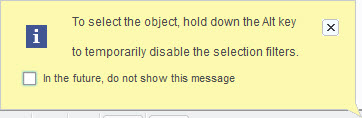
I fail to select the objects in creo parametric 2.0 almost half of the time and a warning message will pop out saying that"to select the object, hold down Alt key to temporarily disable the selection filters"

Just like this one.
03152223_Y69V.jpg

I don't know what does this mean and what I should do.

Can anybody help me fix this problem?

5 replies

24-Ruby III
October 3, 2016

Hi,

to prevent displaying the message, please activate tab related to object you want to select. This method has to be used especially in Drawing mode. For example: If you want to select sketched 2D geometry, then you have to activate Sketch tab.

MH

swen1-VisitorAuthor
1-Visitor
October 3, 2016

Do you mean to select objects from the model tree on the left? That will work but I'm having problem with directly selecting them in the graphics. After all, selecting objects from the model tree is not as convenient as direct selection.

24-Ruby III
October 3, 2016

Hi,

I mean selecting objects in graphics window. Please describe, what are you selecting and attach picture of your situation.

MH

14-Alexandrite
October 3, 2016

What kind of workstation are you using?  I've had some reports of this problem, but only from users on Surface tablets, or using an HDMI connected TV as a monitor.

14-Alexandrite
October 3, 2016

Almost forgot to mention that all the users reporting this to me were using Windows 10.  What OS are you using?

swen1-VisitorAuthor
1-Visitor
October 4, 2016

I'm just using a laptop with Windows 10.

14-Alexandrite
October 4, 2016

Check to see if your laptop and graphics card is on the list of supported laptops.  Also, what build of Creo 2 is it?  Windows 10 support was added in M190.

If you're not on, or similar to, the list of supported configurations, this may just be a hardware limitation.  In my experience, with two people using two identical Surface tablets with Windows 10, one had the issue you are having, the other did not.  However, this was all back on M150.

12-Amethyst
June 15, 2017

I know this is kind of an old thread, but we just ran into this same issue where I work and for us, it turns out to be caused by a changed feature of Windows 10 to "scale" certain display items.

Open the Settings of the display by right clicking on the Desktop and choosing "Display Settings"

On the Display settings page, there is a slider labeled "Change the size of text, apps, and other items:"

When not set to 100%, we see this exact issue you are reporting.  It must be due to the setting not mapping the new percentage properly to mouse clicks, pre-highlighting works fine, but selection is hit and miss.capture.gif

1-Visitor
June 16, 2017

The selection filter is in the bottom right of the screen.

selection filter.jpg

Make sure it is set to smart, all, or whatever it is you are trying to select.  "Alt" just allows you to disregard the selection filter and select anything.