

Solved
The issue with my assembly was related to surface contacts between 2 parts and the surface regions created in one part. After adding another surface region to isolate one of the contacts so that it would not interfere with the simulate fasteners the assembly now meshes and analysis runs. I had fixed this once before and the save I performed while in Simulate must not have saved my previous changes.
See product idea Creo Simulate Search tool to show location for BDID of a element
The method that PTC gave me for locating the BDID element is as follows..
1. write down the BDID for the element in question
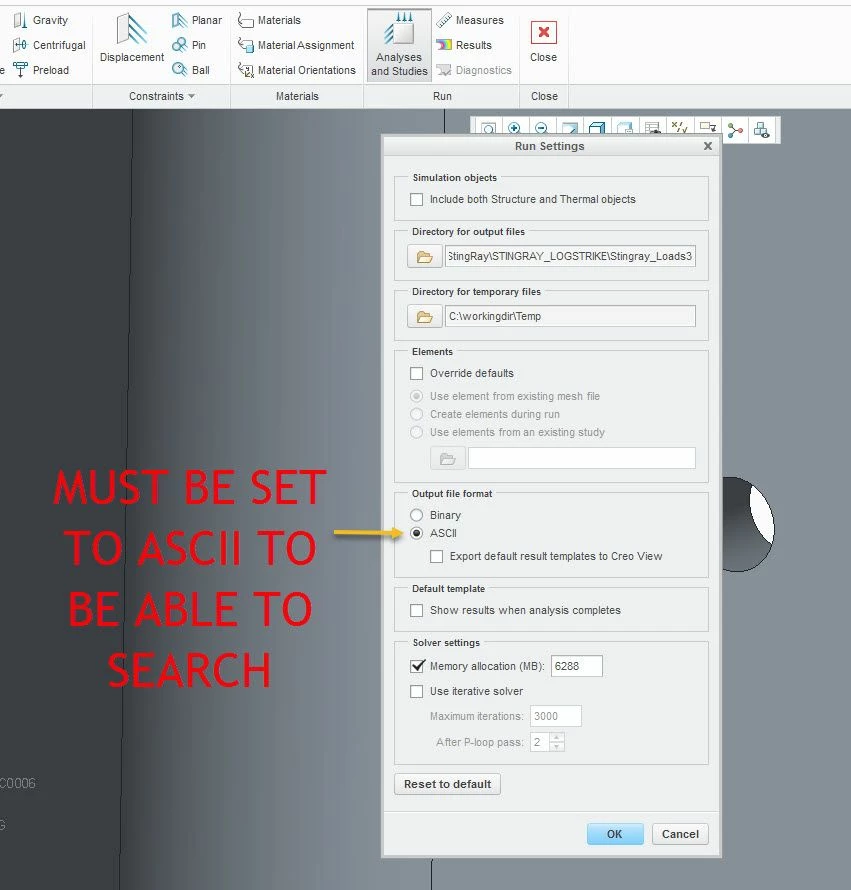
2. change your "Run Settings" output file format to "ASCII"
3. re-run analysis
4. Open the .neu for your analysis in your solution folder with a text editor that can handle large files
5. Search for the BDID like 157365196
6. you should see something like this and the coordinates are related to the world cys
inod x y z
157365196 -7.515838E+001 -6.139223E+002 -3.384437E+002
inod: h-node number
x,y,z: coordinates of this h-node in global rectangular system
7. Create a CYS or Point using the x,y,z coordinates from your search and you will now know the location for the BDID element.
Hope this helps,
Don Anderson