
1-Visitor
June 30, 2014
Question

Inserting Graphics/Configuring .DCF File

  • June 30, 2014
  • 2 replies
  • 3948 views

We've been having problems inserting graphics/images into our Arbortext SGML file. Each time we try to insert a graphic, we receive the following message:

"[A11647] Graphics are not allowed in this document type"

We've opened up our .DCF file to try to resolve the issue. In the .DCF, we've found an element for Graphics in the "Specials" field. When I open the attributes for it, I see the following:
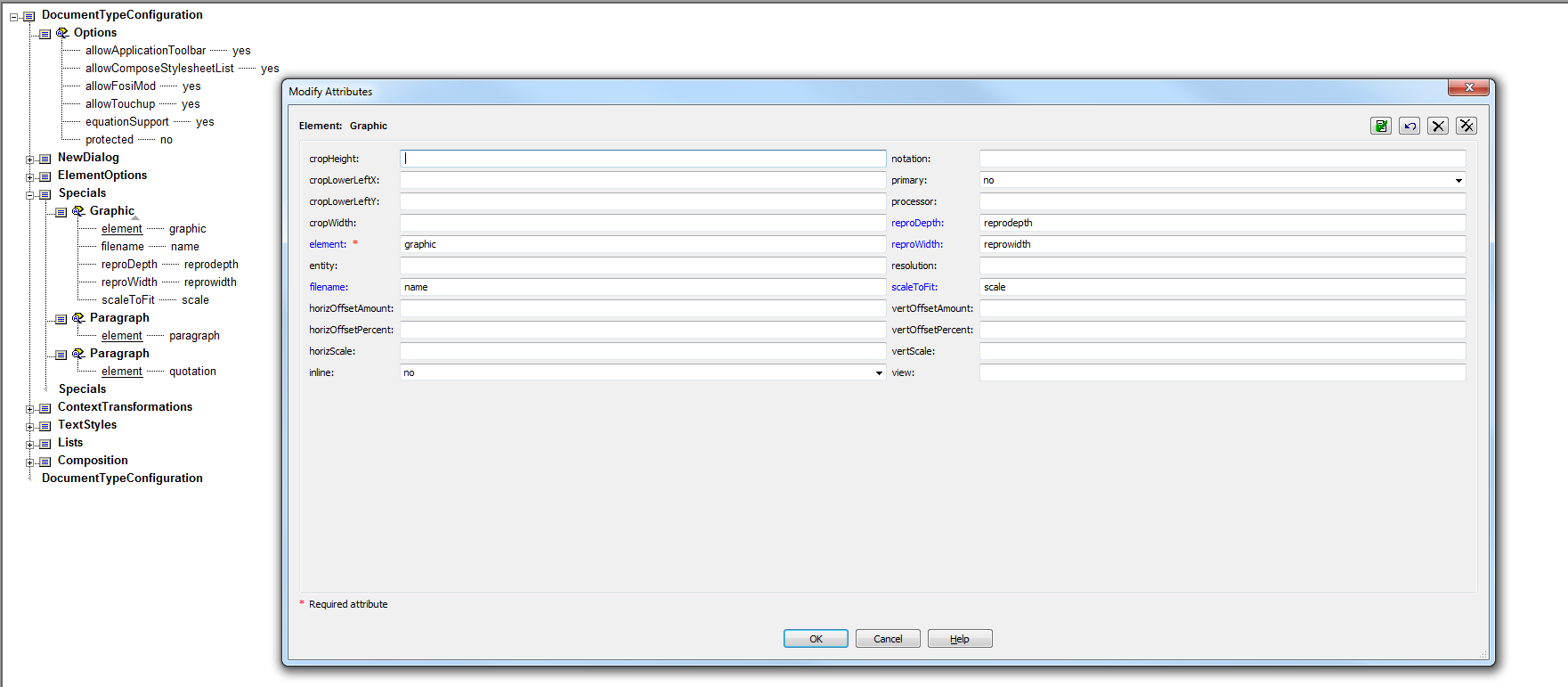
Graphics-DCF.png

My question is: What do I need to enter into these fields that will enable us to put in graphics?

    2 replies

    16-Pearl
    July 2, 2014

    That looks correct, assuming your graphic element is called <graphic> and has the required attributes available to be used. Next thing to check is that the DCF file is named correctly and in the correct folder. I did a quick search for the error message on the PTC knowledge base and one entry came up which may also help:

    https://www.ptc.com/appserver/cs/view/solution.jsp?n=CS174675

    tgalvin1-VisitorAuthor
    1-Visitor
    July 6, 2014

    When we insert a <graphic> tag, we see a prompt for required attributes, which we're able to set. After we set the attributes, Arbortext inserts empty graphic start and end tags. It doesn't open a window that enables us to find an image to insert within the tags.

    12-Amethyst
    July 6, 2014

    I believe that the "name" attribute needs to be required for Arbortext Editor to ask you for a graphic name.

    Tim

    5-Regular Member
    July 31, 2014

    Hi Tag,

    Were you able to work through this, or do you still need some assistance?

    tgalvin1-VisitorAuthor
    1-Visitor
    August 1, 2014

    Hi Rafael,

    I'm sorry for not responding earlier. We were able to work through this. What we weren't doing was referencing the graphics in our entities directory. We didn't know that we had to put the graphics in the same folder as our document and reference them in the entities field of our menu.