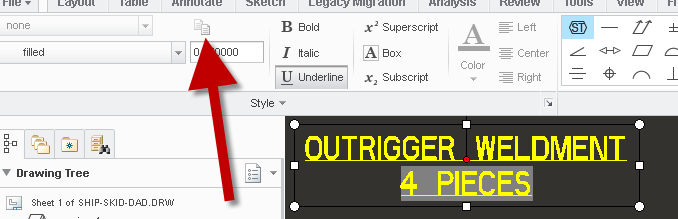

Note formating in one note CREO 3
In Creo 2 and earlier, I could copy note formatting to a portion of a note if the note was broken up appropriately. The simplest example of this is the view name/scale where the name of my view is DETAIL A and the scale is scale 0.125 (as shown below).
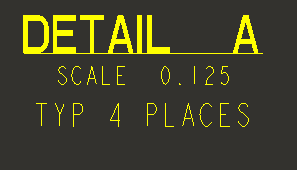
Sometimes we add a custom note under a view that is not system generated and I want to format it appropriately such as the image below but I want the lower portion to be not bold/not filled/sized differently.
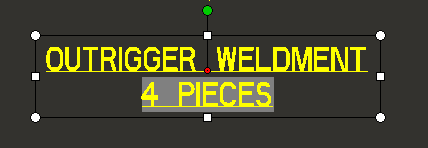
In Creo 2, I could select the lower portion and then go copy from existing text and format just the lower portion of the note.
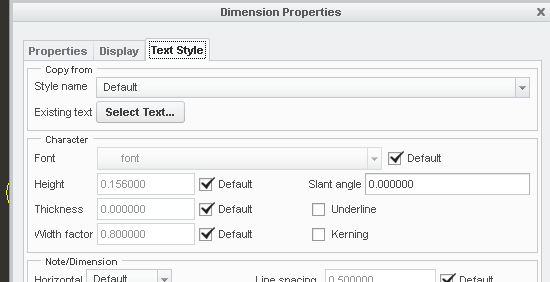
In Creo 3, I no longer can copy the format for a portion of a note, the copy format button is greyed out when I only have a portion of the note selected (see image, copy formatting icon is not available). Any work-arounds on this?