
1-Visitor
July 19, 2017
Solved

How to assing .mtl file color

  • July 19, 2017
  • 1 reply
  • 6280 views

Hi,


I have would like to assign a spesific photolux color (adv-steel) for my .mtl file but the color won't show up in the model.

Here is the file that I'm trying to use


ND_RelParSet_K01 = {

Name = BFACJ

PARAMETERS =
{
  Name = PTC_MATERIAL_DESCRIPTION
  Type = String
  Default = 'BFACJ'
  Access = Full
},
{
  Name = TEMPERATURE
  Type = Real
  Default = 0.000000e+00 C
  Access = Full
},
{
  Name = PTC_INITIAL_BEND_Y_FACTOR
  Type = Real
  Default = 5.000000e-01
  Access = Full
},
{
  Name = PTC_BEND_TABLE
  Type = String
  Default = ''
  Access = Full
},
{
  Name = PTC_MATERIAL_TYPE
  Type = Integer
  Default = 9
  Access = Locked
},
{
  Name = PTC_FAILURE_CRITERION_TYPE
  Type = String
  Default = 'NONE'
  Access = Locked
},
{
  Name = PTC_FATIGUE_TYPE
  Type = String
  Default = 'NONE'
  Access = Locked
},
{
  Name = PTC_MATERIAL_SUB_TYPE
  Type = String
  Default = 'LINEAR'
  Access = Locked
},
{
  Name = PTC_MASS_DENSITY
  Type = Real
  Default = 0.285 lb/in^3
  Access = Full
},
{
  Name = PTC_POISSON_RATIO
  Type = Real
  Default = 3.300000e-01
  Access = Full
},
{
  Name = PTC_YOUNG_MODULUS
  Type = Real
  Default = 1.010000e+07 psi
  Access = Full
},
{
  Name = PTC_THERMAL_EXPANSION_COEF
  Type = Real
  Default = 1.310000e-05 /F
  Access = Full
},
{
  Name = PTC_DEFAULT_APPEARANCE
  Type = String
  Default = 'adv-steel'
  Access = Full
},
{
  Name = PTC_APPEARANCE_1
  Type = String
  Default = 'adv-steel'
  Access = Full
}

}
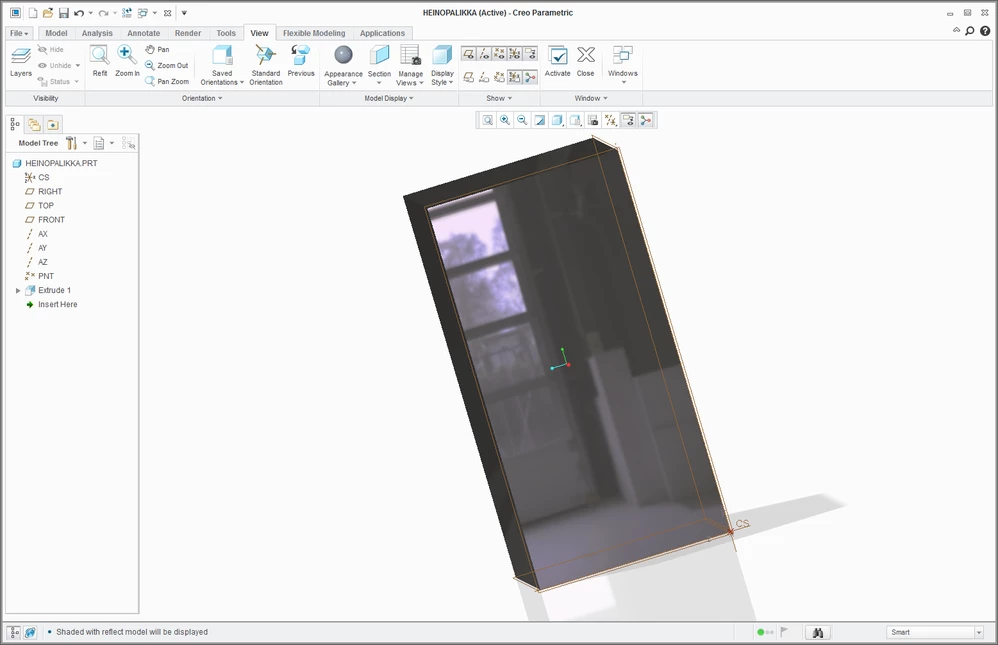
Best answer by MartinHanak

Hi,


I followed below mentioned steps.


  • start CR3 M120
  • open heinopalikka.prt
  • remove all materials from the model
  • save model
  • exit CR3 M120


  • I do not have PRO_MATERIAL_DIR option defined in config.pro
  • CR3 M120 installation directory ... E:\PTC\Creo3_M120
  • I created bfacj.mtl file in E:\PTC\Creo3_M120\Creo 3.0\M120\Common Files\text\materials-library directory ... I copied its contents from your original post
  • I modified global.dmt file in E:\PTC\Creo3_M120\Creo 3.0\M120\Common Files\graphic-library\appearances directory ... I added adv-steel color at the end of file (55 lines copied from your global.dmt file)


  • start CR3 M120
  • open heinopalikka.prt
  • add and assign bfacj material
  • finished

adv-steel.png


1 reply

24-Ruby III
July 19, 2017

Hi,


insert the definition of adv-steel color into global.dmt file and ... you are done.

hjarvela1-VisitorAuthor
1-Visitor
July 20, 2017

I did exactly what you said but it's not working...

24-Ruby III
July 20, 2017

Hi,


please put into zip file your Creo part and global.dmt file and upload zip file using Browse button. I will check your data.