


21-Topaz II
July 13, 2025
Solved

Resize "Creo Parametric Options" window

  • July 13, 2025
  • 2 replies
  • 1498 views

I'm using Creo 9.0.9.0

When I open the Creo Parameteric Options window, via the command File -> Options -> Options the window the dialog window that pops up is so wide that the options are  not on the screen. They are shoved off-screen to the left.

I can't resize the window with the usual Windows arrow keys, mouse clicks, etc. It will let me make the window wider, but does not allow any decrease of window width. 

Is there a way to access the window settings for this dialog to correct this situation? I tried looking for any sort of settings in the Windows registry, but nothing seems to be stored there.
Best answer by MartinHanak

@KenFarley wrote:

I reset multiple times. I deleted the existing .ui file so it would create a new one. I disconnected one monitor. Nothing works. The width of the Options window and only that window, is locked to a minimum of full screen width. I don't have any custom fonts. 


Hi,

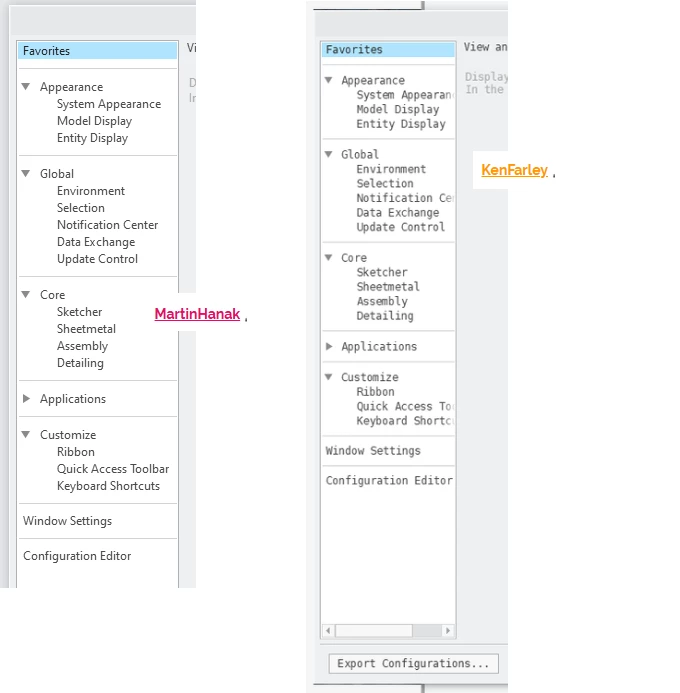
following picture shows that your Creo uses non-default font in UI. Maybe your config.pro contains DEFAULT_UI_FONT option.

MartinHanak_0-1752580229301.png


2 replies

24-Ruby III
July 14, 2025

Hi,

I think minimum window size is hardcoded.

My Creo 9.0.2.0 pictures follow ...

MartinHanak_0-1752480884238.png

MartinHanak_1-1752481102527.png

MartinHanak_2-1752481196428.png


KenFarley21-Topaz IIAuthor
21-Topaz II
July 14, 2025

Attached is an image of my situation. The options window is ridiculously wide and I cannot make it smaller. If I expand it to make it even wider it will do so, but then it will be locked at that new, even more ridiculous width. Nothing I've tried has allowed me to diminish it. It's so wide that it spans from one of my monitors to the other. When it first pops up, the window usually has the "Okay" and "Cancel" buttons off-screen. The image attached is from a screen shot that takes both monitors. as one.

Note: This is the only dialog window in Creo that behaves like this for me. Fortunately, I am not changing my option settings on a regular basis, but still it is annoying.

24-Ruby III
July 14, 2025

Hi,

my tips of problem roots

  • .ui file
  • multimonitor usage
  • user font assigned to Creo UI


18-Opal
July 14, 2025
You have configured your own font, try start without any configuration and ui file. 
And take care if you have configured a different scale for your fonts in Windows. 


Since Creo Parametric 9.0, the window size has been saved in C:\Users\<username>\AppData\Roaming\PTC\ProENGINEER\Wildfire\.wf\.Settings\creo_parametric_customization.ui automatically

  • How to reset the window size which was changed and saved?
  • Is there the way to open creo_parametric_customization.ui file without window size information when importing it in the other user's Creo Parametric?

Resolution


KenFarley21-Topaz IIAuthor
21-Topaz II
July 14, 2025

Following these steps, or deleting the creo_parametric_customization.ui file yields the same result: The size is no longer exceeding a single monitor. However, it is still the full width of the screen, and I still cannot make it any smaller. This leads me to believe that maybe the multiple monitors, for the options window, is causing a miscalculation of the default window size and the minimum allowable window size.

I'll try switching to single monitor and see if that does anything. I wonder, as has been discussed in the past, why the .ui file, which would be very helpful to fix such things, is saved in an unreadable binary format. Really not very helpful, is it?

If I find my theory about this to be correct, I guess I'll have to save that .ui file, use it when I go back to multimonitors, and submit a bug report about this.

18-Opal
July 14, 2025

Did you reset with this picks?
Manager UI Customization
dialog box, check Windows Size and select Reset