

Create An Extension Part 5
- 2 replies
- 14908 views
- Translate All
Step 11: Build Extension
You can use either Gradle or Ant to build your ThingWorx Extension Project. Ant is the preferred method.
Build Extension with Gradle
- Right click on your project ->Gradle (STS)->Tasks Quick Launcher.
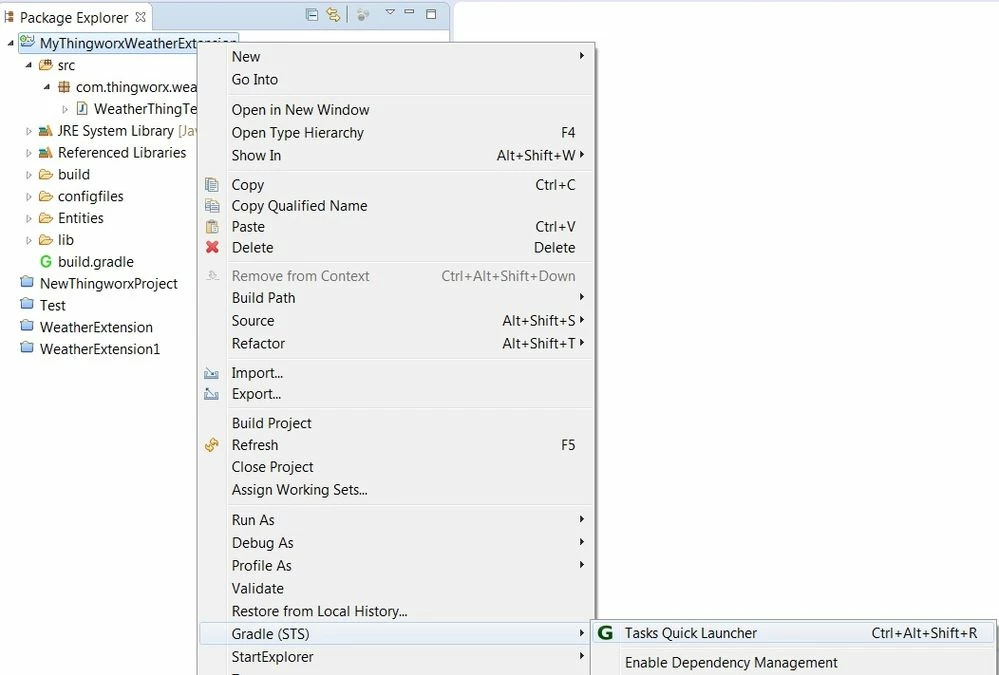
NOTE: This opens up a new window.
Set Project from the drop-down menu to your project name and type Tasks as build.
- Press Enter

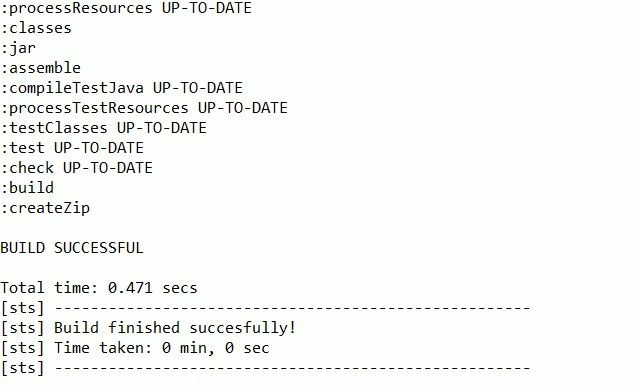
NOTE: This will build the project and any error will be indicated in the console window. - Your console window will display BUILD SUCCESSFUL. This means that your extension is created and stored as a zip file in your_project->build->distributions folder.
- Go to the Package explorer -> your_project->.
- Right click on build-extension.xml->Run As->Ant Build
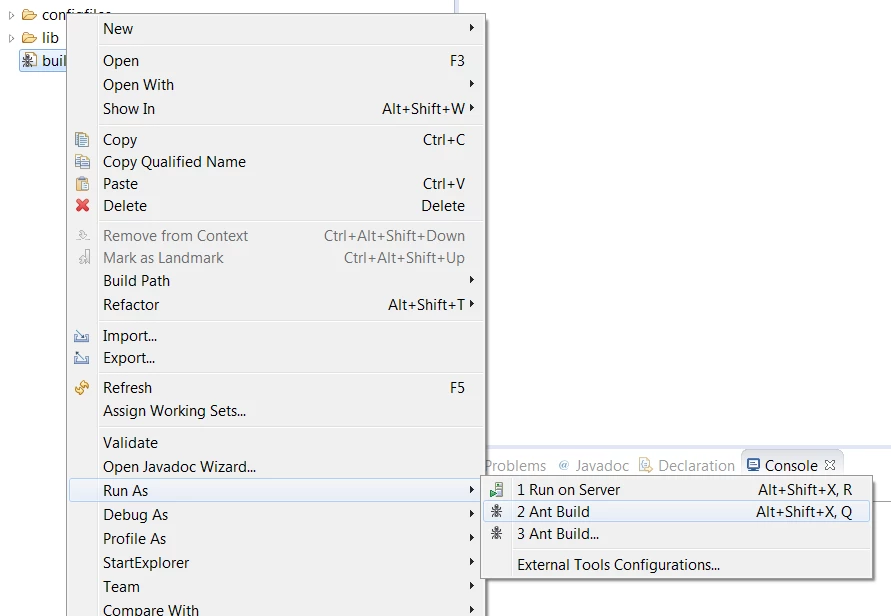
- Your console output will indicate BUILD SUCCESSFUL.

NOTE: This will build your project and create the extension zip in the your_project->build->distributions folder of your project.
Step 12: Import Extension
If you have valuable data on your ThingWorx server, save the current state before importing an untested extension by duplicating and renaming the ThingworxStorage directory. This will save all current entities and a new, empty ThingworxStorage directory will be generated when Tomcat is restarted. To restore your saved state, rename the duplicate directory back to ThingworxStorage. Alternatively, If you do not back up your storage, make sure that any entities you want to save are exported into xml format. This way you will be able to restore your ThingWorx server to its initial state by deleting the storage directory before importing the saved entities.
Import Extension
- In the lower left corner, click Import/Export, then select Import.
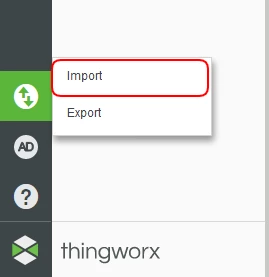
NOTE: The build produces a zip file in ProjectName->build->distributions folder. This zip file will be required for importing the extension. - For the Import Option option, select Extension.
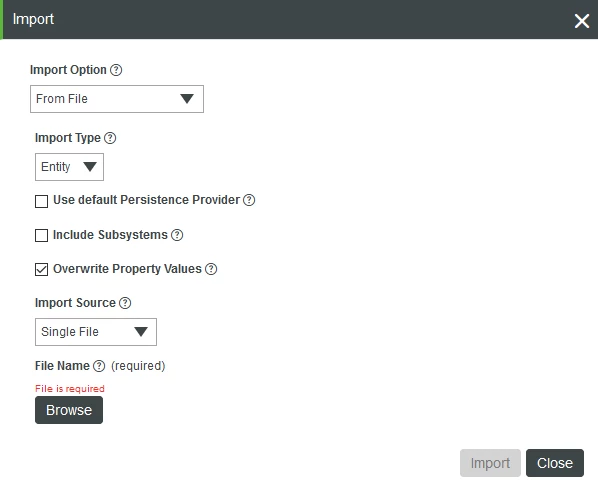
- Click Browse and choose the zip file in the distributions folder (located in the Exclipse Project's build directory). Click Import.
Create a Thing
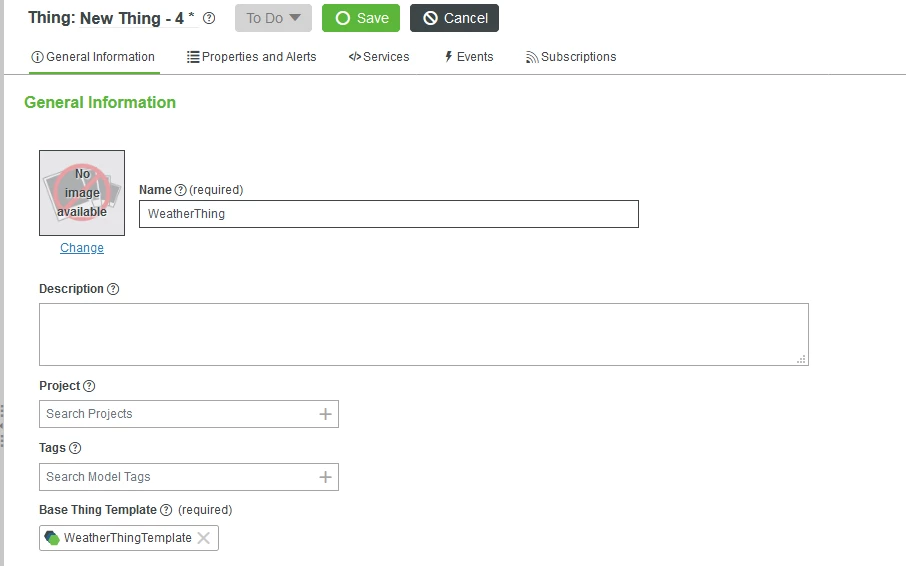
- Create a Thing using the ThingWorx Composer with the Thing Template set to the WeatherThingTemplate.
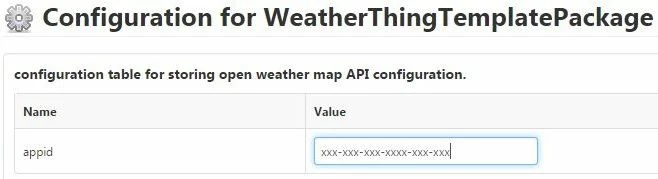
- Open the ConfigurationTable tab and add the appid from the OpenWeatherMap.org site.
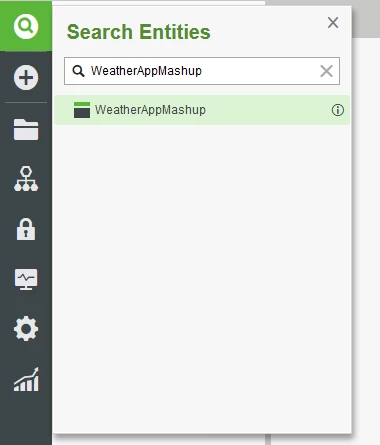
- Open the WeatherAppMashup Mashup by searching for WeatherAppMashup in the Search bar.
- Click View Mashup in the WeatherAppMashup Mashup window.
- Type the name of a city (eg. Boston) and click go.
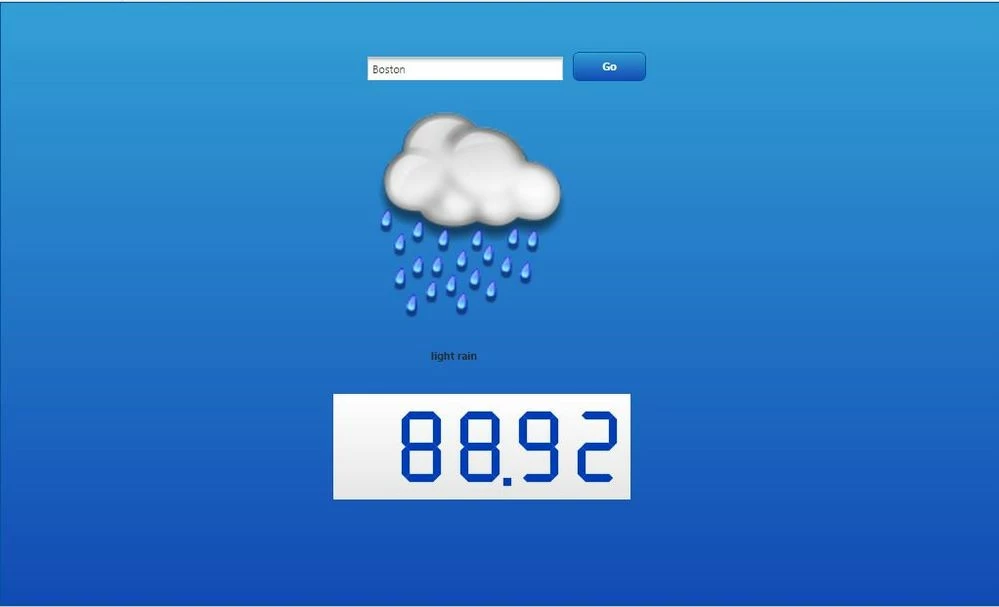
NOTE: You can now see the current temperature reading and weather description of your city in the Mashup.
Troubleshooting
If your import did not get through with the two green checks, you may want to modify your metadata.xml or java code to fix it depending on the error shown in the logs.
| Issue | Solution |
| JAR Conflict arises between two similar jars | JAR conflicts arise when a similar jar is already present in the Composer database. Try to remove the respective jar resources from the metadata.xml. Add these jars explicitly in twx-lib folder in the project folder inside the workspace directory. Now, build the project and import the extension in ThingWorx Composer once again. |
| JAR is missing | Add the respective jar resource in metadata.xml using the ThingWorx->New Jar Resource. Now, build the project and import the extension in ThingWorx Composer once again. |
| Minimum Thingworx Version [ 7.2.1] requirements are not met because current version is: 7.1.3 | The version of SDK you have used to build your extension is higher than the version of the ThingWorx Composer you are testing against. You can manually edit the configfiles->metadata.xml file to change the Minimum ThingWorx version to your ThingWorx Composer version. |
Step 13: Next Steps
Congratulations! You've successfully completed the Create an Extension tutorial, and learned how to:
- Install the Eclipse Plugin and Extension SDK
- Create and configure an Extension project
- Create Services, Events and Subscriptions
- Add Composer entities
- Build and import an Extension
Learn More
We recommend the following resources to continue your learning experience:"
| Capability | Guide |
| Build | Application Development Tips & Tricks |
Additional Resources
If you have questions, issues, or need additional information, refer to:
| Resource | Link |
| Community | Developer Community Forum |
| Support | Extension Development Guide |