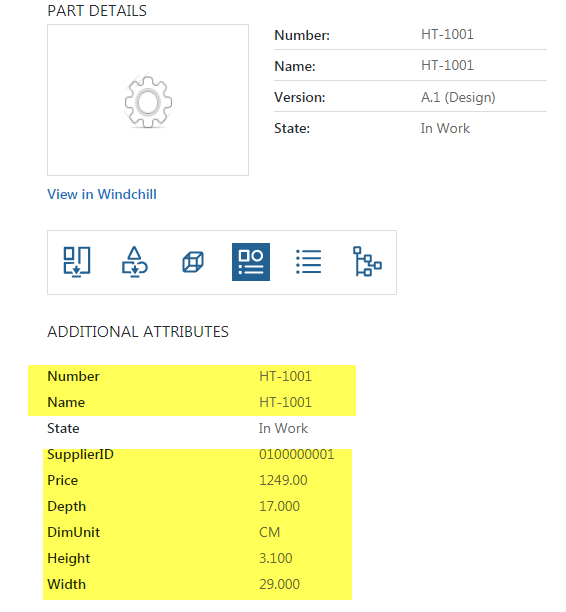
Displaying SAP attributes in Part Properties Navigate 1.6 mashup
Overview:
Navigate 1.6 uses SAP ODataConnector that enables the connection to the SAP Netweaver Gateway through the ODdata specification. It is a specialized implementation of the ODataConnector. See Integration Connectors for documentation
We will use SAP Netweaver Gateway Demo system:
1. Create an account on the Gateway Demo system (credentials to be used on the connector are sent by email)
2. Verify that the account has access to the basic OData sample service : https://sapes4.sapdevcenter.com/sap/opu/odata/IWBEP/GWSAMPLE_BASIC/
Note: ThingWorx can use SSO to access SAP, but in this post we will use fixed authentication.
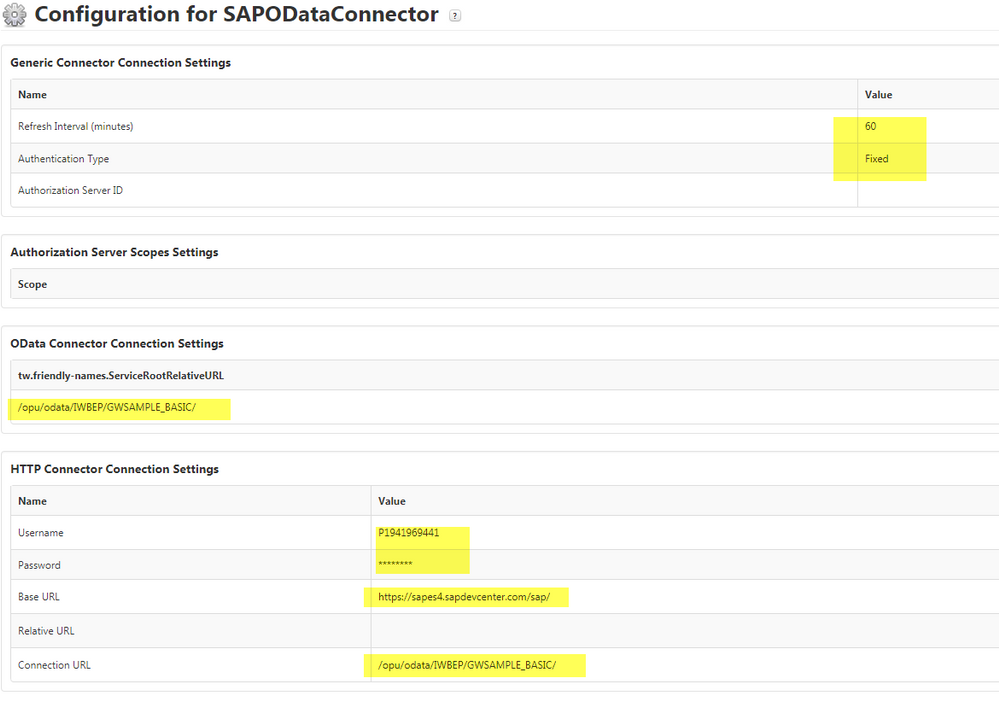
1. OpenSAPODataConnector and configure connection settings:
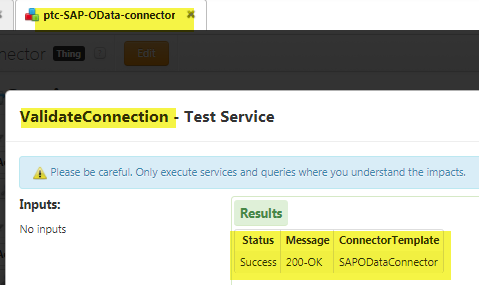
 2. Save the connector and go to services and execute service ValidateConnection to validate that 200 OK status is returned:
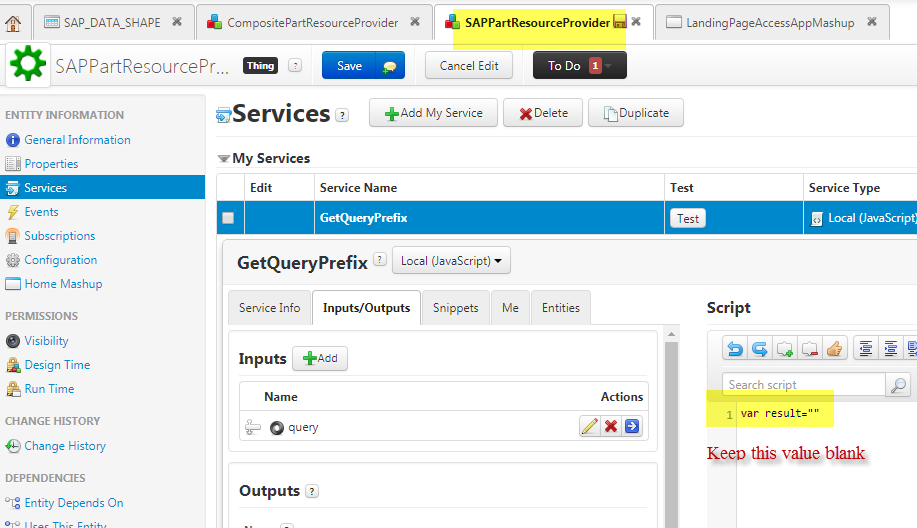
3. Open SAPPArtResourceProvider Thing and then Services and Edit the Service and in the script Enter the
var results=””
Note: This is the Prefix used to get data from SAP which is added before the Part Number
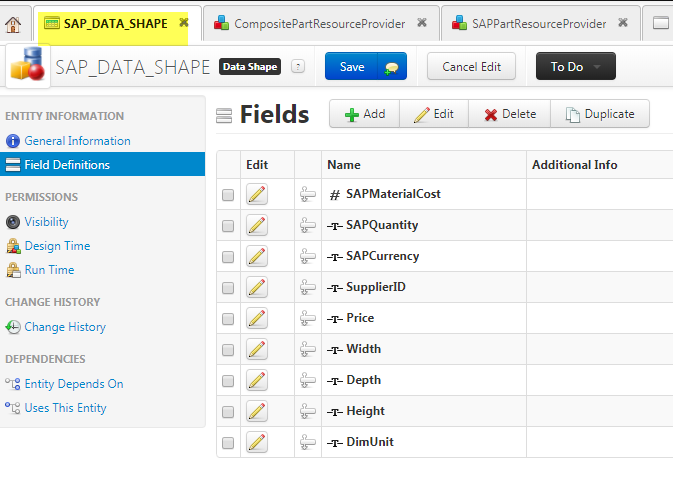
4. Open the Data shape SAP_DATA_SHAPE and create the three Data Fields as below and save the Data Shape
SAPMaterialCost => Type => Number
SAPQuantity => Type => String
SAPCurrency => Type => String
SupplierID => Type => String
Price => Type => String
With => Type => String
Depth => Type => String
Height => Type => String
DimUnit=> Type => String
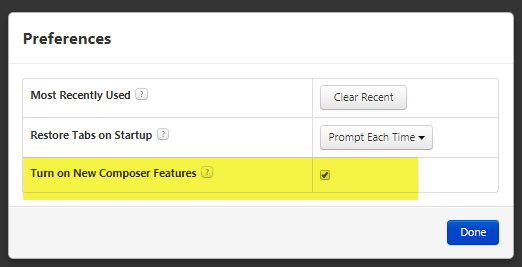
5. Open the New Composer by setting the below preference from Administrator:
6. In New Composer open Thing ptc-SAP-OData-Connector, Services and edit the service GetProductSet in the Route info Select the End Point getProductSet. Click Done and save the Service:
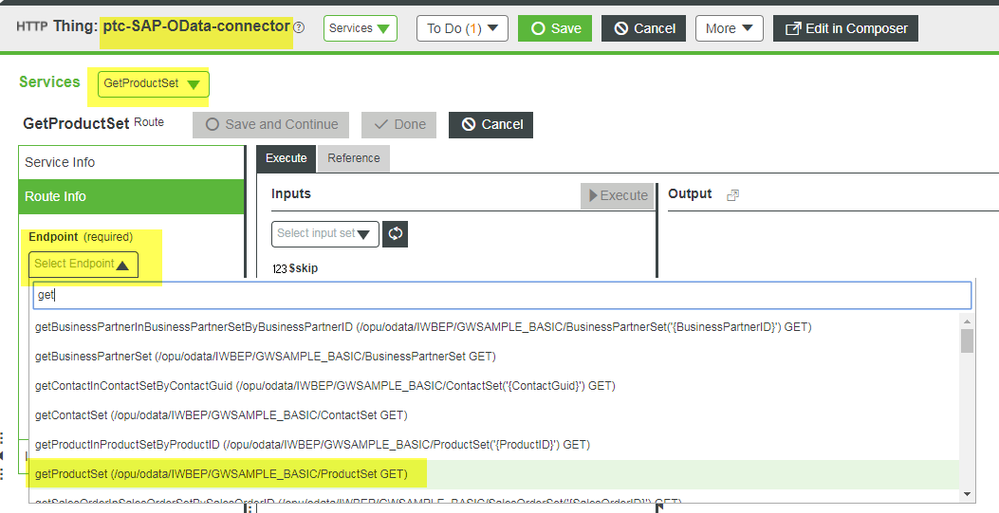 Execute the service GetProductSet and check that data is fetched from SAP.
7. Open SAPPartResourceProvider and edit Attribute Mapping Configuration and ass attributes defined earlier on SAP_DATA_SHAPE:
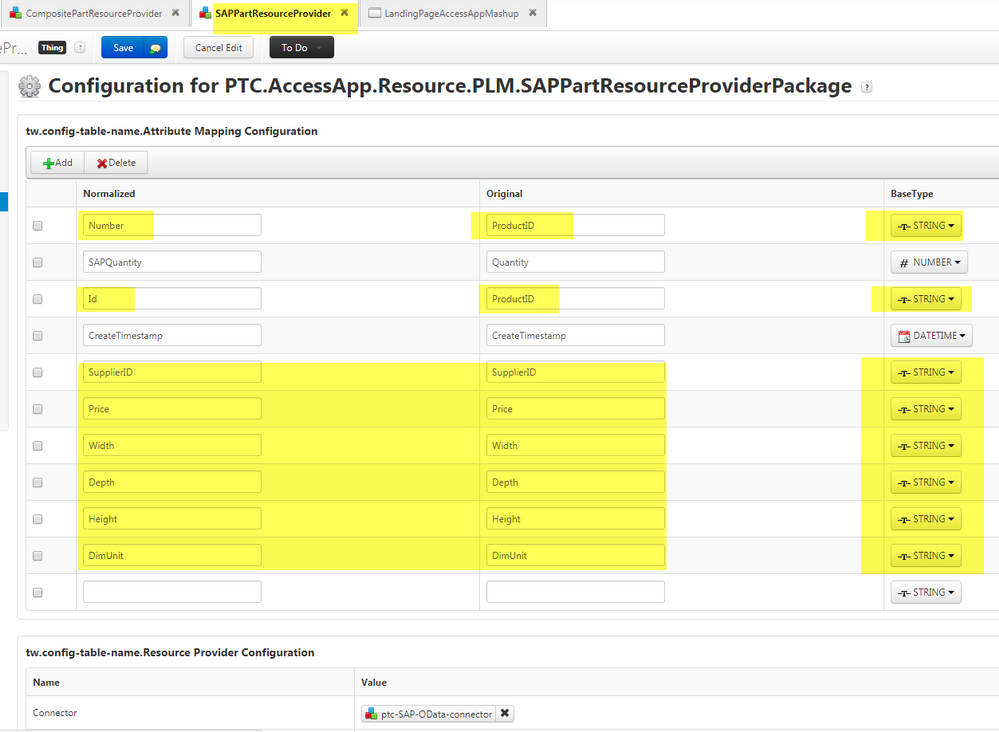
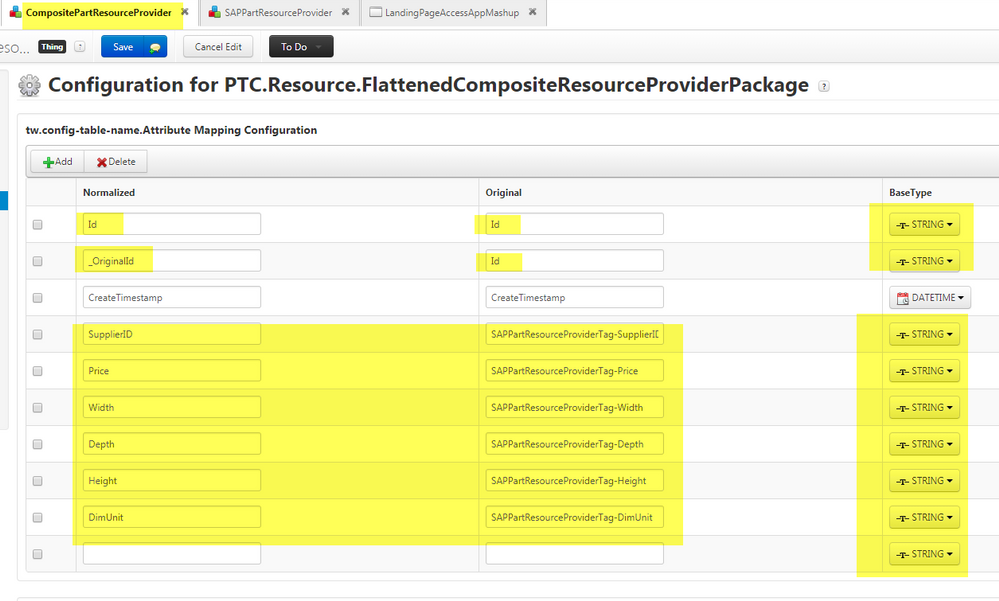
8. Open CompositePartResourceProvider and edit Attribute Mapping Configuration and ass attributes defined earlier on SAP_DATA_SHAPE:
9. Open Navigate Tailoring Pages and add the SAP attributes and save the Tailoring pages.
10. Search for some Part and open information page and check that SAP attributes are populated: