

Organize Your UI with the Collection Widget Part 2
- 0 replies
- 2669 views
- Translate All
Step 3: Create a Base Mashup
Now that you have some data, you need to create and configure a Mashup to display the data.
Using Mashup Parameters, the Collection Widget will replicate the base Mashup multiple times, correlating to each row of data in the Info Table Property.
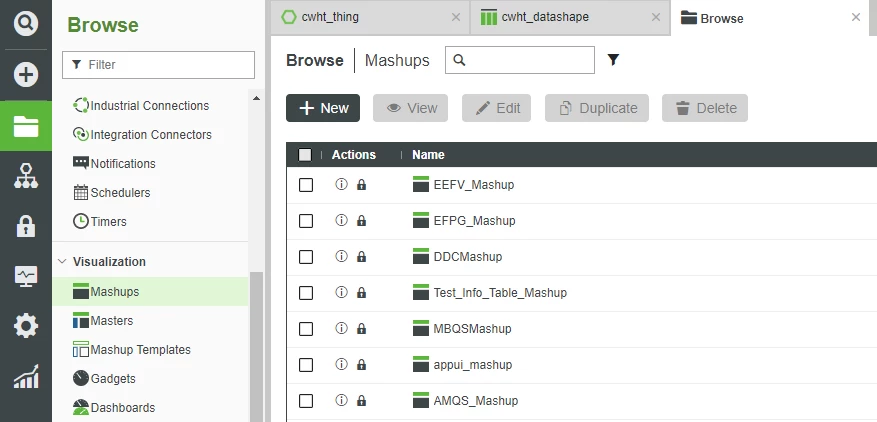
- On the ThingWorx Composer Browse tab, click Visualization > Mashups, + New
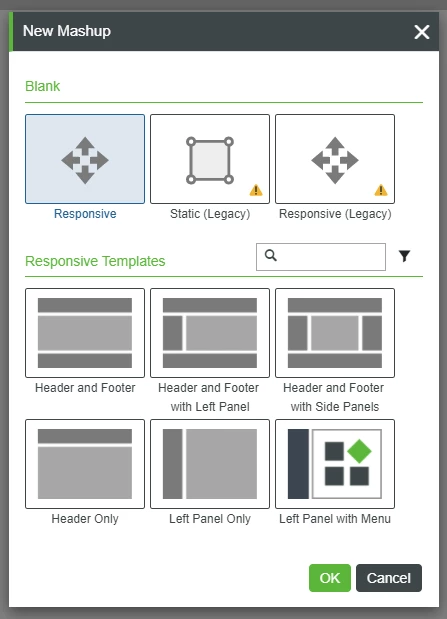
2. Keep the default ofResponsive(without selecting any Templates), and click OK
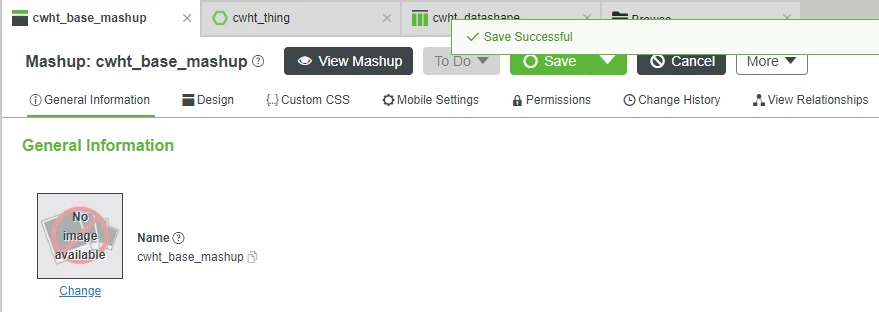
3. In the Name field, enter cwht_base_mashup.
4. If Project is not already set, search for and select PTCDefaultProject.
5. Click Save.
Add Widgets to Design
At the top, click Design.
TIP: You can click the left arrow on the divider between the Browse left-navigation and the Mashup Builder to minimize the navigation and provide more room for the Mashup Builder itself.
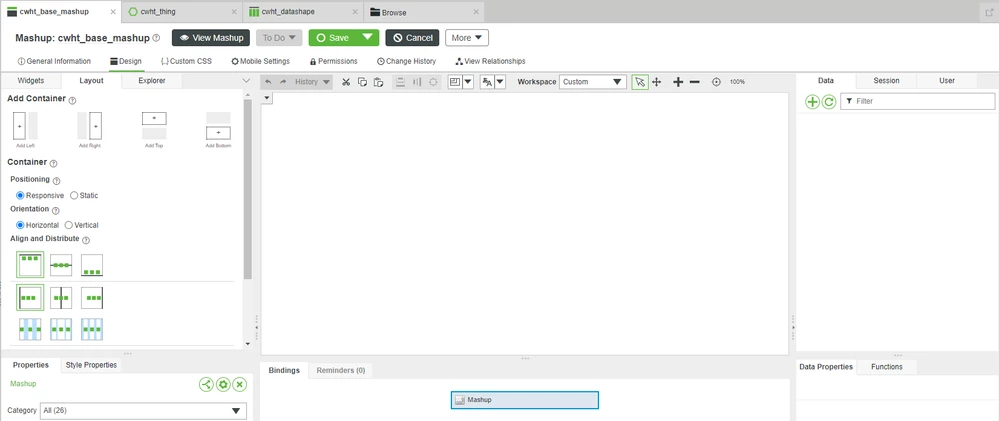
2. On the Layout tab at the top-left, select Positioning > Static.
You generally want the base Mashup to be "Static" so that you know the size of the cells which the Collection Widget will replicate.
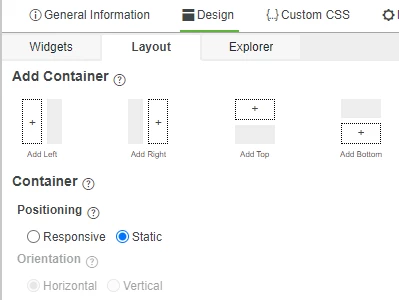
3. From the top-left Widgets tab, drag-and-drop a Gauge Widget onto the central Canvas area.
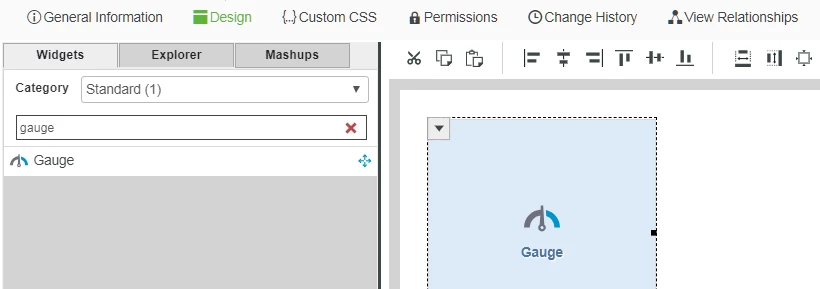
4. Drag-and-drop an LED Display Widget onto the central Canvas area.
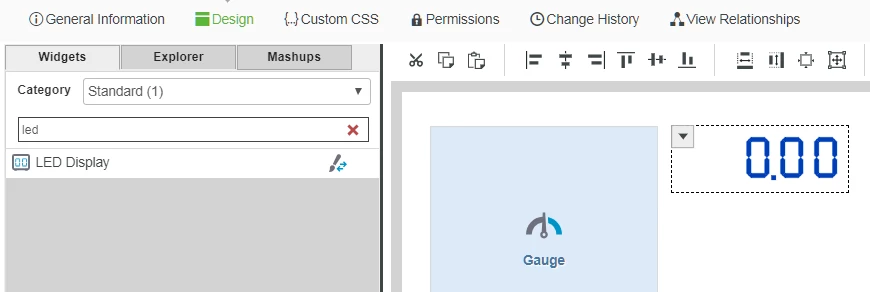
5. Drag-and-drop a Text Field Widget onto the central Canvas area
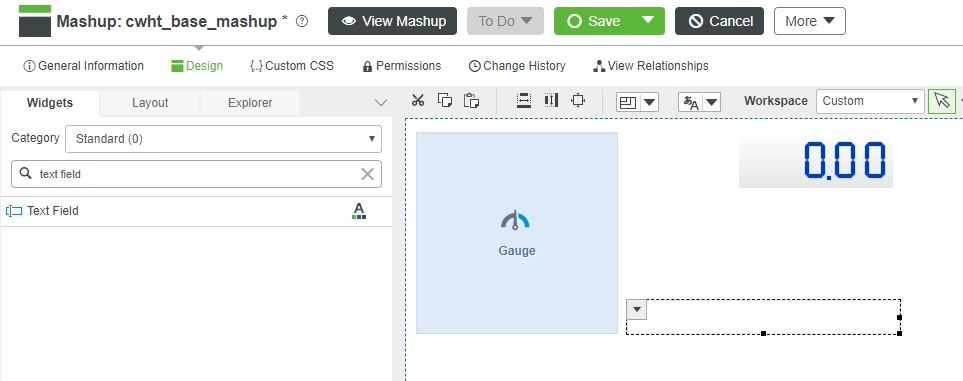
Reduce the Mashup Size
- At the top-left on the Explorer tab, select the Container.
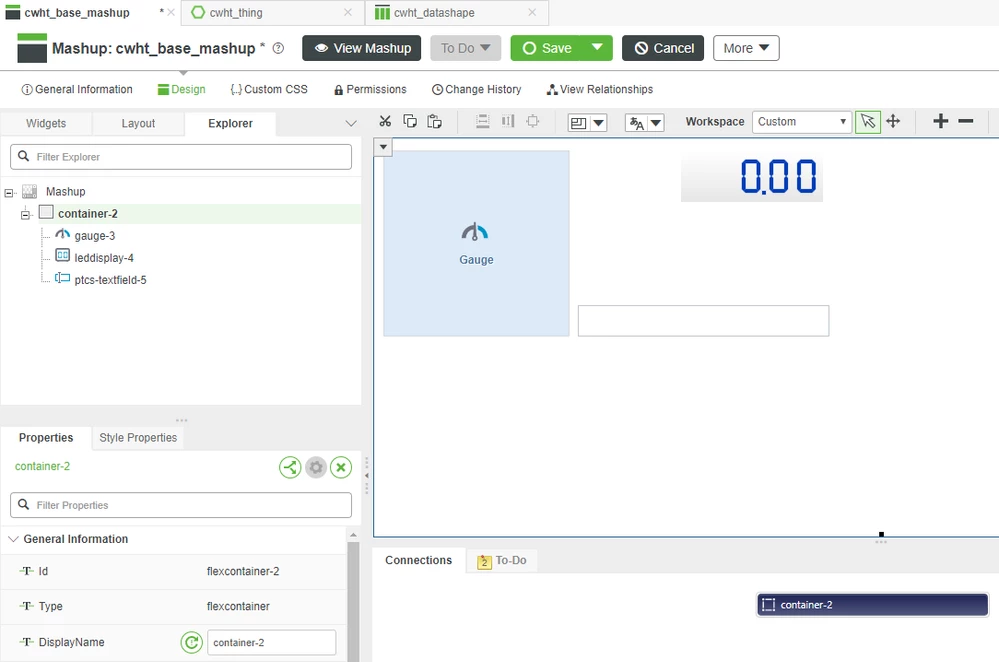
2. In the central Canvas area, click-and-drag the far-right side of the container to reduce its horizontal size
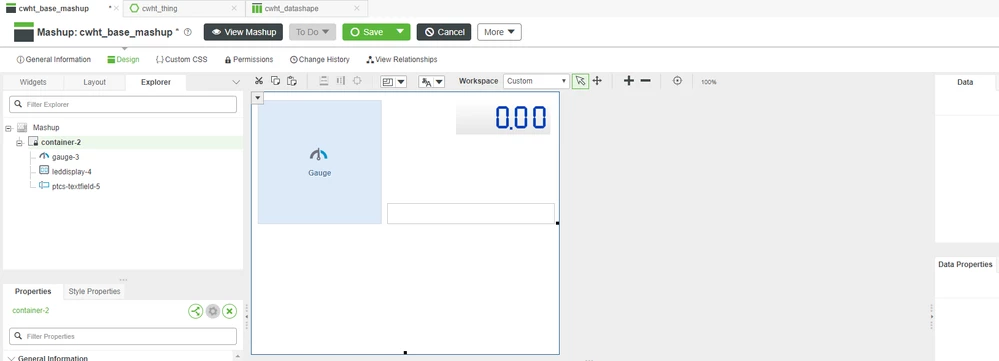
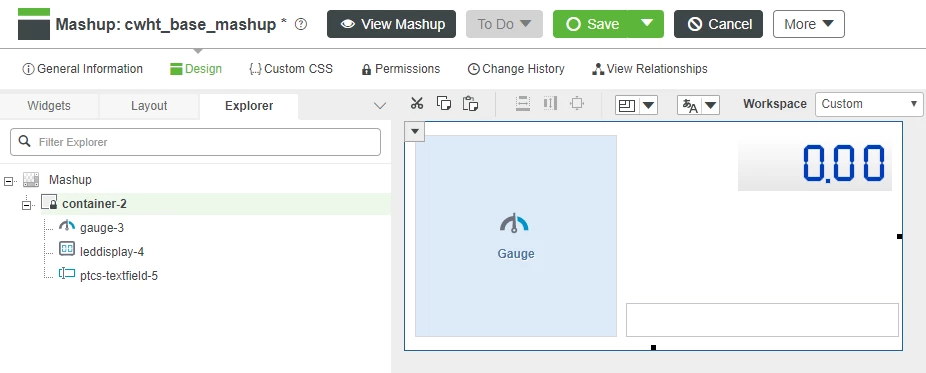
3. Click-and-drag the bottom of the container to reduce its vertical size
Create Mashup Parameters
On the top-left Explorer tab, select the Mashup itself.
- A drop-down menu indicator will appear in the top-left of the Mashup.
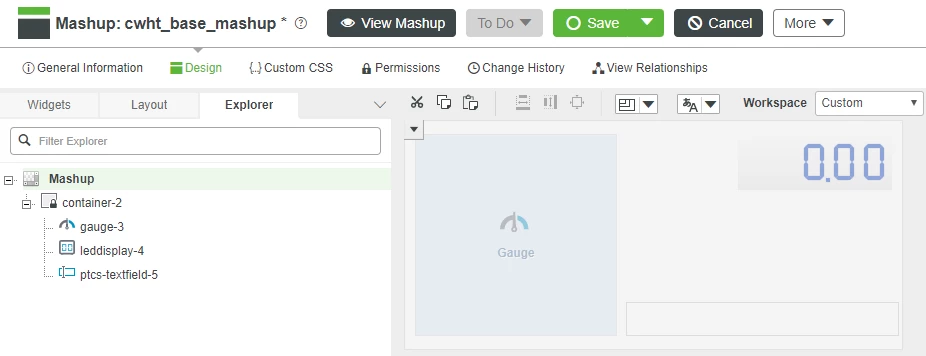
2. Click the top-left drop-down menu to reveal the Mashup options
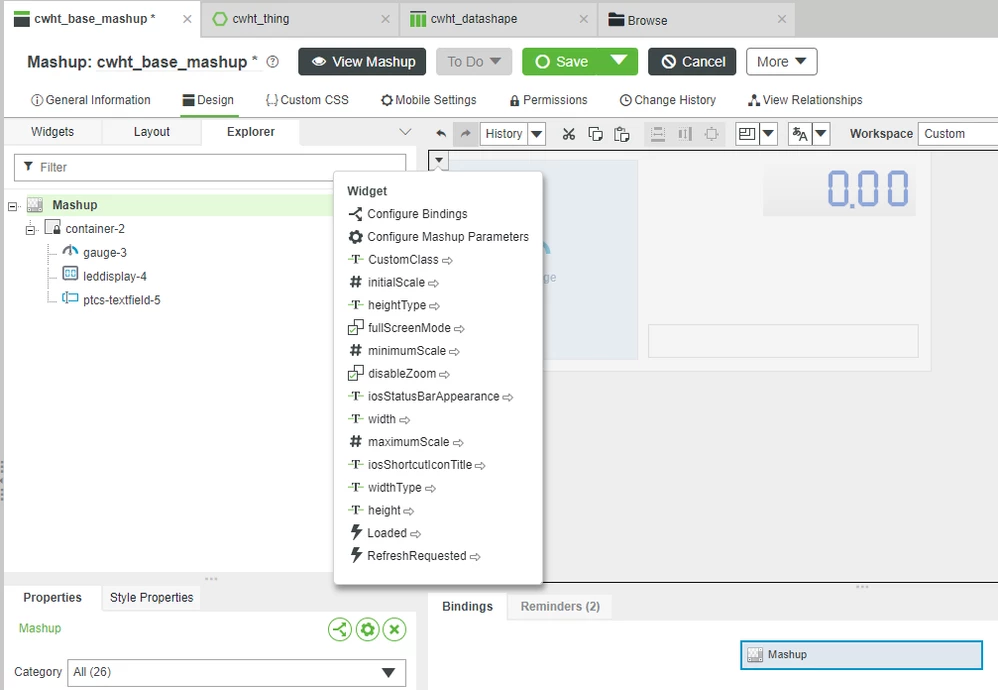
3. Select Configure Mashup Parameters to open the Configure Mashup pop-up menu

4. Click Add Parameter three times
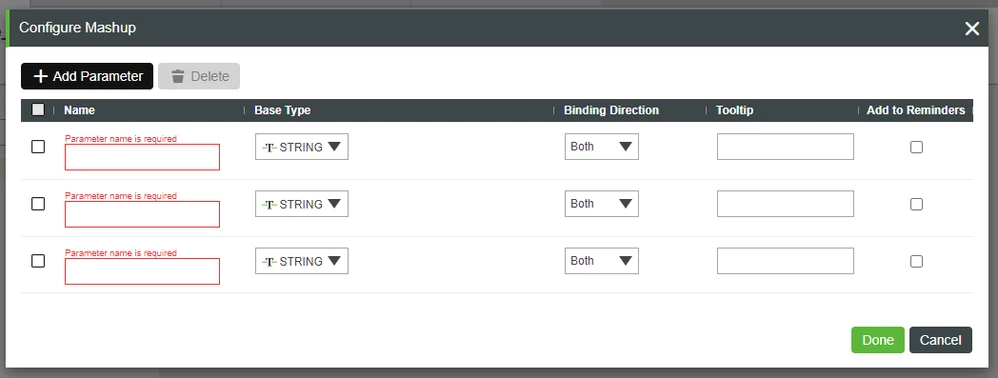
5. For the Name fields, enter first_number, second_number, and third_number.
6. Change the Base Type to NUMBER for all three Parameters
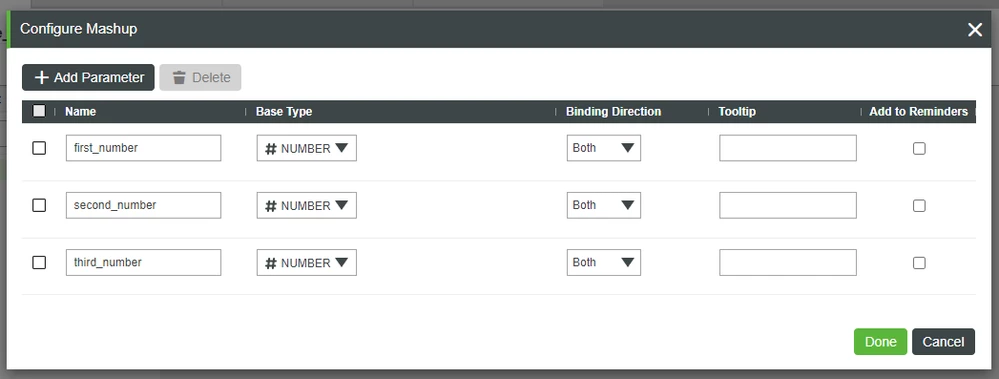
7. Click Done to close the Configure Mashup pop-up menu
Bind Mashup Parameters to Widgets
Click the Mashup's drop-down menu in the top-left to expose the options again.
- There are now additional options for first_number, second_number, and third_number.
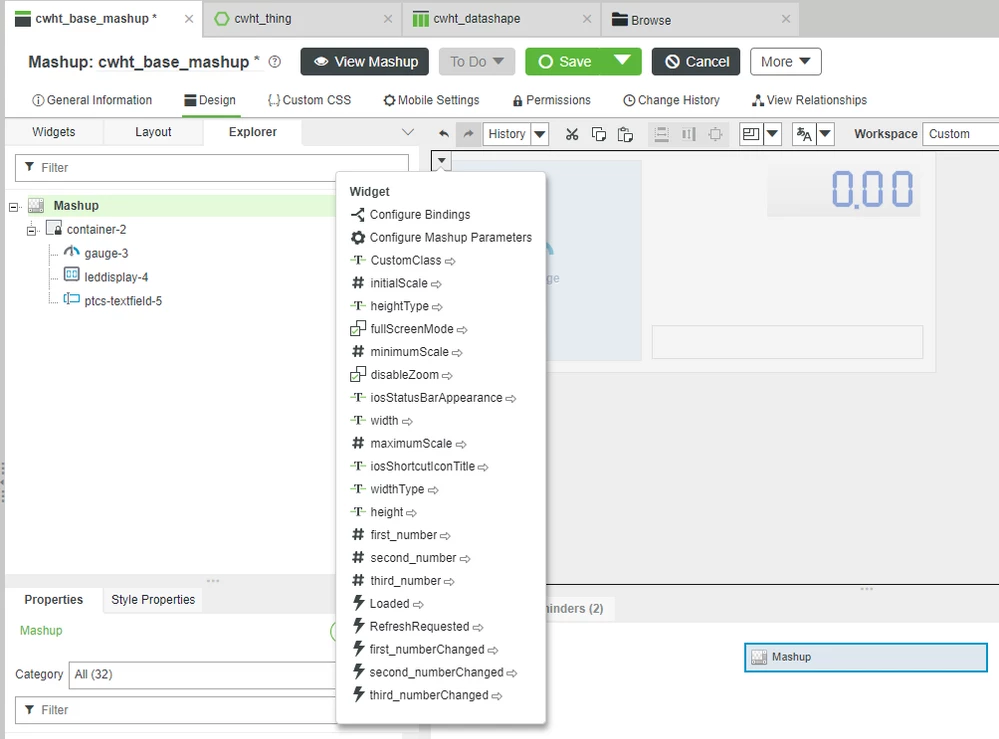
2. Drag-and-drop first_number onto the Gauge Widget
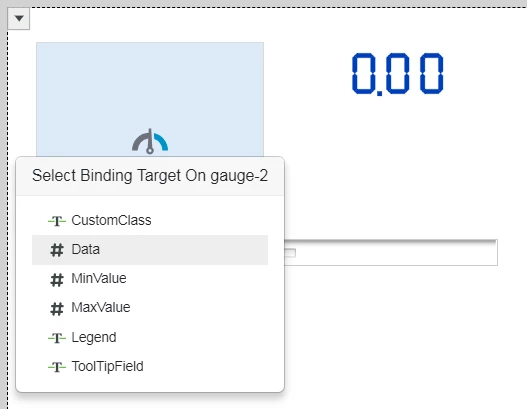
3. Select Data on the Select Binding Target pop-up menu of the Gauge Widget.
4. Drag-and-drop second_number onto the LED Display Widget.
- You may have to first reselect the Mashup itself to reveal the Mashup's drop-down menu to access the second_number Mashup Parameter.
- Remember that you can easily select the Mashup itself through the Explorer tab.
5. Select Data on the Select Binding Target pop-up menu of the LED Display Widget.
6. Drag-and-drop third_number onto the Text Field Widget.
7. Select Text on the Select Binding Target pop-up menu of the Text Field Widget.
8. At the top, click Save.
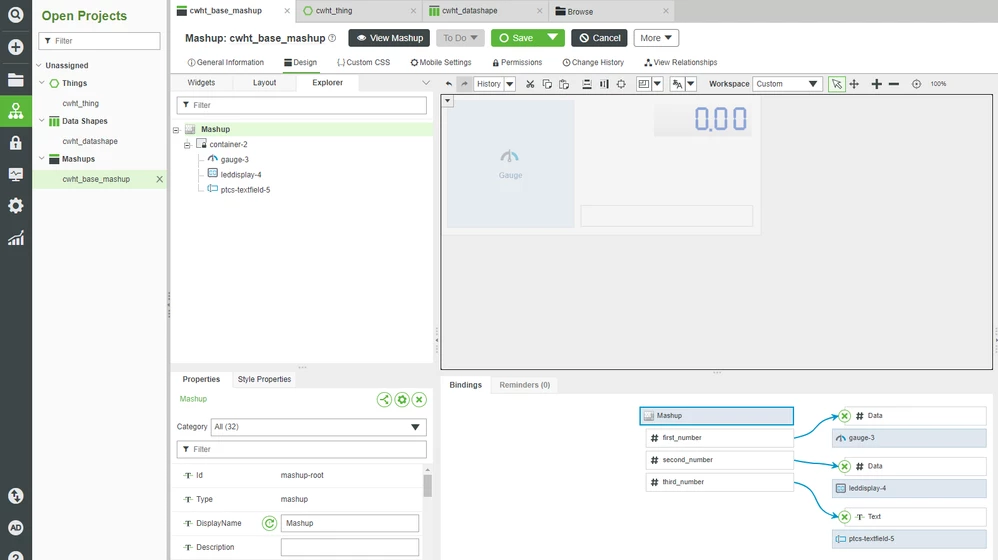
- You can expand the Connections window at the bottom and select the Mashup itself to confirm that all three Mashup Parameters have been correctly bound to each Widget.
9. Click the Right Arrow on the far-left of the Mashup Builder to re-expand the Browse navigation menu.
Click here to view Part 3 of this Guide.