ThingWorx Solutions in Food Industry Part 2
- 1 reply
- 1108 views
- Translate All
Step 3: Important Factors
If the company cannot ship or deliver their products fast enough, that will cause food waste and less revenue. At the same time, having nonstop access to meaningful data about the logistics side of the company provides a new level of decision-making capabilities.
Let’s first see what some of the pitfalls are that causes bad logistics or room for improvement. We can keep these items in mind as we work on our application.
Customer behavior – More attention can be put on how customers are shopping in certain areas. It’s not enough to know what areas are buying the most products and send them more shipments. Deadhead miles and load management will help save unnecessary costs.
Shipment tracking and route planning – The traveling salesman problem is one that scientists have been working on for ages. There is no one solution to this problem, but there are many bad ones. Planning methods and routes is almost magic, but the more methodical the process, the more can be saved here. Something as simple and selecting the routes based on the number of right turns to reduce gas can save millions on yearly gas expenses.
- Method of travel utilization – Sea. Air. Road. Train. Each method has its benefits and down sides. When you pick a method, also incorporate how to utilize all the space provided. This could be using smaller boxes, a different type of packaging material, or playing Tetris in a trailer.
Customer Models
Understanding your customer and their habits is of utmost importance. We'll start by creating some of the base models used for customers in this applications. You will build on top of these models as you progress through this learning path.
In the ThingWorx Composer, click the + New in the top left of the screen.
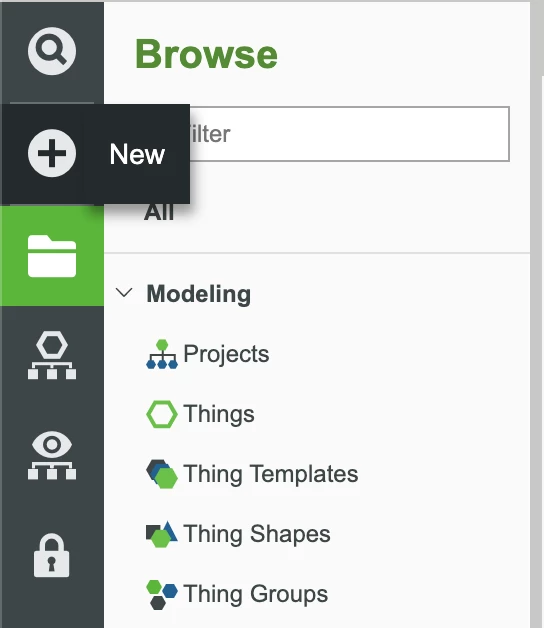
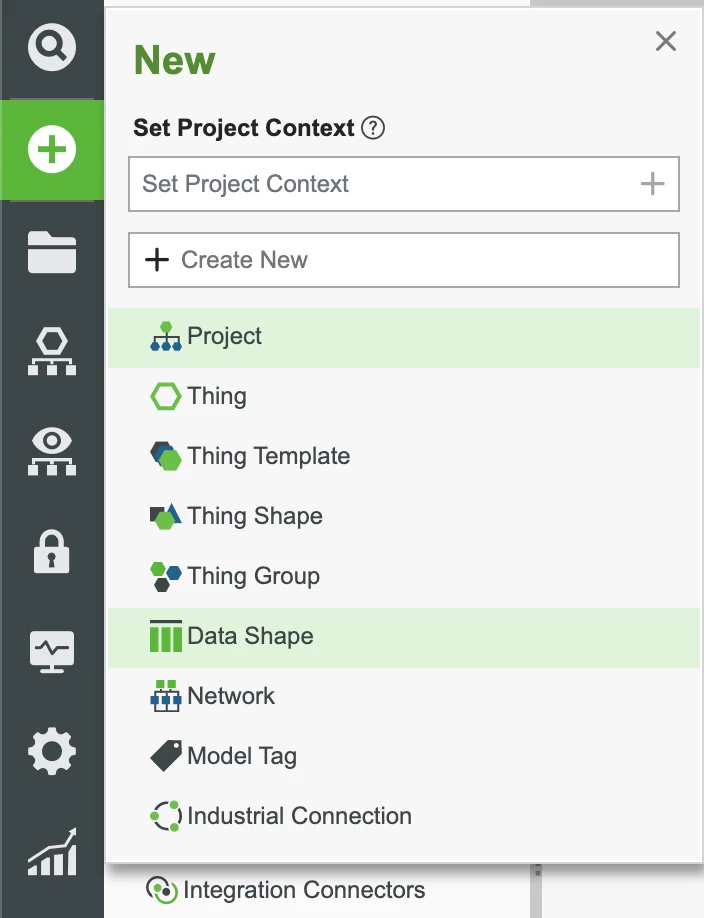
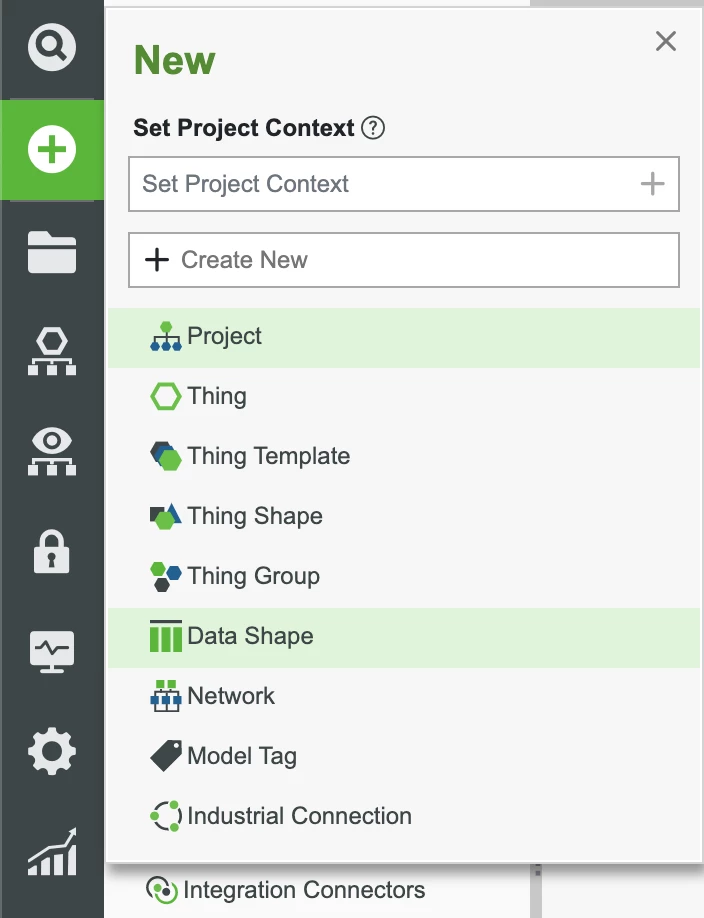
Select Data Shape in the dropdown.
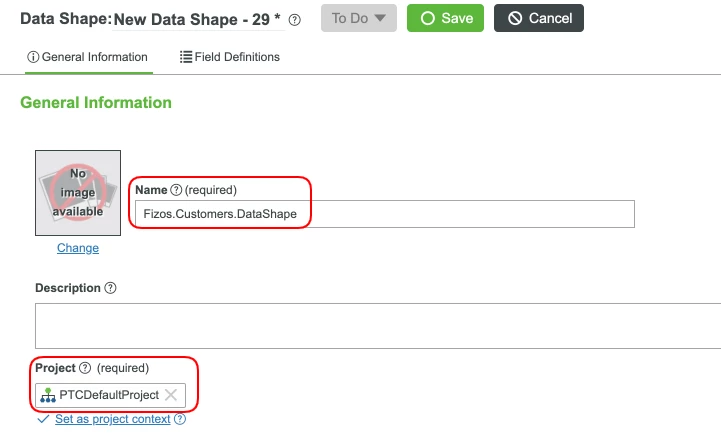
- In the name field, enter Fizos.Customers.DataShape. All of our customers will be based off this Data Shape.
- Set the Project (ie, PTCDefaultProject) and click Save to store all changes.
- Click on the Field Definitions tab and click the + Add button to add new Field Definitions.
- Add the list of Properties below:
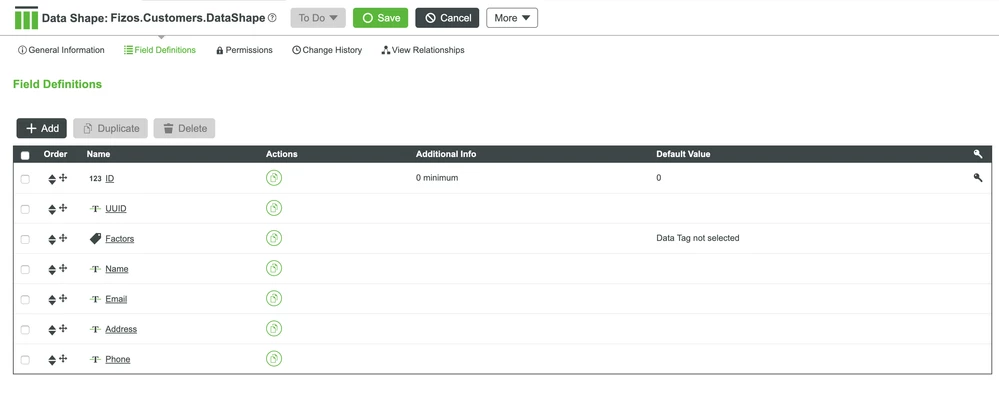
| ID | Integer | 0 minimum, primary key, default 0 | Row identifier |
| UUID | String | N/A | String used as unique identifer across multiple platforms |
| Type | String | N/A | Type of customer (individual or another company) |
| Factors | Tags | Data Tag | This will hold the different type of data points or tags that will help to analyze a customer's characteristics and behavior |
| Name | String | N/A | Customer name |
| String | N/A | Customer email | |
| Address | String | N/A | Customer address |
| Phone | String | N/A | Customer phone number |
The Properties for the Fizos.Customers.DataShape Data Shape should match the following:
7. In the ThingWorx Composer, click the + New in the top left of the screen.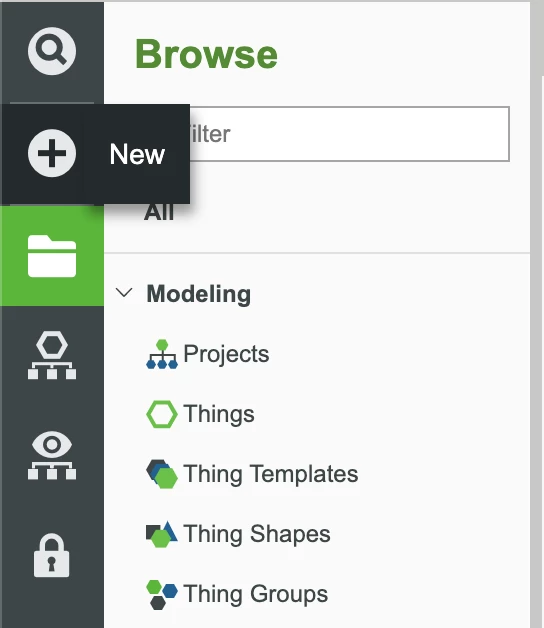
8. Select Data Table in the dropdown and select Data Table in the prompt.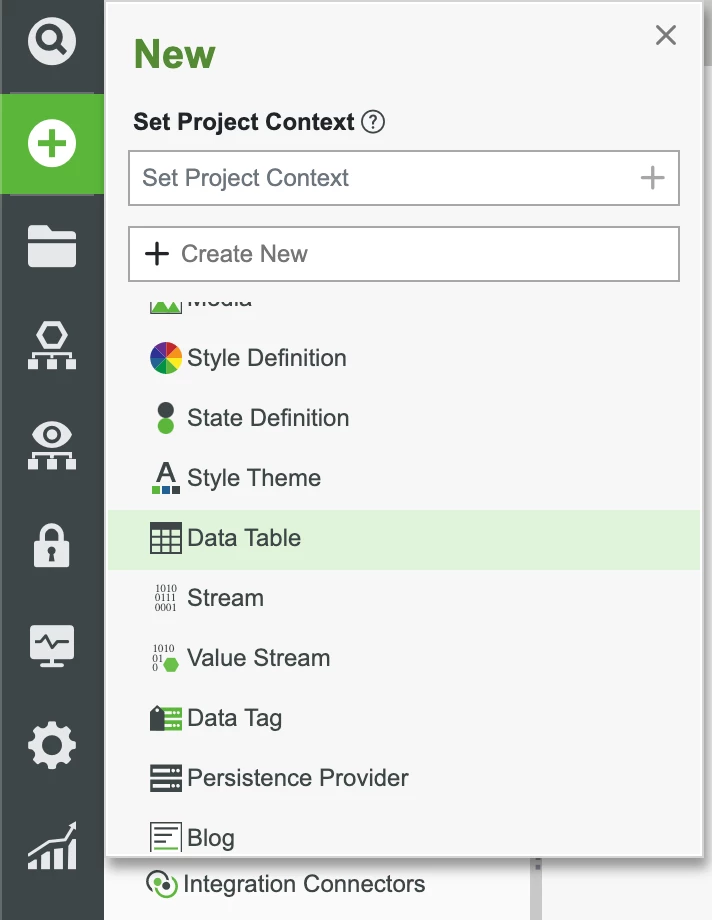
9. In the name field, enter Fizos.Customers.DataTable. Our differing types of customers will fall under this template.
10. For the Data Shape field, select Fizos.Customers.DataShape.
11. Set the Project (ie, PTCDefaultProject) and click Save to store all changes.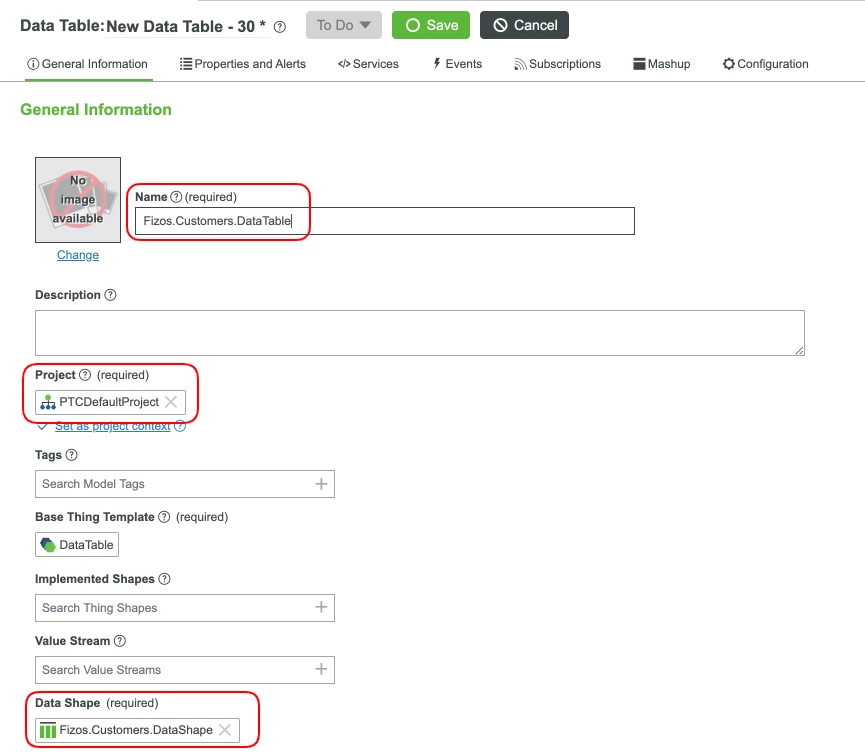
12. This entity will be used to house our data and provide assistance with our analytics.
Vehicle Models
To build a plan for your logistics solutions, you first need to have the data necessary for your vehicles and factories. Let's begin housing this data to help us with our planning.
In the ThingWorx Composer, click the + New in the top left of the screen.
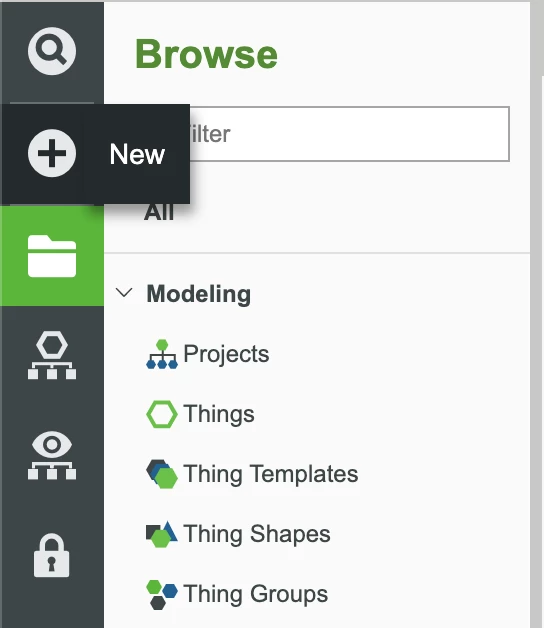
Select Data Shape in the dropdown.
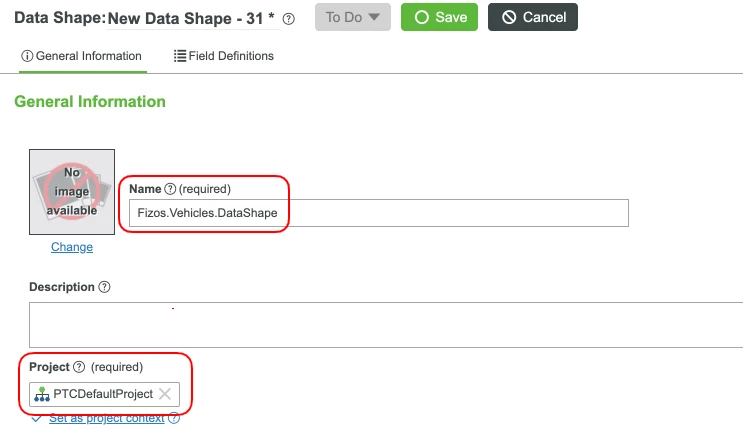
- In the name field, enter Fizos.Vehicles.DataShape. All of our vehicles will be based off this Data Shape.
- Set the Project (ie, PTCDefaultProject) and click Save to store all changes.
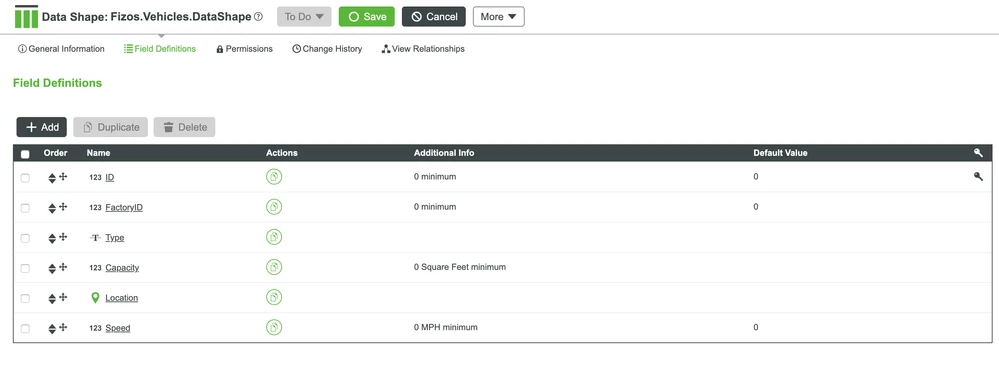
- Add the list of properties below:
| ID | Integer | 0 minimum, primary key, default 0 | Row identifier |
| FactoryID | Integer | 0 minimum, default 0 | Factory row identifier |
| Location | Location | N/A | String used as unique identifer across multiple platforms |
| Features | Tags | Data Tag | This will hold the different type of data points or tags that will help to plan what this vehicle can and will build |
| Size | String | N/A | Factory size |
The properties for the Fizos.Factories.DataShape Data Shape are as follows:
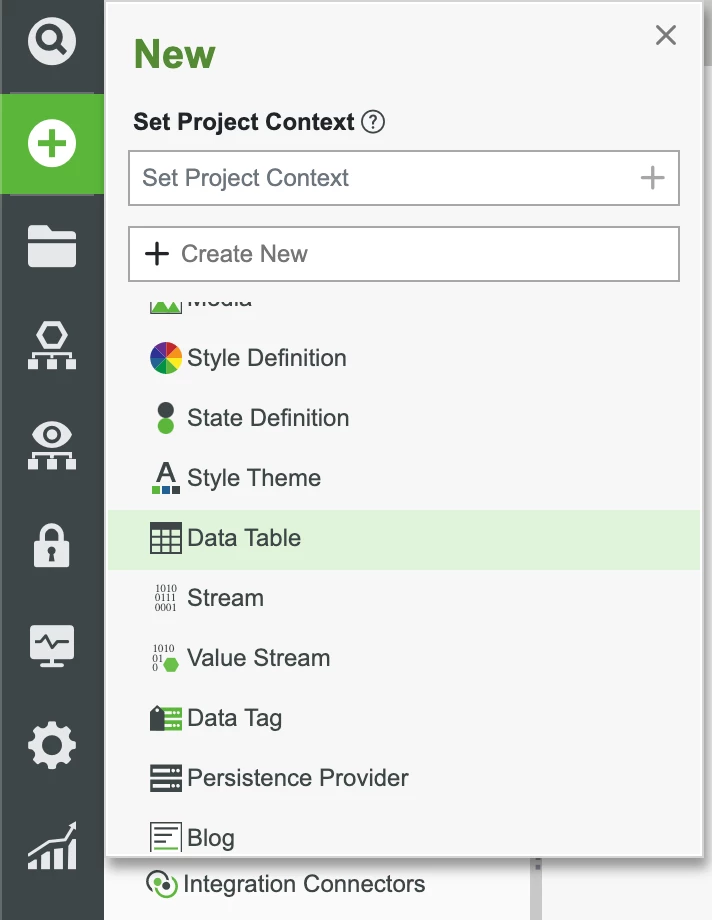
In the ThingWorx Composer, click the + New in the top left of the screen.
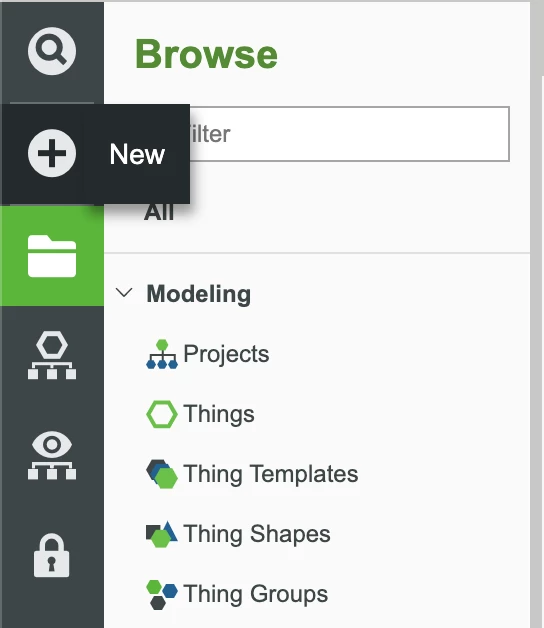
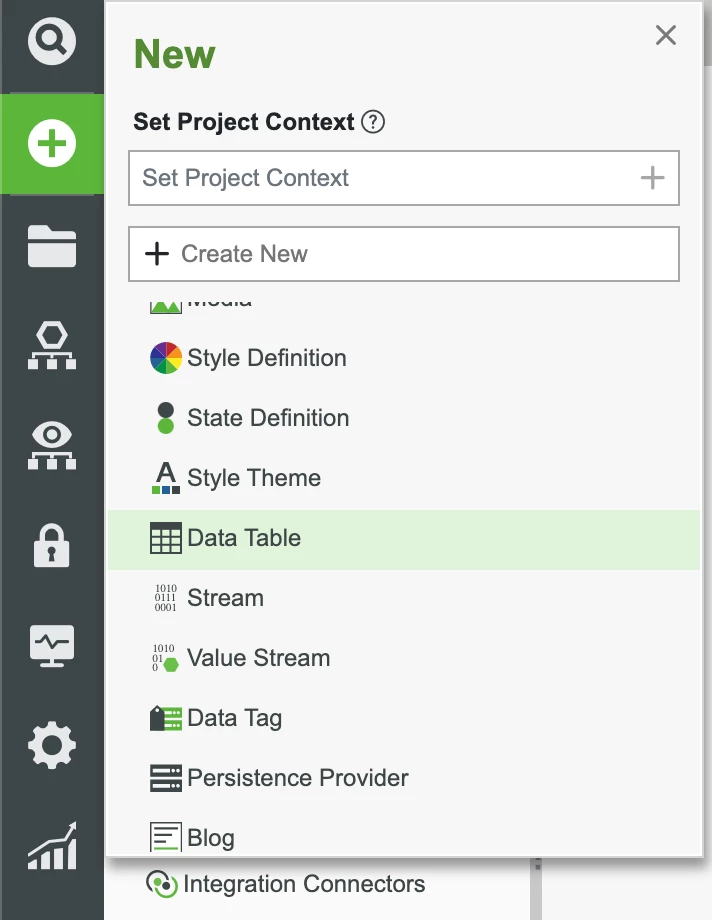
Select Data Table in the dropdown and select Data Table in the prompt.
In the name field, enter Fizos.Vehicles.DataTable. Our differing types of vehicles will be inside of this Data Table.
- For the Data Shape field, select Fizos.Vehicles.DataShape.
- Set the Project (ie, PTCDefaultProject) and click Save to store all changes.
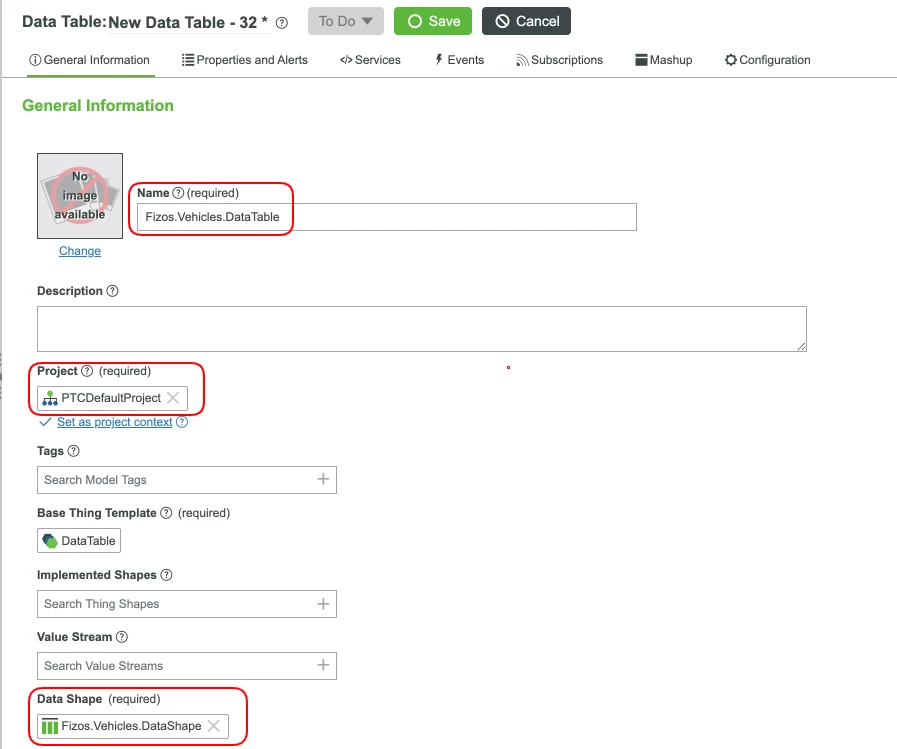
- This entity will be used to house our data and provide assistance with our analytics.
Factory Models
In the ThingWorx Composer, click the + New in the top left of the screen.
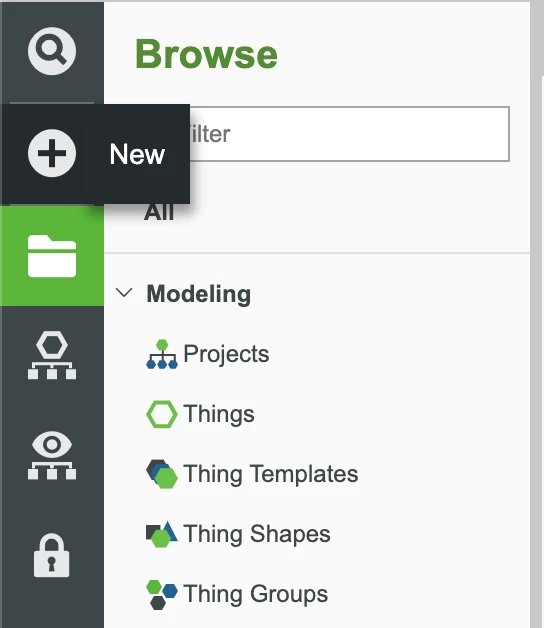
Select Data Shape in the dropdown.
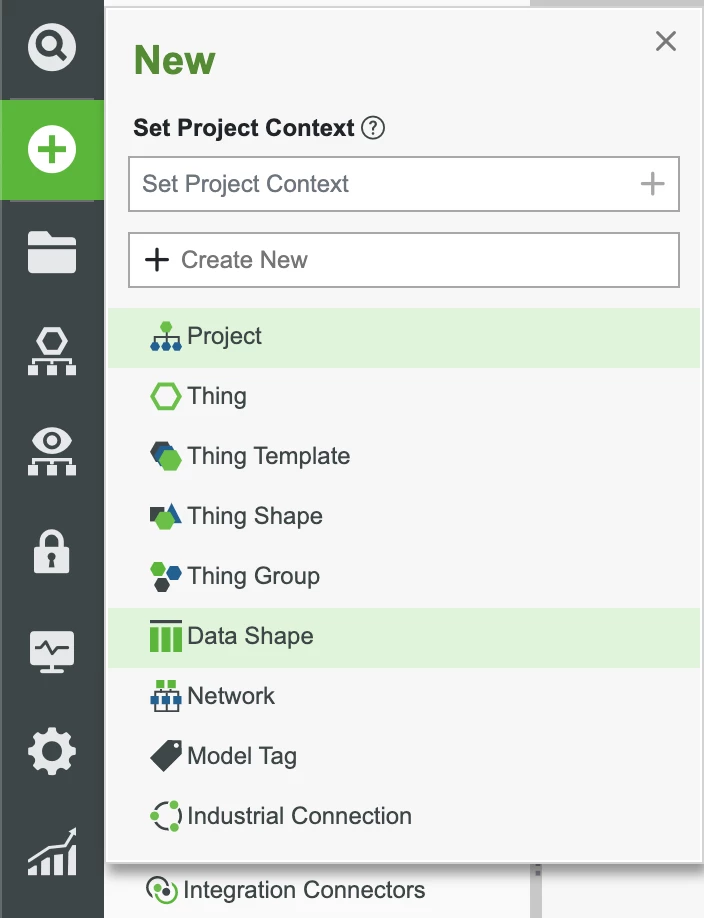
- In the name field, enter Fizos.Factories.DataShape. All of our factories will be based off this Data Shape.
- Set the Project (ie, PTCDefaultProject) and click Save to store all changes.
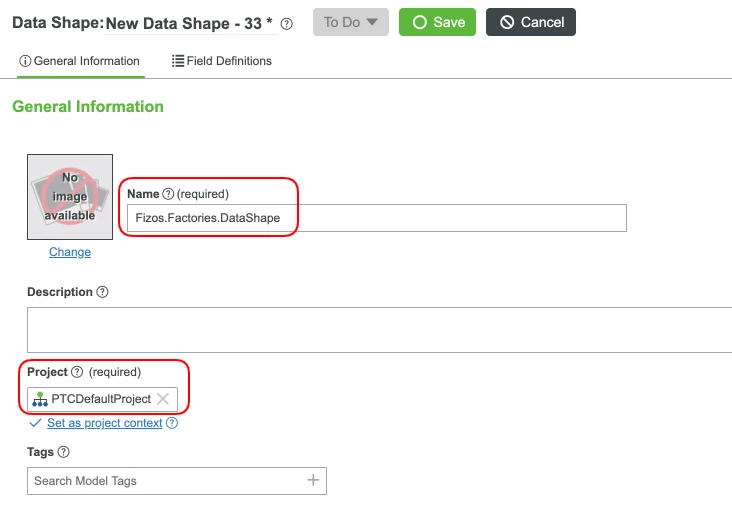
- Add the list of properties below:
| ID | Integer | 0 minimum, primary key, default 0 | Row identifier |
| Location | Location | N/A | String used as unique identifer across multiple platforms |
| Features | Tags | Data Tag | This will hold the different type of data points or tags that will help to plan what this factory can and will build |
| Size | String | N/A | Factory size |
The properties for the Fizos.Factories.DataShape Data Shape are as follows:
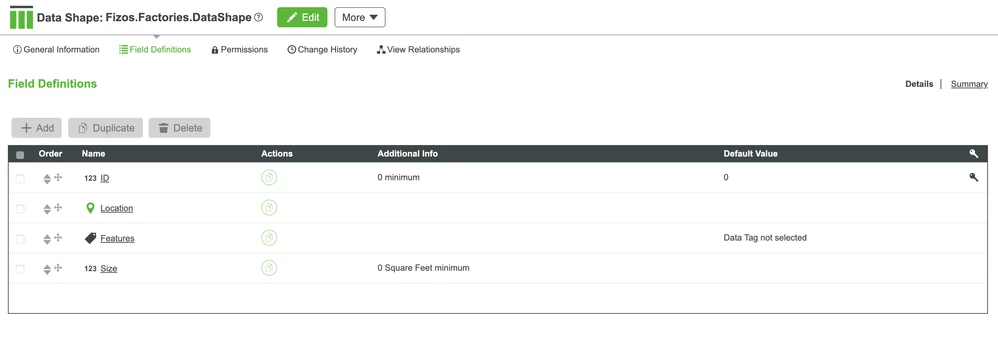
In the ThingWorx Composer, click the + New in the top left of the screen.
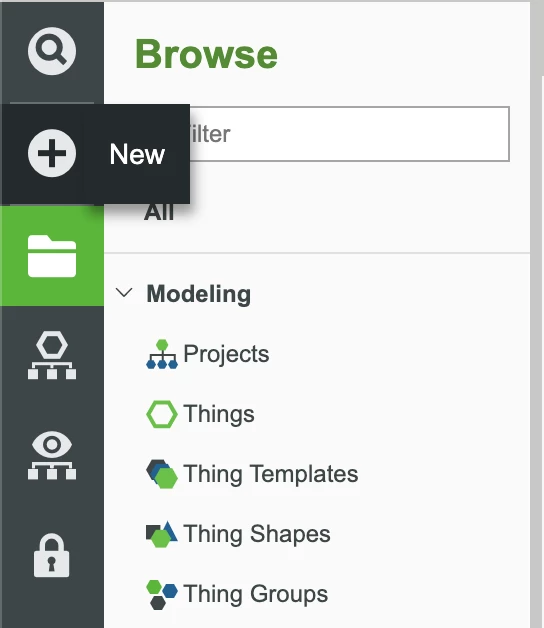
Select Data Table in the dropdown.
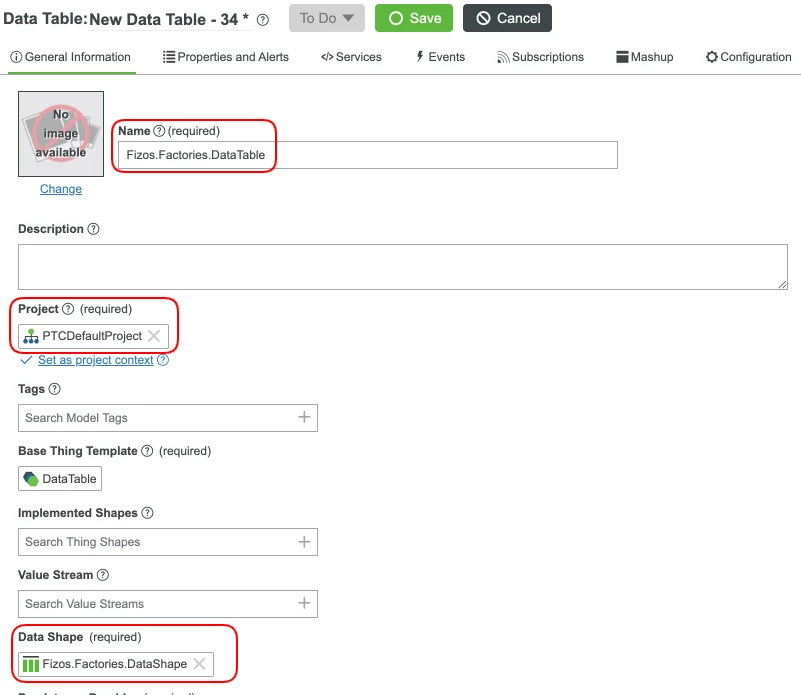
In the name field, enter Fizos.Factories.DataTable. Our differing types of factories will be inside of this Data Table.
- For the Data Shape field, select Fizos.Factories.DataShape.
- Set the Project (ie, PTCDefaultProject) and click Save to store all changes.
- This entity will be used to house our data and provide assistance with our analytics.
Centralized Logistics
Our application needs an efficient system of logistics. We already have sensors for our food entities, so see below how we work to move in the right direction. We'll be using a Thing Template to allow our new services to be overriden later if we so choose.
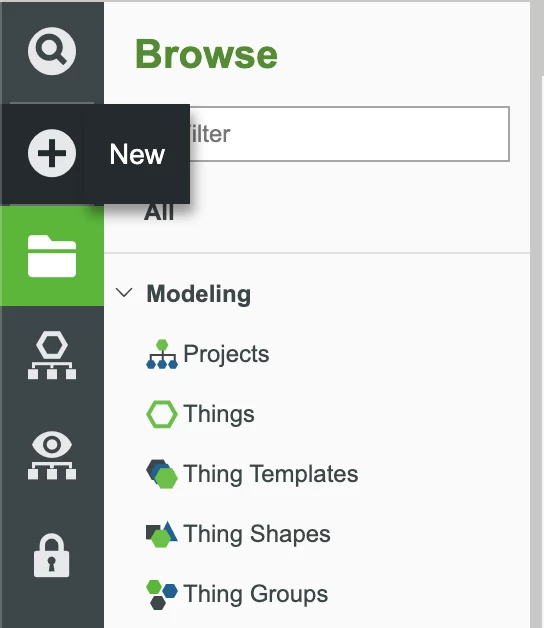
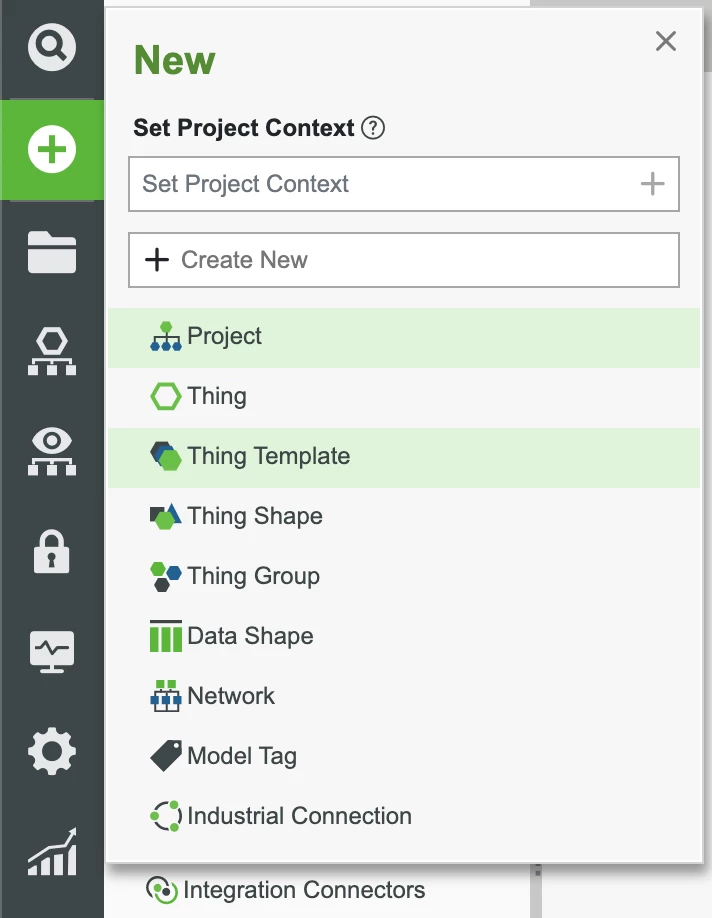
In the ThingWorx Composer, click the + New in the top left of the screen.
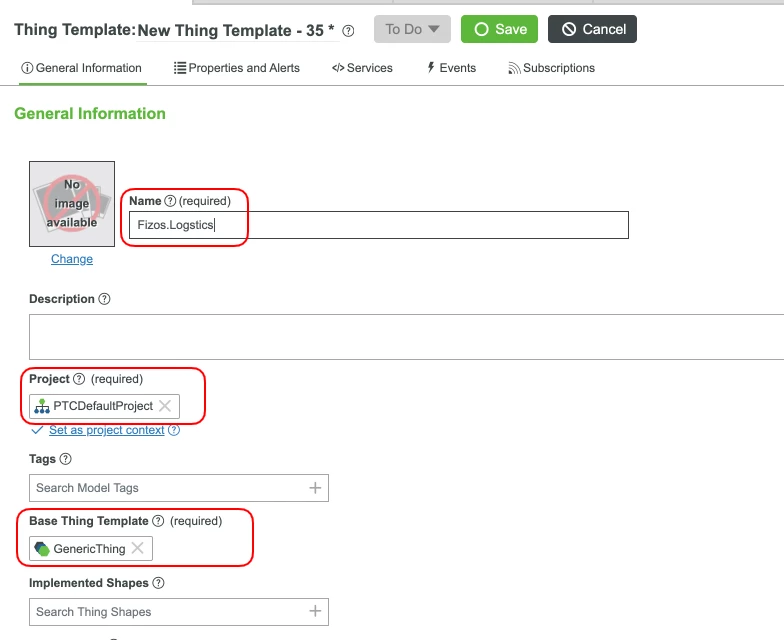
Select Thing Template in the dropdown.
- In the name field, enter Fizos.Logstics. All of our product line will fit this abstract entity.
- For the Base Thing Template field, select GenericThing.
- Set the Project (ie, PTCDefaultProject) and click Save to store all changes.
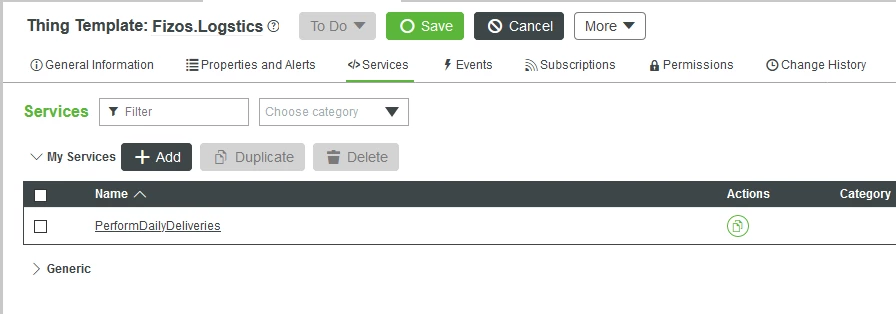
- Add the list of Services below. The level of the complexity in these Service vary based on how you would like to start your daily routine, the number of employees, number of deliveries and facilities, etc.
| PerformDailyDeliveries | Nothing | Yes | Yes | Start process of regular product deliveries. |
The list of services should look like the following: