
3-Newcomer
December 13, 2024
Solved

Authentication for Kepware Demo - OPC UA - Python

  • December 13, 2024
  • 1 reply
  • 1796 views

I’m having trouble testing the Kepware server with Python and OPC UA because there’s no way to set an admin password. This makes it tricky to test authentication properly and get my scripts to work the way they’re supposed to.

What I Need:

It would be super helpful if there was an option to set an admin password so I can:

  1. Test Python scripts using the OPC UA library with proper authentication.
  2. Simulate secure setups for OPC UA workflows.
  3. Make sure everything works like it would in a real-world environment.

Why It’s a Problem:

Without an admin password, I can’t properly test authentication, which makes it hard to validate my scripts or simulate real-world scenarios. It’s holding me back from getting everything running smoothly.


Anyone have a suggestion? I just need to gather synthetic real time data to push to 3d models in USD 😃 
Best answer by rajskumar

Hello,


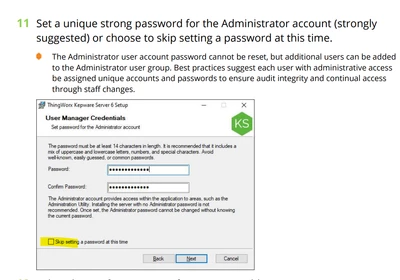
It seems you are on the right track. When prompted to set up an admin/password, you can either create a new one or skip this step by clicking on "Skip Setting" (not recommended)(refer below screenshot).


Once installed, you can use the default provided simulated project for your work. If it doesn't load automatically, you can find it at the following location:


C:\Program Files (x86)\PTC\ThingWorx Kepware Server 6\Projects


As this is a Proof of Concept (POC) project, we have a dedicated team (Solutions Consulting) that handles all POC-related queries and concerns. You can reach out to them at the following email, and they will help you implement KEPServerEX as per your requirements.

Solutions Consulting: presales.support@kepware.com


rajskumar_0-1734352548578.png


1 reply

16-Pearl
December 13, 2024

Hello, You can Create a server user group for the specific purpose of using the OPC UA interface and adjust the permissions for that group .
1. Open the User Manager in Settings.
2. Click New Group.
3. Assign permissions to the new group
4. Right-click on the new group.
5. Click Add User.

6. Set a strong password.

Note- The password must be at least 14 characters in length and include a mix of uppercase and lowercase letters, numbers, and special characters.


rajskumar_0-1734118185457.png


Here is how you can find the above settings:-


1. Open the Administrative Settings by right-clicking the product icon in the system tray and choosing Settings.
2. Select the User Manager tab.


rajskumar_1-1734118277484.png


3-Newcomer
December 13, 2024

Thanks so much for the quick reply : I wish I could - when I click on the settings tab to adjust user groups it asks for my admin password - this is the issue... 

16-Pearl
December 13, 2024

If you don't remember, then you would need to follow the procedure below to reset the password.


  • Reinstall Kepware to reset the Administrator password
    • Back up the configuration projects
    • Uninstall by re-running the installer > select the Remove option
    • Enable the checkbox Remove user data > this will remove all related security settings and passwords from the system
    • Re-install the software and set a new Administrator password