
6-Contributor
June 20, 2024
Solved

DataLogger Out of memory error

  • June 20, 2024
  • 1 reply
  • 2157 views

"PostgreSQL database is running out of memory even though the total database size is only 500MB and the server has 1TB of RAM. I'm writing 800 values per minute into the database using a data logger. How can I resolve this issue?"


"It gives two different errors. The errors are as follows. I am using Kepserver version V6.6.350.0."
 
Best answer by ntripathi

Greetings @EA_11204094 

I trust you’re having a great day. 

I noticed your recent post about encountering an error related to opening a recordset on the log group ‘xxx’. The specific error message states: “Unable to open recordset on log group ‘xxx’. Reason: Out of memory while reading tuples.”


To address this issue, follow these steps:

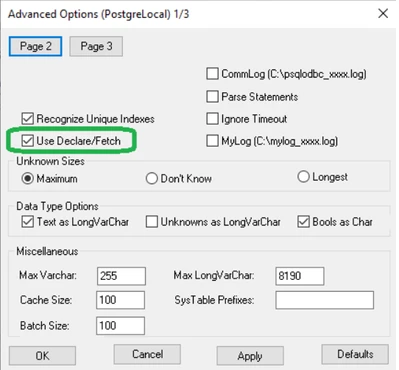
  1. Check the “Use Declare/Fetch” Option:

    • Navigate to your DSN (Data Source Name) configuration.
    • Look for an option related to “Declare/Fetch” or “Use Declare/Fetch.”
    • Ensure that this option is enabled. If it’s currently disabled, enable it.
    • Save your changes.


ntripathi_1-1718896674655.png


        2. Restart the Application or Service:

  • After making the configuration change, restart the application or service that uses this DSN.
  • This step ensures that the new settings take effect.

1 reply

ntripathi15-MoonstoneAnswer
15-Moonstone
June 20, 2024

Greetings @EA_11204094 

I trust you’re having a great day. 

I noticed your recent post about encountering an error related to opening a recordset on the log group ‘xxx’. The specific error message states: “Unable to open recordset on log group ‘xxx’. Reason: Out of memory while reading tuples.”


To address this issue, follow these steps:

  1. Check the “Use Declare/Fetch” Option:

    • Navigate to your DSN (Data Source Name) configuration.
    • Look for an option related to “Declare/Fetch” or “Use Declare/Fetch.”
    • Ensure that this option is enabled. If it’s currently disabled, enable it.
    • Save your changes.


ntripathi_1-1718896674655.png


        2. Restart the Application or Service:

  • After making the configuration change, restart the application or service that uses this DSN.
  • This step ensures that the new settings take effect.
6-Contributor
June 21, 2024

Thank you for the solution. Thanks to you my problem is solved