1-Visitor
September 28, 2022
Solved

KepWare Publish data IoTGateway MQTT using demand poll in Modbus

  • September 28, 2022
  • 1 reply
  • 2199 views

Hi Expert Community,
I have an application that requires to read data using Modbus serial at a fix rate (for example every 5 minutes). The complete data read by Modbus should be published using IoT Gateway MQTT. However an additional requirement is that using the System tag for DemandPoll, the MQTT client should trigger a new Modbus acquisition and also get the new set of values published immediately.

Can you suggest how the scan rate in Modbus and in IoTGateway should be configured?

Regards,
 

Best answer by wcui

To configure Polling mode for Modbus RTU serial driver, you can refer to the following section "Device - Scan Mode" in dirver help.

Basically add the _DemandPoll system tag to MQTT Agent and update the tag by MQTT Broker publishing to True.

wcui_0-1666234476541.png


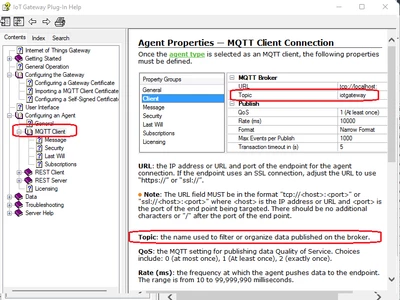
For how to send tag data to MQTT borker with MQTT agent, please also rerfer to IOT Gateway plug-in help. You will need to add tags to Agent and configure Topic with Agent. If you have any technical issues during testing, I suggest to open a support case for further help.

wcui_1-1666234717355.png


The driver help can be opened from kepware configuration windows as below.

wcui_2-1666234893648.png


1 reply

wcui16-PearlAnswer
16-Pearl
October 20, 2022

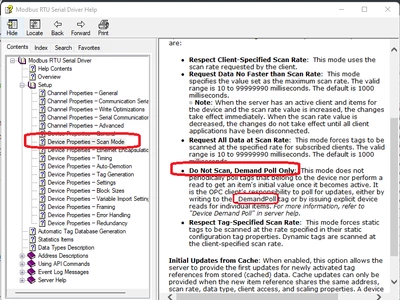
To configure Polling mode for Modbus RTU serial driver, you can refer to the following section "Device - Scan Mode" in dirver help.

Basically add the _DemandPoll system tag to MQTT Agent and update the tag by MQTT Broker publishing to True.

wcui_0-1666234476541.png


For how to send tag data to MQTT borker with MQTT agent, please also rerfer to IOT Gateway plug-in help. You will need to add tags to Agent and configure Topic with Agent. If you have any technical issues during testing, I suggest to open a support case for further help.

wcui_1-1666234717355.png


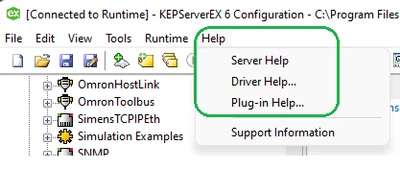
The driver help can be opened from kepware configuration windows as below.

wcui_2-1666234893648.png