
1-Visitor
January 20, 2016
Question

Error inserting an image

  • January 20, 2016
  • 3 replies
  • 12879 views

I am using MCP 3.0 and I cannot insert an image.  If I use IMAGE block and browse to my picture nothing happens.  If I open the picture in another program and copy and paste into MCP it works but then the document will not save.  I get an error "File type not supported" and a log file is generated.  I have tried jpg. bmp, png, tiff and nothing works. I also tried it on another computer, 1 with MCP 3.0  and 1 with MCP2.0 and still the same.  Any help is greatly appreciated..
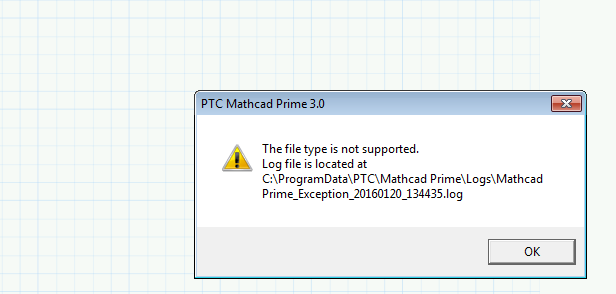
error.png

3 replies

19-Tanzanite
January 20, 2016

I don't see the problem with Prime 3.0. Can you post the image (to attach files click on "Use advanced editor" at the top right of the edit dialog)?

ronbak1-VisitorAuthor
1-Visitor
January 21, 2016

Here are some pictures.

If I add a image block and try and browse to flag image it WILL NOT insert it.  If I open the flag in MS Paint and copy and paste it into MCP3 it will appear in MCP3 but I cannot save the file.  If I then remove the image from MCP3 and try and save it works.  This is happening on my desk computer and another computer in our lab.  I also have a free MCP2 at home and the same thing happens.

image1.PNG

image2.PNG

image3.png

image4.PNG

image6.PNG

19-Tanzanite
January 21, 2016

I don't see the problem; it saves fine. I'm running Win 7 64bit. What OS are you on?

24-Ruby III
January 23, 2016

1. Please send your issue to PTC's tech support by using "Mathcad Support Center":

http://www.ptc.com/support/mathcad_supportCenter.htm

http://blogs.ptc.com/2011/09/22/how-to-use-the-brand-new-online-mathcad-support-center/

2. Try to use standard "Windows update" utility and check including for Microsoft .NET Framework updates.

ronbak1-VisitorAuthor
1-Visitor
January 26, 2016

I did.  It turns out to be a FIPS security setting. My IT department had to take care of it.

1-Visitor
March 1, 2018

Sorry to bring this one back up, but I am having the exact same issue on Prime 3.1 in Windows 10.


What FIPS security setting needed to be changed?  This isnt something I will be allowed to do, so I need to walk my IT department through it.  Or perhaps there is a recent update that I need that fixes this?

1-Visitor
February 9, 2020

I had the same issue (using PTC Mathcad Prime 3.1). This was such a deal breaker I almost gave up on trying to use Mathcad forever. Luckily, I found a workaround. Here's what worked for me:

1. Have a .jpg or .png file open. I recommend opening the file on Paint or similar software to allow you to easily scale the image (more below). Copy the image onto the clipboard by clicking on "Copy" or Ctl-c.

2. In Mathcad, click on the "Math" tab and then on "Text Box." This creates a text box on your work space.

3. While inside the text box, click on "Paste" or Ctl-v. This will paste the image! You can save the file without issue.


Note: It is likely that the image will have to be resized. Unfortunately, I was unable to resize it once it is pasted inside the text box. However, you can resize the image in the following two ways:

1. Resize image in the Paint program and paste it into the text box again until you are happy with the overall result.

2. You can paste image directly onto the Mathcad workspace, resize, then cut it (Ctl-x) and paste (Ctl-v) inside the textbox. DO NOT leave an image on the workspace, as it will create that saving error.