14-Alexandrite
April 7, 2020
Solved

Hide All My Photos From Public

  • April 7, 2020
  • 2 replies
  • 7434 views

Community,


Is there a way to hide my photos from public view?  Thanks in advance.

Best answer by Leigh

Hi ThoRig,


Below are the steps you need to take in order to make your current public images private:

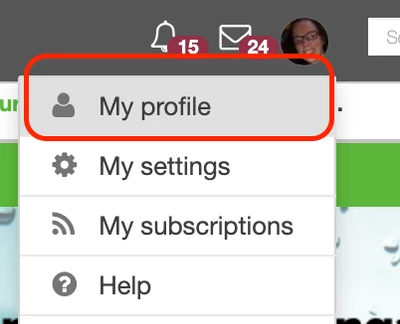
  1. Access your Member Profile.

Access Member Profile.png


  1. On the right hand side rail of your profile, Click on “My Photos”.
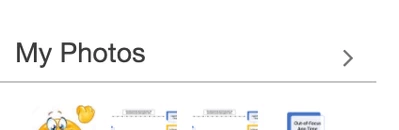
Screen Shot 2020-04-08 at 11.05.16 AM.png


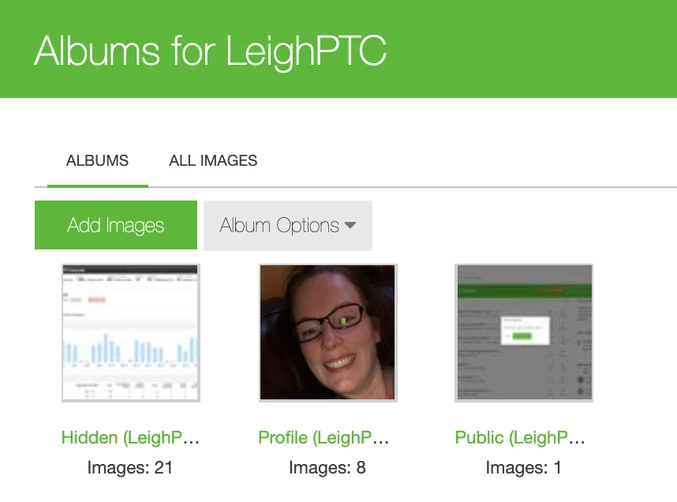
  1. You then will see “All Images”.  You can manage change image status via this tab or thru the “Albums” tab.  There are three default albums:  Private, Profile & Public. (below screenshots are based on using the “Albums” tab.)
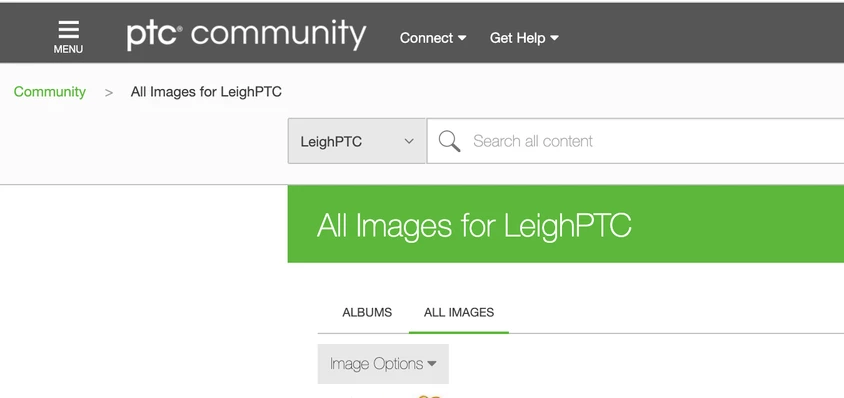
Screen Shot 2020-04-08 at 11.09.35 AM.png


  1. Click on your “Public” album.

Screen Shot 2020-04-08 at 11.06.35 AM.png


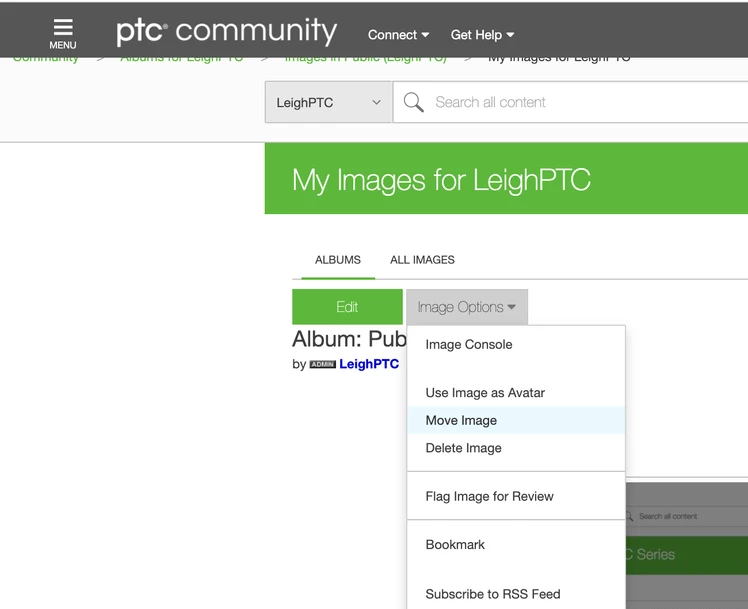
  1. Select the image you want to make “Private” and then click the “Image Options” dropdown and select “Move Image”.
Screen Shot 2020-04-08 at 11.16.19 AM.png


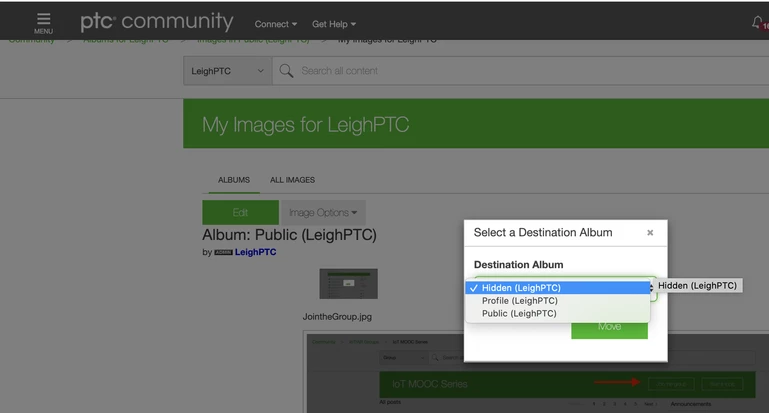
  1. Select the new destination album “Hidden” and select “Move”.
Screen Shot 2020-04-08 at 11.17.51 AM.png


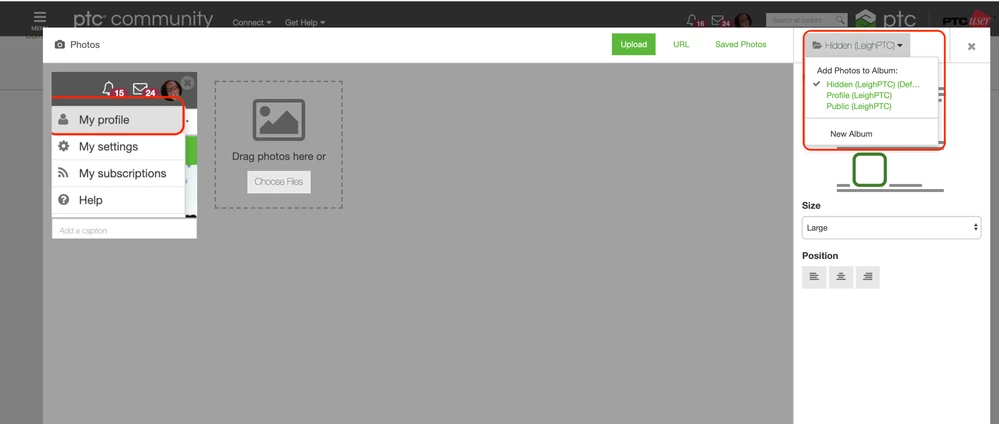
For any new image uploads, you have the ability to select which album where you assign the image. Based on the board you post the image to will determine the default album it will be assigned.  (aka - if you post in a public board – the default album assigned will be “Profile”)
 

Screen Shot 2020-04-08 at 11.21.55 AM.png


I hope this answers your question.  If not, please let me know!

Best,

Leigh

2 replies

5-Regular Member
April 8, 2020

Hi ThoRig,

Thank you for posting this question.  I wanted to let you know that I have taken this on for further investigation and I will update this thread with my findings so that all of our members are apprised of on status, etc.

Best - and any questions in the meantime - please let me know!

Leigh


Leigh5-Regular MemberAnswer
5-Regular Member
April 8, 2020

Hi ThoRig,


Below are the steps you need to take in order to make your current public images private:

  1. Access your Member Profile.

Access Member Profile.png


  1. On the right hand side rail of your profile, Click on “My Photos”.

Screen Shot 2020-04-08 at 11.05.16 AM.png


  1. You then will see “All Images”.  You can manage change image status via this tab or thru the “Albums” tab.  There are three default albums:  Private, Profile & Public. (below screenshots are based on using the “Albums” tab.)

Screen Shot 2020-04-08 at 11.09.35 AM.png


  1. Click on your “Public” album.

Screen Shot 2020-04-08 at 11.06.35 AM.png


  1. Select the image you want to make “Private” and then click the “Image Options” dropdown and select “Move Image”.

Screen Shot 2020-04-08 at 11.16.19 AM.png


  1. Select the new destination album “Hidden” and select “Move”.

Screen Shot 2020-04-08 at 11.17.51 AM.png


For any new image uploads, you have the ability to select which album where you assign the image. Based on the board you post the image to will determine the default album it will be assigned.  (aka - if you post in a public board – the default album assigned will be “Profile”)


Screen Shot 2020-04-08 at 11.21.55 AM.png


I hope this answers your question.  If not, please let me know!

Best,

Leigh

23-Emerald IV
April 8, 2020

Be careful!  Deleting images, or making them private, will make them no longer visible in the discussion threads they were originally used in.


I really struggle with this behavior.  If a user doesn't have rights to edit a post after 24 hours, how can they be allowed to completely alter a previous post by removing all images that were included in it?

5-Regular Member
April 8, 2020

Hi TomU,

Great point - and something I thought of as well.  So prior to posting my response, I verified what would happen by taking this action (moving an image from Public to Hidden) 


So, I had a public image that I had attached to a post a few years ago.  I moved that posts image from my Public Album to my Hidden Album and then went back to confirm that the image was still visible in the post itself.  It was still visible.  


So perhaps I answered the wrong question here.  🙂  When an image is used in replying to a post, the image will remain visible to any member who has the ability to view that post.  When you attach an image in a Community post, it is also assigned to an album under your member profile.  It is under your member profile where you can change visibility status.  In short, if another member looks at your profile - they will only be able to see your Profile and Public albums - not your Hidden album.


TomU - if you are seeing behaviour other than what I described above, please let me know and I will investigate further.


Thanks!

Leigh