


How to Install Creo Parametric Trial 8.0
To install Creo Trial 8.0, please follow the below process -
Login to PTC.COM using any of the web browser installed on the system (Google Chrome, Microsoft Edge, Mozilla Firefox)
Under #Try & Buy tab select Free Trials

With a wide range of products available in PTC store to try; select Creo Parametric Free Trial

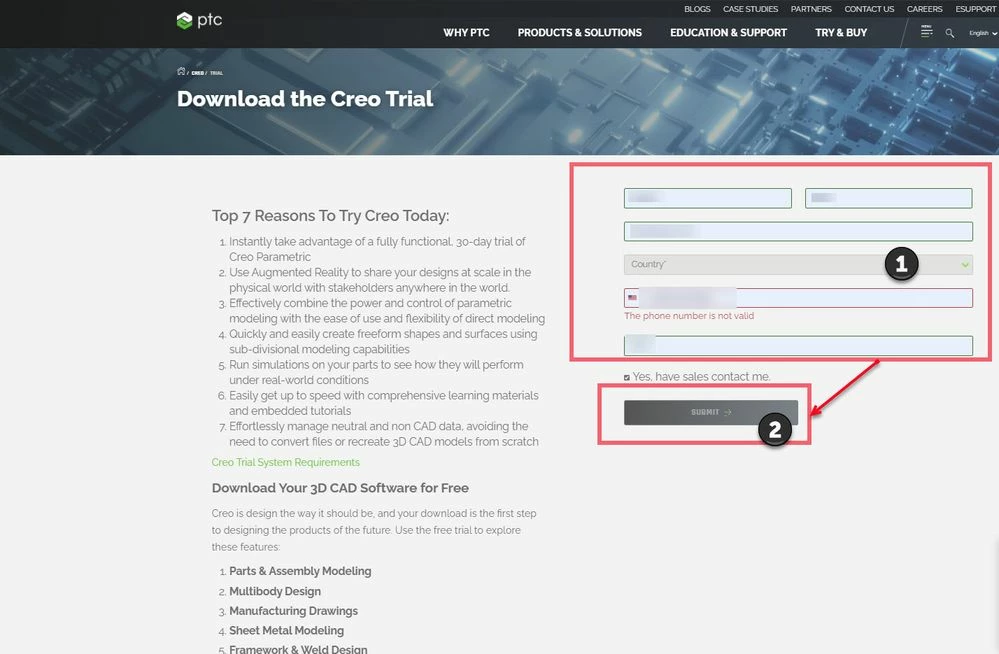
This will lead us to fill out the pre-form with basic details. Once the required information is filled then click on # Submit. This will enable to trigger an email with the link to download and install the Creo Parametric Trial version on the system.
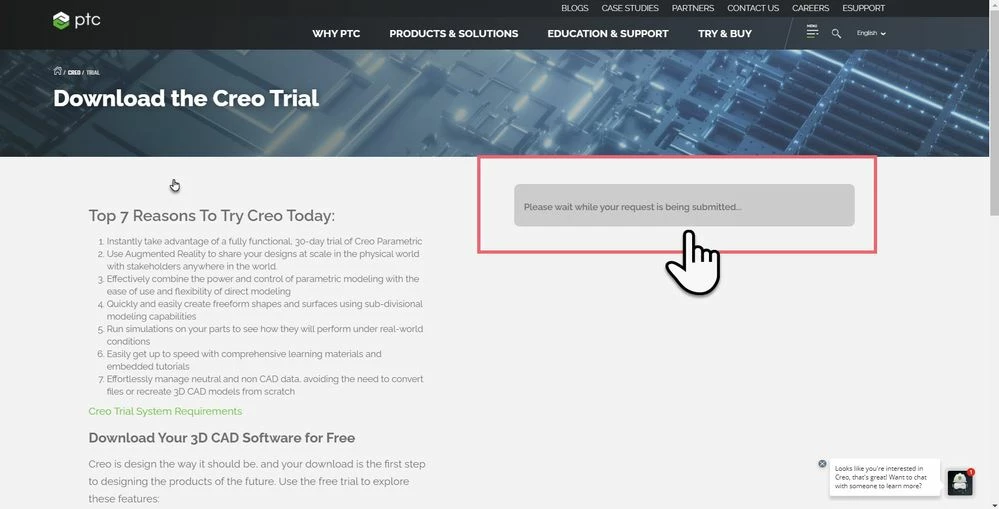
Once the form is filled and successfully submitted, user will notice below message -
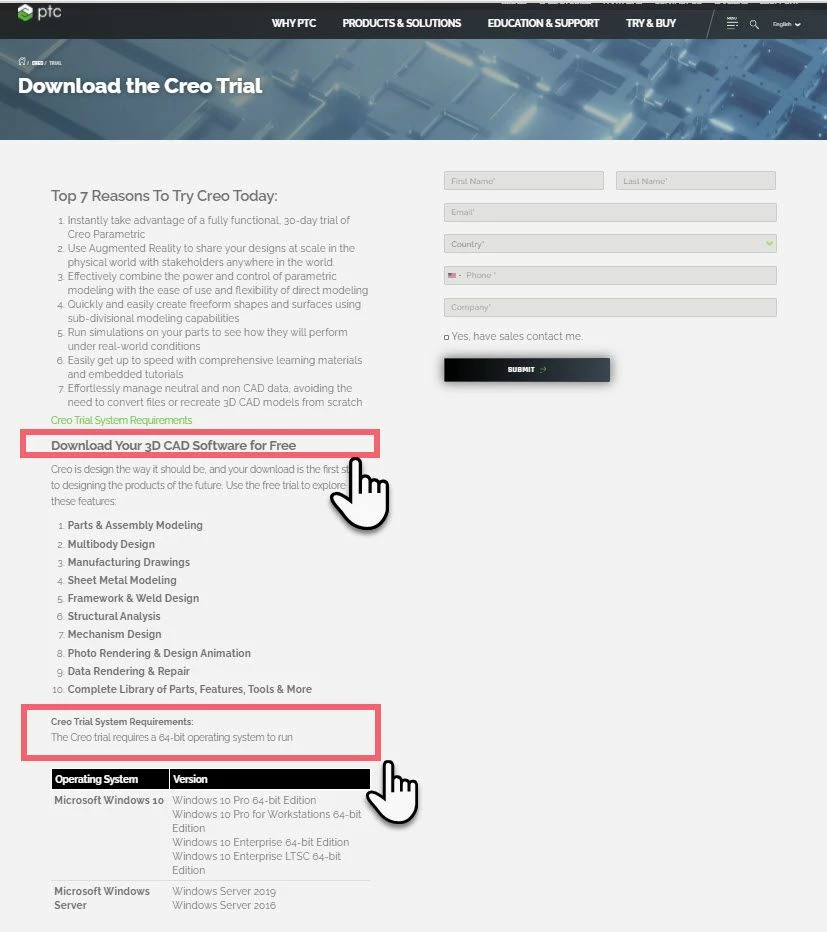
IMP* - Pre- form lists Creo Trial System Requirements in addition to information related to Modules Included within Creo Trial.
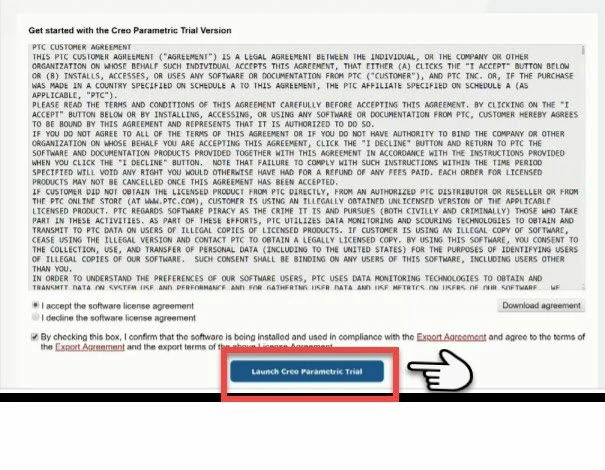
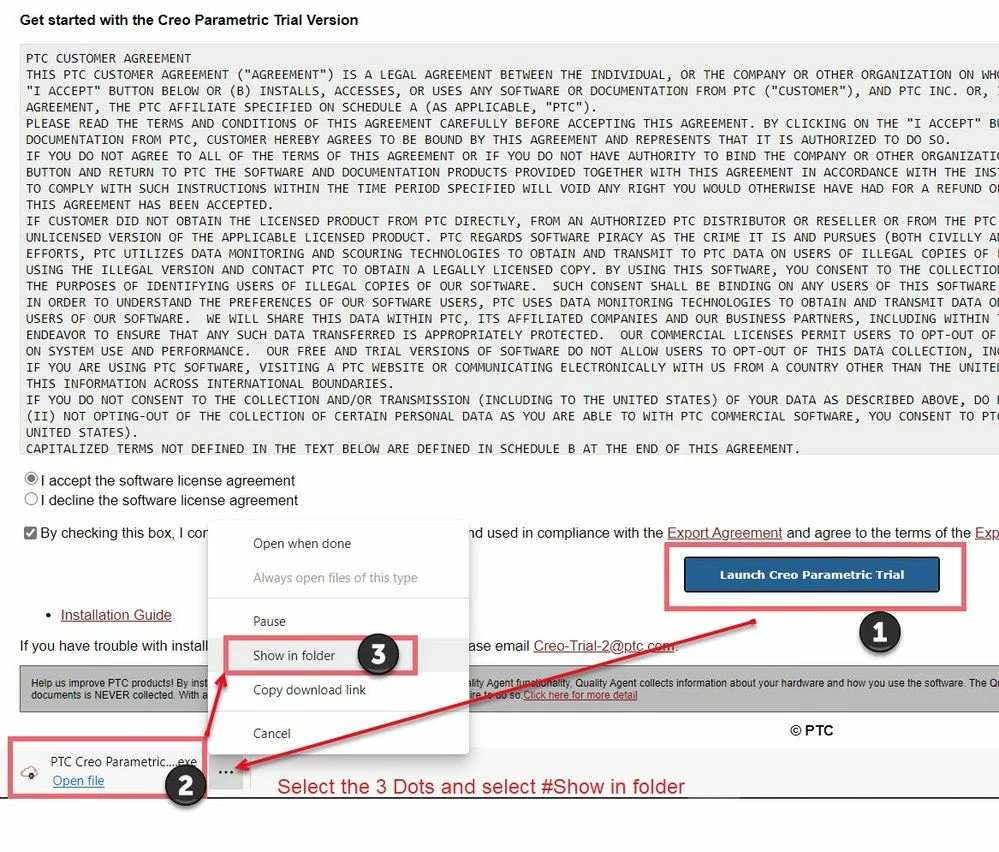
1. Launching of Creo Parametric Trial
a. Make sure to click the radio button and check box to accept the software license agreement and the Export Agreement.
b. Select Launch Creo Parametric Trial to begin the installation
Note: In browsers like Mozilla® Firefox®, you may have to save the file and then click run from the download menu
c. It would have download PTC Creo Parametric 8.0.0.0 Trial CloudPlay.exe file
d. Open the file within the downloaded folder
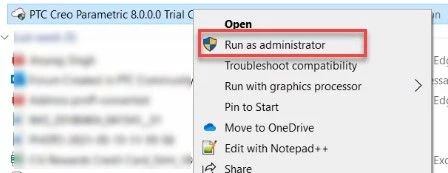
e. Run the PTC Creo Parametric 8.0.0.0 Trial CloudPlay.exe file as an Administrator
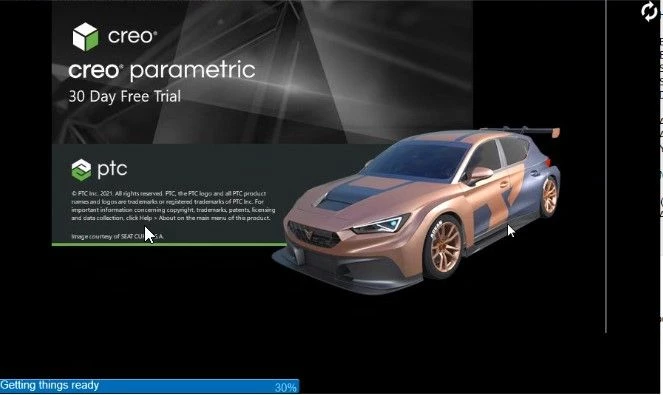
f. After launching the installation file, the Creo Parametric trial splash screen will appear along with a bar outlining Creo Trial installation progress. There are six different phases which includes :-
i. Authorizing
ii. Gathering component
iii. Setting up components
iv. Configuring for first use
v. Getting things ready
vi. Launching your application
2. After the installation completes, you are now ready to start designing with Creo Parametric. The software should launch automatically.
However, important to note - If the Windows firewall is enabled following security alert will be displayed
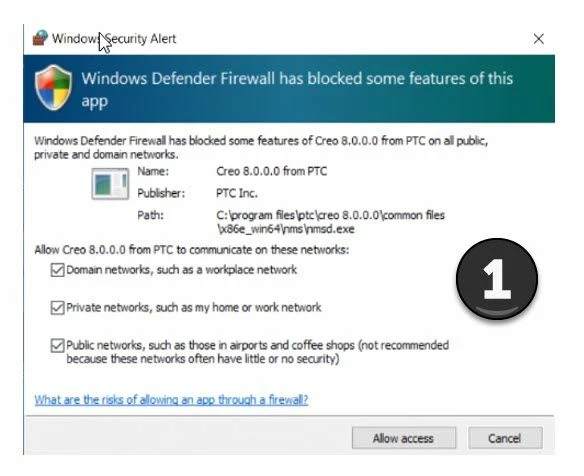
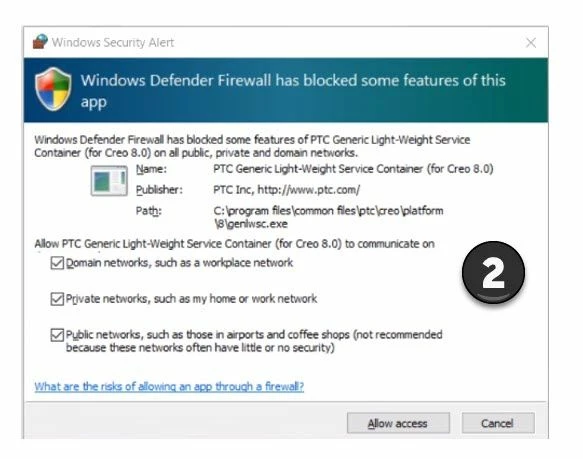
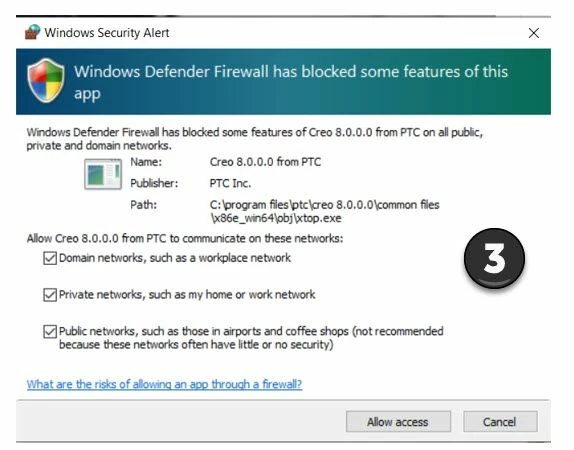
Note: -
This would just be showcase for the initial Launch of Creo Parametric Trial version. User needs to select #Allow Access to help communicate on these networks.
Additionally, you may notice below window for “Time Remaining” being displayed . This is designed to remind users of Creo Trial end date. User will have an access to the trial for 30 days only.
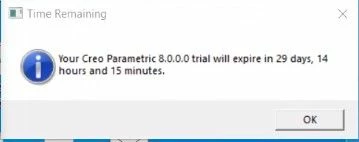
Creo Trial can be launched through Desktop with the help of Shortcut Icon or from Start Menu (refer below image).
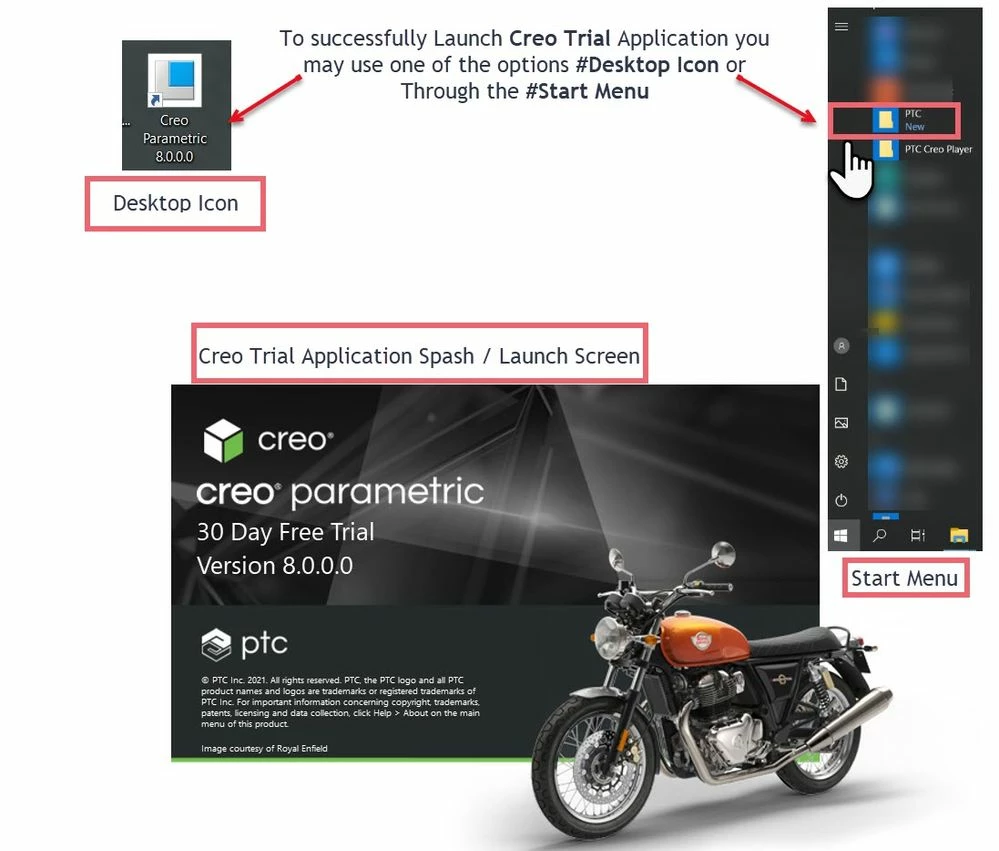
Successful launch of application UI
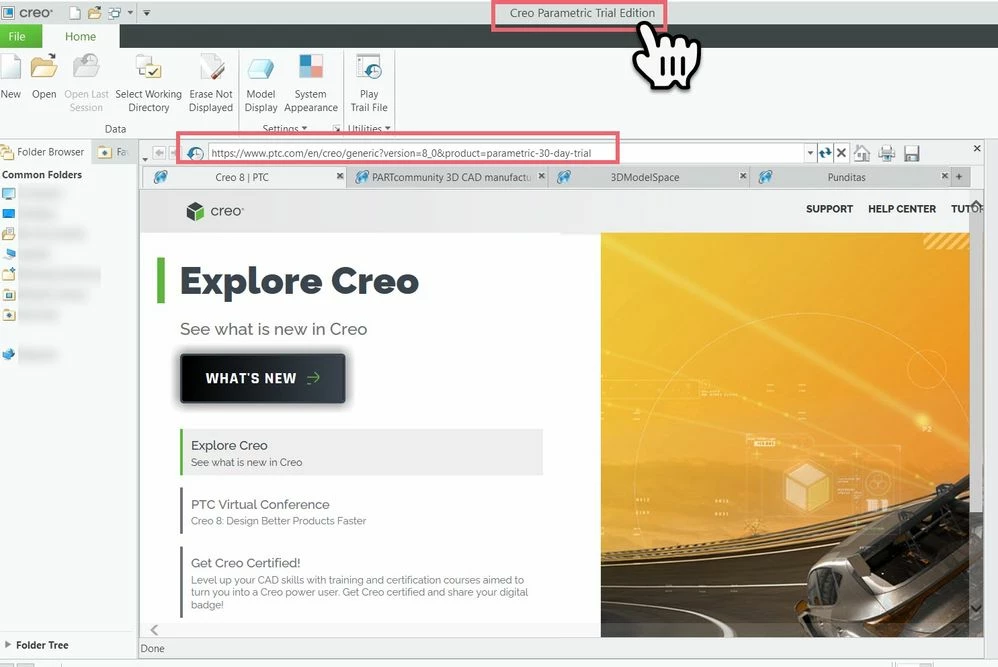 SUCCESFUL LAUNCH AND CREO APPLICATION READY FOR USE