


Update to Creo 3.0 this Summer
When to update? How to update?
Summer 
The PTC Education team is busy getting Creo 3.0 M040 ready for download. This new update of Creo 3.0 includes all the new and exciting capabilities to support simplified and direct 3D printing.
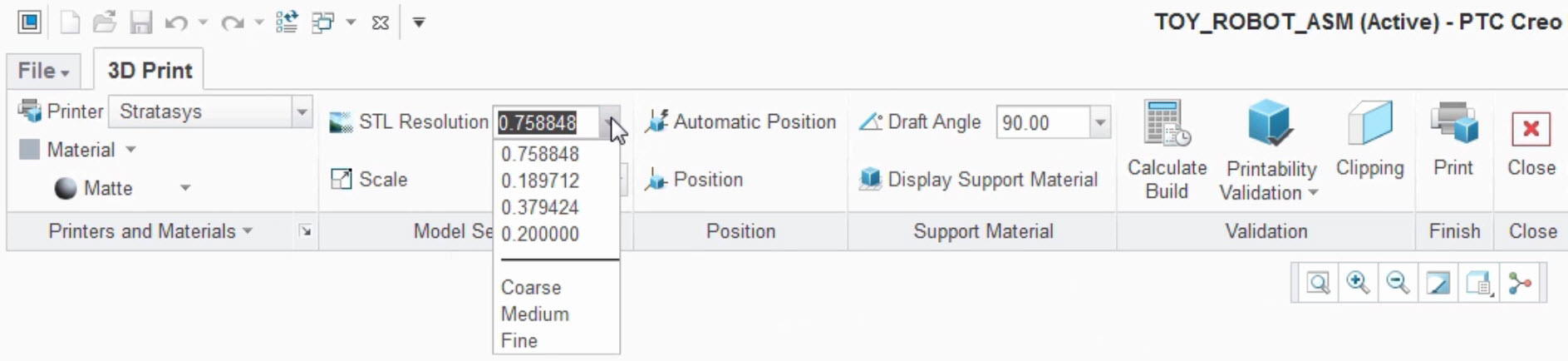
The plan is to have the new Creo 3.0 M040 version ready on the FIRST software download page next week.
If you have been thinking about updating your own machine or thinking about a summer update to your school's machines, the time is near. Creo 3.0 M040 will be posted soon. In addition, PTC has already bumped the Windchill server from 10.2 M020 to 10.3 M030. This new version is completely compatible with Creo 2.0 and Creo 3.0. If you are using the Windchill Desktop Integration to work with Office documents, you'll need to download the latest installer from Windchill. The same is true for Creo View, download the latest installer from the Windchill server.
If you are running Creo 2.0 today, you'll need to get a new license of Creo 3.0. This will be included in your Creo 3.0 download information. If you are running a lab with Creo 2.0, you'll definitely need to update your license pack from Creo 2.0 to Creo 3.0. This will require support from PTC and the best way to get that is the Academic Support community or by sending an email to -.