

Updating Your Windchill Project Invitation
When inviting new team members to your Windchill Project, the inviation message will include the text entered in the "Invitation Message" box of your project. If you have a newly created/requested project, you should have a default invitation message. If you have a Project that was created in the past, you should take a look at the Invitation Message to make sure it exists and is something you want to share with others.
To change the Invitation Message, navigate to the Details page of your project as a Project Manager. Chose Actions, Edit Project and update the Invitation Message text area. It is a small input area, but you can put a lot of information in it. What I typically do is write the invitation in Notepad and then just copy/paste it into the box.
Once you're done, simply chose OK and any new invitations will now include your personal message.
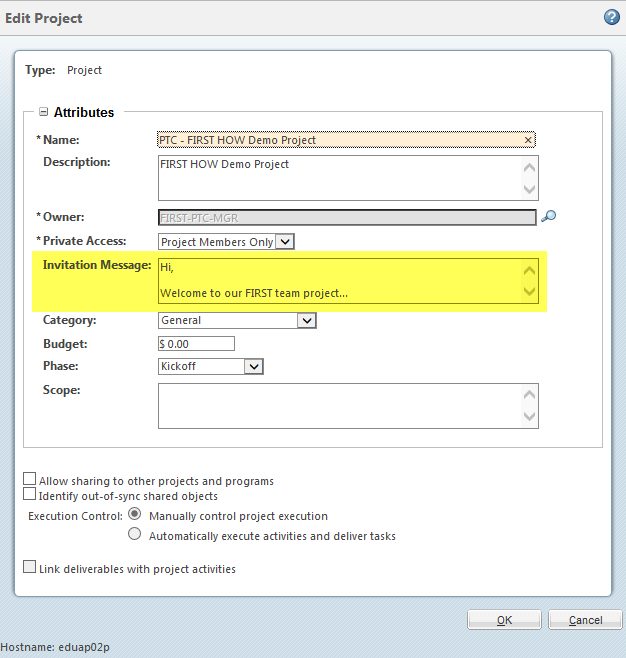
If you'd like to follow what is included in new projects, I have added the new standard invitation message below. I encourage you to customize and personalize this message for your team since it will be used for any team invitations.
--
Hello,
Welcome to our PTC Windchill project! Our team is using this project to manage and collaborate on documents and Creo CAD files, plan and schedule activities and tasks to learn how to use a Product Lifecycle Management (PLM) system.
To access our project, you will need a PTC account. If you do not have one, use the following link to go to the PTC Support page and create a new Academic account for yourself. Its quick and easy and will give you access to all the online tools and applications available from PTC.
https://support.ptc.com/appserver/common/account/createAccount.jsp?tab=academic
We look forward to working with you and if you ever have any questions about PTC Windchill or other PTC applications, be sure to visit the Academic Program Community. This community if specifically for the various PTC Academic Programs and many of them have their own dedicated community.