3-Newcomer
November 14, 2025
Solved

Creo: Fundamentals of Solid Modeling 2 exercise 2

  • November 14, 2025
  • 1 reply
  • 376 views

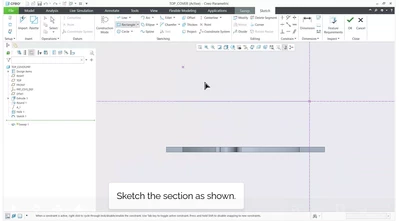
this is pretty frustrating as the training is not explaining. To sketch the "section as shown"- then it magically flips to the inside view.. no explanation. How do you rotate or flip like that? Is there a "hot key"?
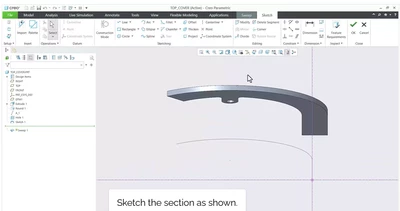
 

JJ_12354551_0-1763130018699.png

JJ_12354551_0-1763130496794.png


Best answer by Oobee

A sketch plane is effectively like a piece of paper. The flip option is like flipping the piece of paper from front to back, While the top/bottom/left/right options effectively rotates the paper that you're about to sketch on.   Hopefully this little clip helps illustrate that.

1 reply

14-Alexandrite
November 14, 2025

Hi,


While in Sketcher, to reorient the graphics window so that the sketch plane becomes parallel with your monitor you click Sketch View from the In Graphics toolbar:

Matt_Huybrecht_0-1763132271384.png


By default, when you enter Sketcher, Creo retains the current model orientation. There is a config.pro setting that enables this default behavior to be switched such that when you enter Sketcher the system automatically reorients the model to the Sketch View.


This information is covered in Fundamentals of Solid Modeling 1 in the theory part Create Sketch Features. (page 46 of the PDF).

Remember that each exercise has a corresponding video that you can watch that shows the steps of the exercise being performed. You can click the link at the beginning of the exercise to view it.


Incidentally, the reason why we intentionally don't include all pick-and-click steps is due to all the feedback we received from customers. Customers repeatedly said that they were getting lost in all the steps and if they missed a single step they couldn't finish the exercise. Furthermore, they said they were so bogged down in the picks-and-clicks they forgot what the whole purpose of the exercise was.


Note, too, that you can take these courses virtually with an instructor if you're not liking the self-guided experience.


Regards,


Matt

3-Newcomer
November 14, 2025

I understand the sketch view part and button- that was not my ask. When you hit that and it needs rotated 90 degrees, or maybe flipped 180 degrees front to rear- how does that happen please?

12-Amethyst
November 14, 2025

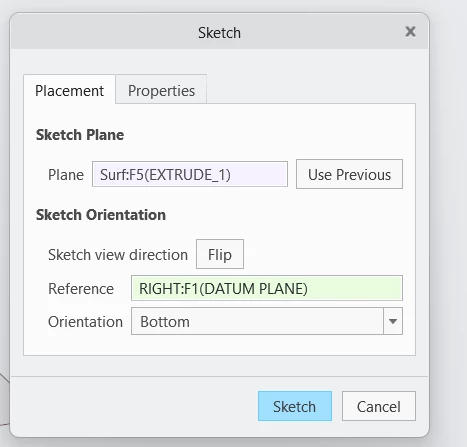
When you create a sketch, the orientation for that sketch view is based on both the reference and orientation in the Sketch Setup.
Screenshot 2025-11-14 104514.png
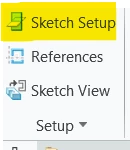
You can flip this, or modify it based on changing some of the variables in your sketch setup like the Reference or the Orientation. You can access this either upon sketch creation or in the sketch by clicking Sketch setup.
Screenshot 2025-11-14 104806.png