
1-Visitor
June 4, 2014
Solved

Number of decimals for Datum points

  • June 4, 2014
  • 4 replies
  • 2034 views

I have to create a bunch of datums points and I am trying to fine tune them, but it is only allowing me to go to 1 decimal point in accuracy. I found out how to set the decimals for each point individually, but I was wondering if there was a global config or other option so that it defaults to 2 or 3 decimals.


Thanks,


Kevin


This thread is inactive and closed by the PTC Community Management Team. If you would like to provide a reply and re-open this thread, please notify the moderator and reference the thread. You may also use "Start a topic" button to ask a new question. Please be sure to include what version of the PTC product you are using so another community member knowledgeable about your version may be able to assist.
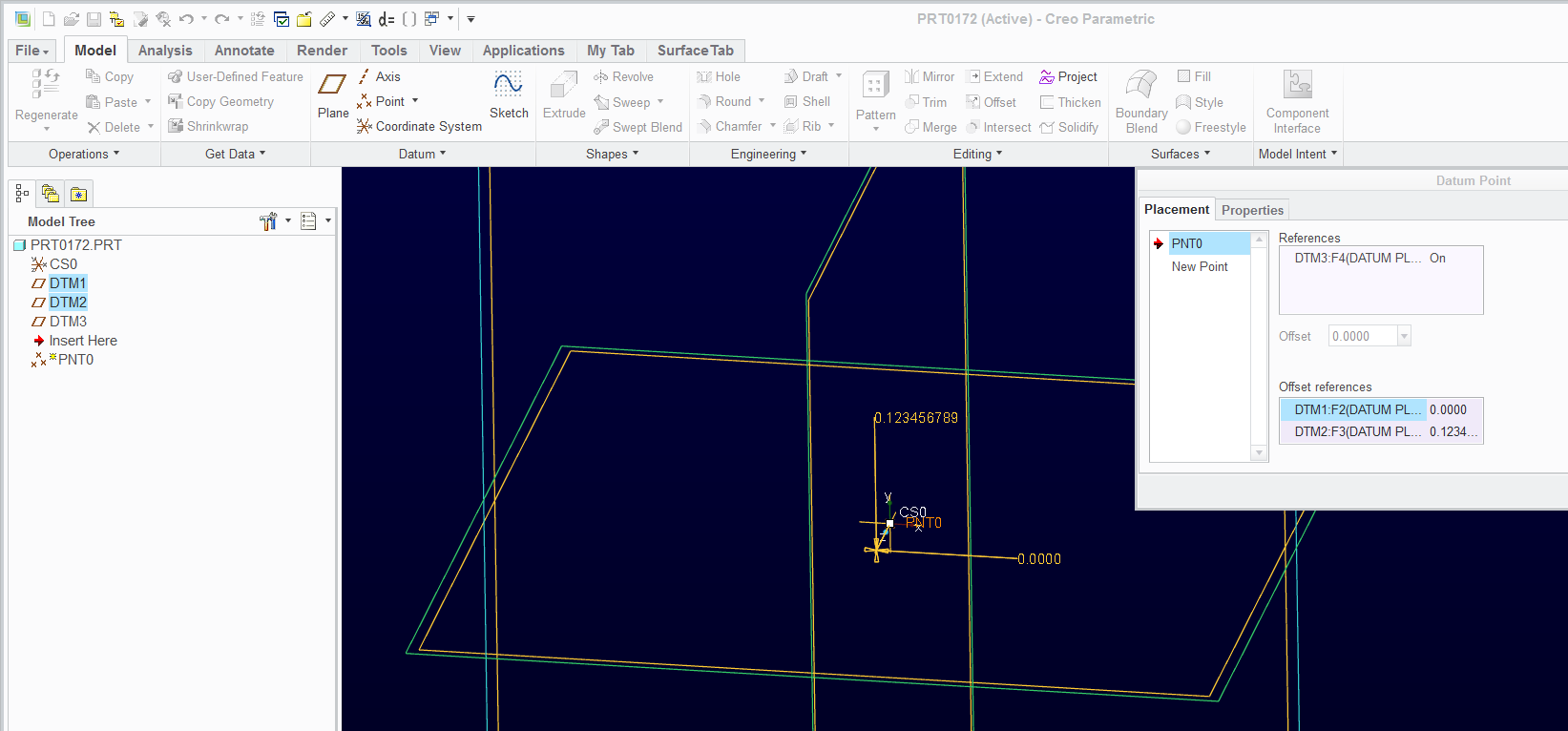
Best answer by TomD.inPDX

As Clint said, it follows your environment (by default is 2 places[?]). However, the values are like all other dimensions where they are show rounded values. If you edit the feature, highlight a dimension, and select properties in the popup dialog, you can remove the rounding option (rounding only applies to the dimension display).

If the point is associated to a feature, it takes on the actual value of that reference.

point_accuracy.PNG

4 replies

1-Visitor
June 20, 2014

Hi Kevin,

Assuming you have Creo Parametric, click File > Options > Configuration Editor and add the option "default_dec_places."

Note:

When you right click existing points and click Edit, you will only see the 1 decimal place for existing points. Newly created points will have the new value. If you click "Edit Definition" with the option set, even the existing points will reflect the new setting.

17-Peridot
June 20, 2014

As Clint said, it follows your environment (by default is 2 places[?]). However, the values are like all other dimensions where they are show rounded values. If you edit the feature, highlight a dimension, and select properties in the popup dialog, you can remove the rounding option (rounding only applies to the dimension display).

If the point is associated to a feature, it takes on the actual value of that reference.

point_accuracy.PNG