
1-Visitor
August 31, 2011
Solved

Purge.bat

  • August 31, 2011
  • 3 replies
  • 33501 views

how to use the purge.bat located in bin direcotry in CREO 1.0


This thread is inactive and closed by the PTC Community Management Team. If you would like to provide a reply and re-open this thread, please notify the moderator and reference the thread. You may also use "Start a topic" button to ask a new question. Please be sure to include what version of the PTC product you are using so another community member knowledgeable about your version may be able to assist.
Best answer by pwyndham

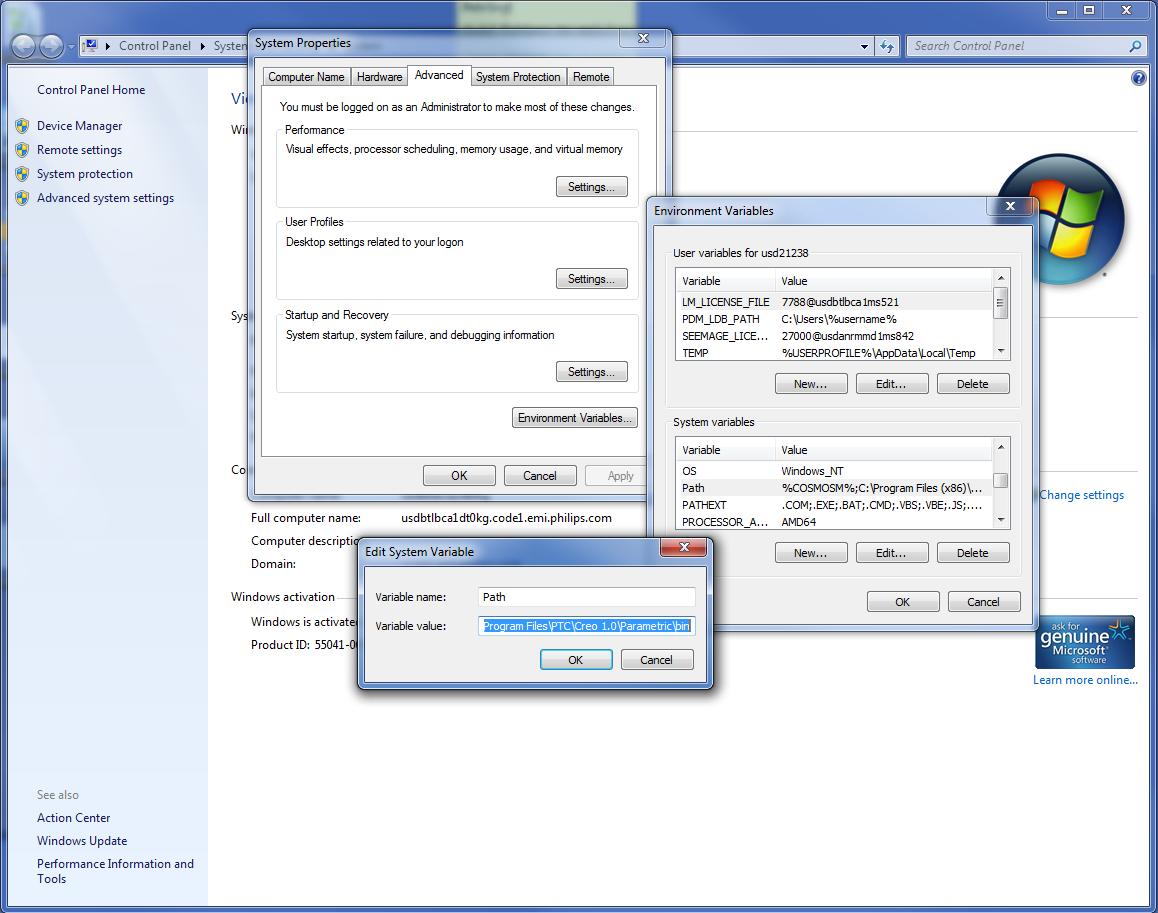
My path has this in it: ";C:\Program Files\PTC\Creo 1.0\Parametric\bin".

An easy way to permanently modify the path, on Win7, is to goto the Control Panel -> System and Security -> Systems -> Advanced system settings -> Advanced Tab -> Environment Variables button -> Then in the System variables section find the PATH variable. Just add the path to the bin folder to the end (with the ; in front of it).

The way to it in Win XP and Vista is similar. You can also get to the system dialog by right clicking on "My Computer" and selecting "Properties".

Here is a screen shot.

path.jpg

3 replies

1-Visitor
August 31, 2011

You add the path to the bin directory to the system variable "path" then from the command window browse to the folder you want to purge and run purge.bat

purge.jpg

1-Visitor
September 2, 2011

Thanks for the reply. I used to do the same in PRO E WF/5, but unable to do the same in CREO/Paramatric 1.0.

the below message appears in command prompt.


Microsoft Windows XP [Version 5.1.2600]
(C) Copyright 1985-2001 Microsoft Corp.

C:\PTC>purge
'purge' is not recognized as an internal or external command,
operable program or batch file.
C:\PTC>
24-Ruby III
September 2, 2011

Vinay,

show us the output of PATH command (launch it from Command Prompt window).

Martin

pwyndham1-VisitorAnswer
1-Visitor
September 2, 2011

My path has this in it: ";C:\Program Files\PTC\Creo 1.0\Parametric\bin".

An easy way to permanently modify the path, on Win7, is to goto the Control Panel -> System and Security -> Systems -> Advanced system settings -> Advanced Tab -> Environment Variables button -> Then in the System variables section find the PATH variable. Just add the path to the bin folder to the end (with the ; in front of it).

The way to it in Win XP and Vista is similar. You can also get to the system dialog by right clicking on "My Computer" and selecting "Properties".

Here is a screen shot.

path.jpg

1-Visitor
September 3, 2011

thanks for the information.

its working fine now.

regards,

Vinay Patel

1-Visitor
June 19, 2014

purging in creo
1)open Command Prompt window(either in creo or manually from start button) and enter PATH command.
You will see the content of PATH variable.
To be able to run purge.bat,
you have to ensure, that PATH variable contains the path to bin
(example C:\PTC\Creo 2.0\Parametric\bin)
if there is \PROGRA~1\PTC\MKSTOO~1\bin64;C:\PROGRA~1\PTC\MKSTOO~1\bin;C:\PROGRA~1\PTC\MKSTOO~1\bin\X11;C:\PROGRA~1\PTC\MKSTOO~1\mksnt;C:\Program Files (x86)\PC Connectivity Solution\;%SystemRoot%\system32;%SystemRoot%;%SystemRoot%\System32\Wbem;%SYSTEMROOT%\System32\WindowsPowerShell\v1.0\
then change the path file.
To do it follow instruction as given below

2)To get to the path statement in Windows 7,
type "path" in the start menu search;
edit the system environment variables;
environment variables; look for path in the system variables.
it should have following type of path
(example C:\PTC\Creo 2.0\Parametric\bin)

if it is \PROGRA~1\PTC\MKSTOO~1\bin64;C:\PROGRA~1\PTC\MKSTOO~1\bin;C:\PROGRA~1\PTC\MKSTOO~1\bin\X11;C:\PROGRA~1\PTC\MKSTOO~1\mksnt;C:\Program Files (x86)\PC Connectivity Solution\;%SystemRoot%\system32;%SystemRoot%;%SystemRoot%\System32\Wbem;%SYSTEMROOT%\System32\WindowsPowerShell\v1.0\
Replace it by above path till C:\Program Files (x86)\PC Connectivity Solution\;%SystemRoot%\system32;%SystemRoot%;%SystemRoot%\System32\Wbem;%SYSTEMROOT%\System32\WindowsPowerShell\v1.0\
It should look like C:\PTC\Creo 2.0\Parametric\bin;C:\Program Files (x86)\PC Connectivity Solution\;%SystemRoot%\system32;%SystemRoot%;%SystemRoot%\System32\Wbem;%SYSTEMROOT%\System32\WindowsPowerShell\v1.0\
then it will operate purge.bat located in bin folder in creo 2.0
I use notepad to edit the path statement with copy and paste.
Some path statements can get quite extensive

1-Visitor
March 31, 2016

It work perfectly!

Thank you very much.

Best Regards

Davide Lambertini