
1-Visitor
December 11, 2014
Solved

Unexpected Prompt

  • December 11, 2014
  • 1 reply
  • 2461 views

What causes the below prompt to show up? It never displays for me but it does for one of the guys testing things out for me. This occurs when trying to modify a node in a document.

GA_Test Plan Part: 8462 has been modified would you like to save these changes?
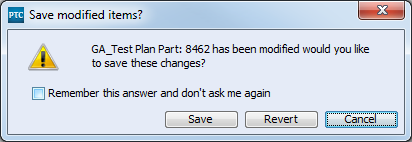
unexpectedPrompt.png

Thanks,

Nolin

    Best answer by wspadola

    Hi Nolin,

    This is caused by a user preference in the client itself. We allow a user to waive this dialog if they desire and to have the client save the item directly when the gesture to save an item has taken place.

    If you wish to have this prompt enabled:

    1. Visit the View > Options... menu in your desktop Integrity client.
    2. Navigate to the Messages tab on the top of the window.
    3. Place a checkmark in the box labeled "Show confirmation message before saving a modified item"

    1 reply

    wspadola12-AmethystAnswer
    12-Amethyst
    December 12, 2014

    Hi Nolin,

    This is caused by a user preference in the client itself. We allow a user to waive this dialog if they desire and to have the client save the item directly when the gesture to save an item has taken place.

    If you wish to have this prompt enabled:

    1. Visit the View > Options... menu in your desktop Integrity client.
    2. Navigate to the Messages tab on the top of the window.
    3. Place a checkmark in the box labeled "Show confirmation message before saving a modified item"
    1-Visitor
    December 12, 2014

    It's already checked in my client but I don't get the same prompt when modifying a field. What else might cause this?

    16-Pearl
    December 12, 2014

    Hello Nolin,

    If you have that checkbox set, I would expect you to receive that prompt. Could you contact PTC Integrity Support to investigate this further?

    Regards,

    Kael