13-Aquamarine
November 11, 2025
Solved

Edges' color change between SHADING WITH EDGES view and NO HIDDEN view

  • November 11, 2025
  • 2 replies
  • 1287 views

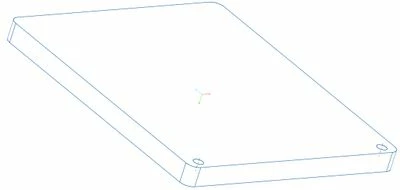
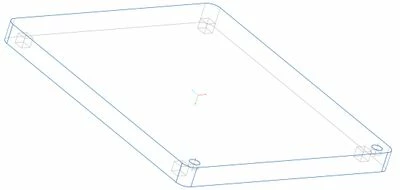
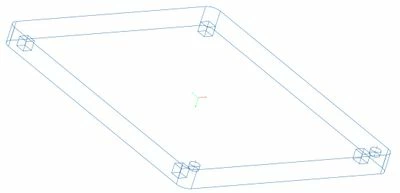
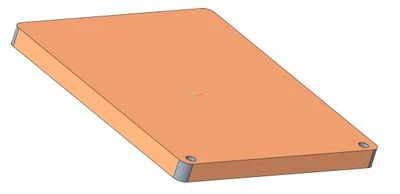
The edges of this part change color between views: they are BLACK in the "Shading With Edges" view and become BLUE in the  "No Hidden" view. The edges are also BLUE in the Hidden Line view (with the hidden line correctly displayed as light grey), and completely blue in the Wireframe view.


I would like to keep the edges BLACK no matter what, and if that is not possible, at least I would like the edges to be BLACK in the "No Hidden" view and whatever in the other views.

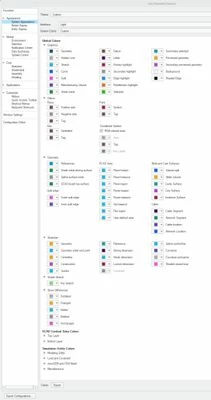
I have played with the color settings for two days now, and I could NOT find the culprit among them.
In my config.pro file I have:

color yes
graphics opengl
enable_fsaa 16
spin_with_silhouettes yes
display_shilhouette_edges yes

tangent_edge_display solid
edge_display_quality very_high
shade_quality 50

skip_small_surfaces no
set antialiasing mode on
smooth_lines yes


What can I do in this situation? Any ideas appreciated!
 

01_edges_BLACK_in_Shading_01.jpg

02_edges_BLUE_in_NO-HIDDEN_01.jpg

03_edges_color_SETTINGS_01.jpg

04_edges_BLUE_in_HIDDEN-LINE_01.jpg

05_edges_BLUE_in_WIREFRAME_01.jpg

Best answer by aputman

On the System Appearance screen, bottom left, is an Export button.  Save this file somewhere.  I've got it stored on a network drive where I keep all of my Creo configuration files.  Then add the SCL path to your config file.

system_colors_file <path>


2 replies

tbraxton
22-Sapphire II
22-Sapphire II
November 11, 2025

Try changing your system color scheme to black on white.

tbraxton_0-1762883857442.png


13-Aquamarine
November 14, 2025

I like the crispness of "Black on White", but when I use the PROJECT button to import a DXF file in CREO, the lines of the DXF are white on white, and that tires me out really fast!
So I adopted the option with the syscol file, where I can make GEOMETRY = BLACK and retain that option, only to have a grey background to go with those white lines.
I wanted to change the white lines to another color, but I could not find the option for those anywhere... 
This is what I mean -- no idea how these white curves are called, honestly.

tbraxton
22-Sapphire II
22-Sapphire II
November 15, 2025

EDIT: There is the possibility to use a mapping file when importing DXF data. This implies that there exists a default mapping of colors, but I am not seeing any documentation at PTC with a quick search. The system colors assignments available to the user in the GUI and via sys color files may not have control the color of imported DXF geometry.


intf2d_in_dxf_mapping_file
Specifies the mapping file for DXF or DWG import. Specify the absolute or relative path to the file. This configuration option is available as the DXF and DWG import mapping file location 2D data exchange setting in the Creo Parametric Options dialog box.


The assignment of the system colors needs to be considered in a global context; as you are finding out it can cause things to disappear or be camouflaged if not well thought out. Why are you changing the system color settings? If perhaps you are colorblind, I believe there exists some predefined sys color files to address some forms of colorblindness. If this is the case, ask here in a separate new post and open a case with PTC tech support and you will probably get some options.


How does the project function import a DXF file? I am not following that statement. Creo is functioning as designed but you have a moving target as a goal throughout this thread. 

Regardless of that the imported geometry will probably use the geometry color active at the time of import; I am guessing that yours is set to white. Change it as a test to see if that is what is used for imported DXF geometry.

tbraxton_0-1763164885640.png


13-Aquamarine
November 11, 2025

In the color selection screen, set Geometry (1st column) to black.  You already have Shaded Edges as black (3rd column).  This should cause the edges to be black all of the time, with one exception (that I know of).  If you apply an appearance to the entire part (right click with paint brush active until the PRT is highlighted) , the edges (in wireframe mode) will take on the color of the part and ignore the above settings (see below).  If you apply an appearance to individual surfaces, as you have done, the edges use the Geometry color when in wireframe mode.  Shaded Edges color is always used when in shaded with edges mode. 


This picture has an appearance applied to the entire part. 

aputman_0-1762896550148.png


13-Aquamarine
November 14, 2025

I have tried this and it works! But the problem now is that this change (GEOMETRY = black) is not saved by CREO 10 for permanent use (I see no SAVE button anywhere to achieve that).
As soon as I restart the CREO instance, I am back to BLUE edges in the No Hidden view.
Is it possible I may have some line in config.pro that resets the geometry setting?

Many thanks!!


aputman13-AquamarineAnswer
13-Aquamarine
November 14, 2025

On the System Appearance screen, bottom left, is an Export button.  Save this file somewhere.  I've got it stored on a network drive where I keep all of my Creo configuration files.  Then add the SCL path to your config file.

system_colors_file <path>