
1-Visitor
April 3, 2012
Question

Adding Custom Line Sytles to be used in Detailing

  • April 3, 2012
  • 1 reply
  • 5118 views

Hi folks,

I'm in need of an urgent help.

I need to include a custom line style in Pro/ENGINEER WF 5.0, so that all the centre lines used in Detailing should use this custom line style.

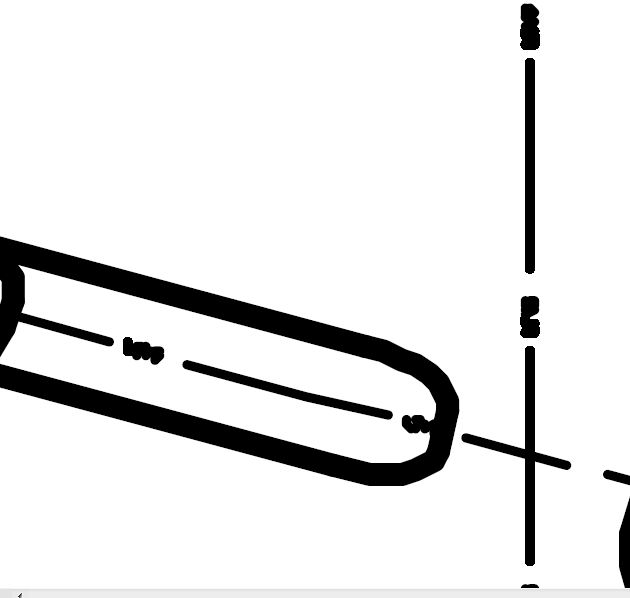
I'm not sure or aware of how to create a custom line style, and also my requirement is that the line should have actual fonts of the company name which would be visible only when zoomed in as shown below..
Capture.JPG

Can some one help me out?

Amar..

    1 reply

    1-Visitor
    April 3, 2012

    About Line Fonts

    You can create and customize the fonts used for your two-dimensional draft lines. A line font is a pattern of dashes and spaces that are proportionate within the specified length. For example, 5 dashes and 5 spaces with a pattern length of 1 inch results in two dashes and spaces for a 2-inch line in the drawing. The same pattern definition with a 1/4-inch pattern length results in 8 dashes and spaces for a 2-inch line in the drawing. You can have a maximum of 16 dash-space combinations in a line font file.

    User-defined line font files, <fontname>.lsl, must reside in your local directory for you to be able to use them. When you retrieve a drawing, and Pro/ENGINEER cannot find a line font file, it displays any line that has been set with that style as solid and notifies you that it has not loaded a font file.

    If you have specified auxiliary font files in the drawing setup file (this occurs automatically when you create the font when that drawing is active), it identifies the font files that it could not find.

    Note:

    • You can set a default length for the line font using the line_style_length
    • You can import and export IGES line font defintions using the iges_in_dwg_line_font

    See Also

    To Create a New Line Font

    To Modify a Line Font

    Deleting Line Fonts

    line_style_length

    iges_in_dwg_line_font

    iges_out_dwg_line_font

    To Create a New Line Font

    You can create your own line fonts by specifying the font length and pattern.

    1. Do one of the following:
    • Click Format > Line Style. The LINE STYLES menu appears. Then, choose Edit Fonts from the LINE STYLES menu.
    • Click Format > Line Font Gallery.

    In either case, the Line Font Gallery dialog box opens.

    1. Click New. The New Line Font dialog box opens.
    2. Type a name in the New Name box, select an existing font to copy from the Font list, or click Select Line.
    3. Specify the font length by typing the length of one unit in the Unit Length box.
    4. Specify the font pattern by typing a series of dashes and spaces ( ) in the Font Pattern box.
    5. Click OK to accept the font as currently defined.

    See Also

    To Modify a Line Font

    Deleting Line Fonts

    About Line Fonts

    Based on this you MAY be able to create something in a sketch in the model, extrude it a very small bit, and import as an iges, I think. This was all I could find.

    22-Sapphire II
    April 3, 2012

    Thanks Kris, I was interested in something like this a little bit ago. It seems we don't have all the linestyles loaded, and now I know what to look for (extension).

    1-Visitor
    April 4, 2012

    Sure thing! Glad to help!