

How to Acquire 30 days License for Mathcad Prime 7.0 ?
There are two options to acquire 30 days Mathcad Prime 7.0 license file. Please follow below listed,
Step by Step procedure: Retrieval of License file via Internet
1. Install Mathcad Prime 7.0.0.0 and launch it.
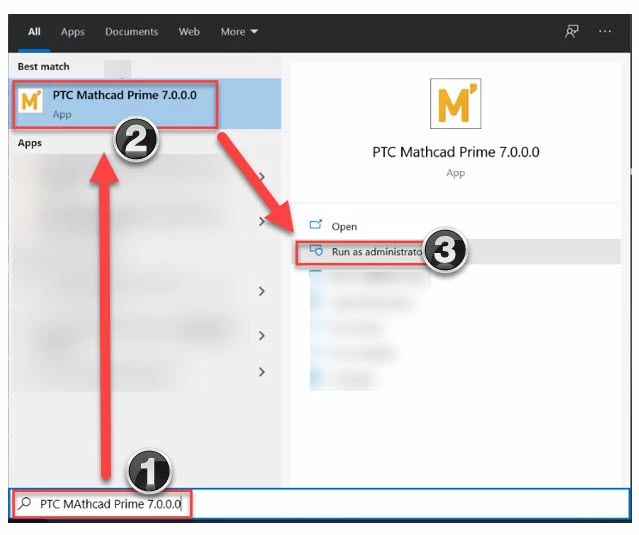
2. This will trigger PTC Mathcad Prime 7.0 License Wizard
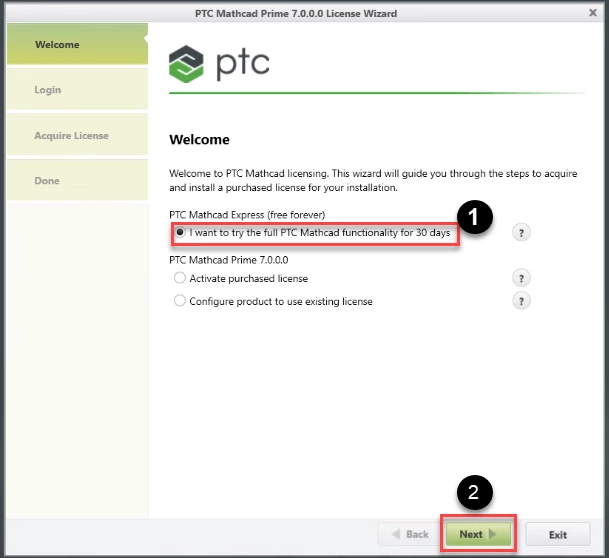
3. Check the Radio button as highlighted "1" in above image. Once selected click option #Next.
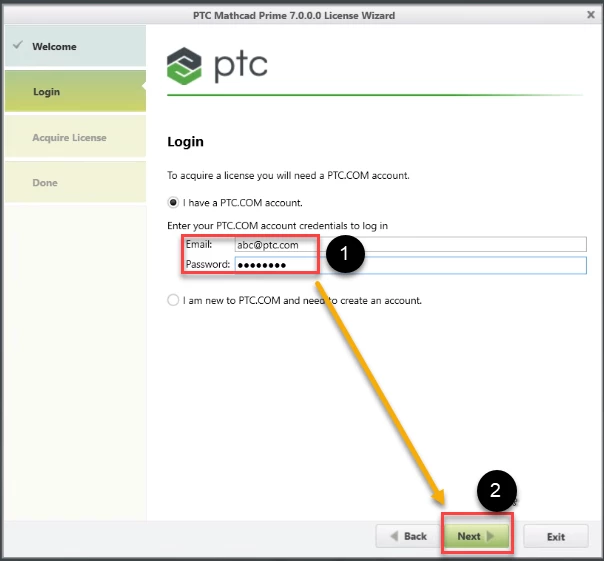
4. Please enter your PTC username & password. If you don't have a PTC Account(Basic User), than instead of selecting the option "I have a PTC.COM account"(1), you need to check the second radio button "I am New to PTC.COM and need to create an account".
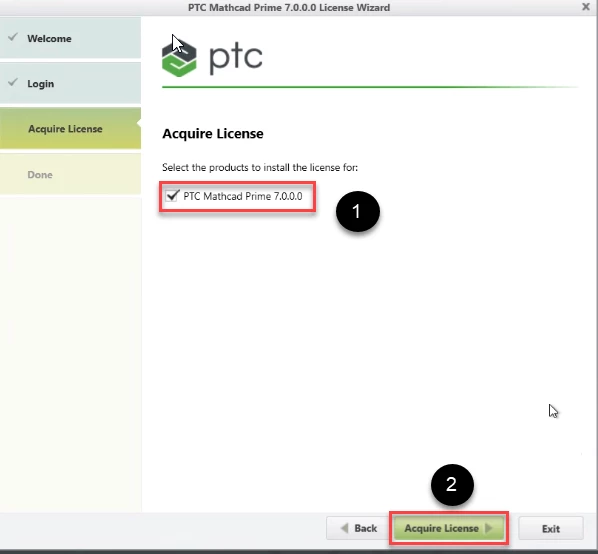
5. Select #PTC Mathcad Prime 7.0.0.0 and opt for #Acquire License.
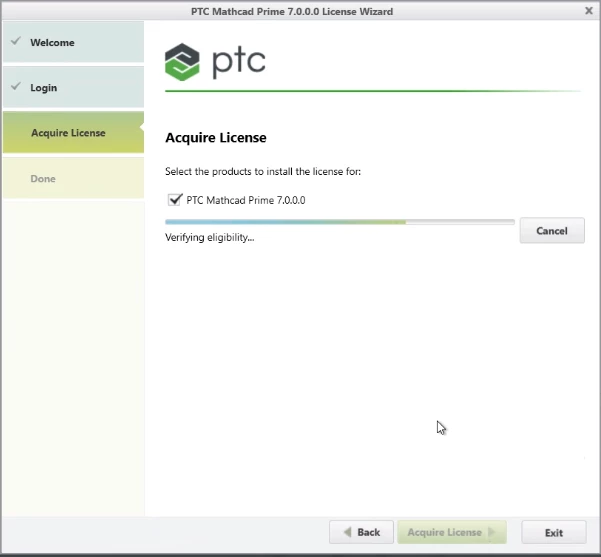
Once you select #Acquire license, it will get greyed out and initiate the process of acquiring the license from PTC Server. Below picture reflects how the email will look like along with the license file(as an attachment).
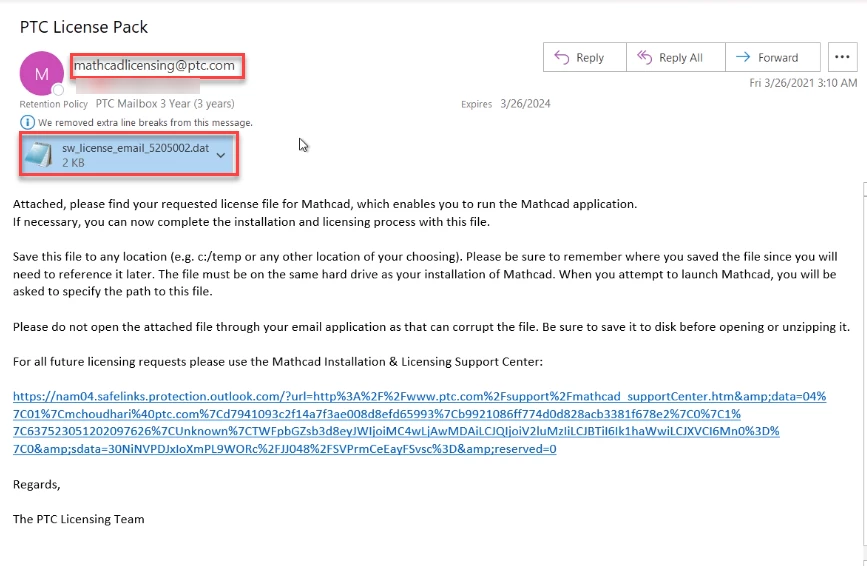
6. You may verify the license file which by default will be saved in location "C:\ProgramData\PTC\Mathcad Prime\License".
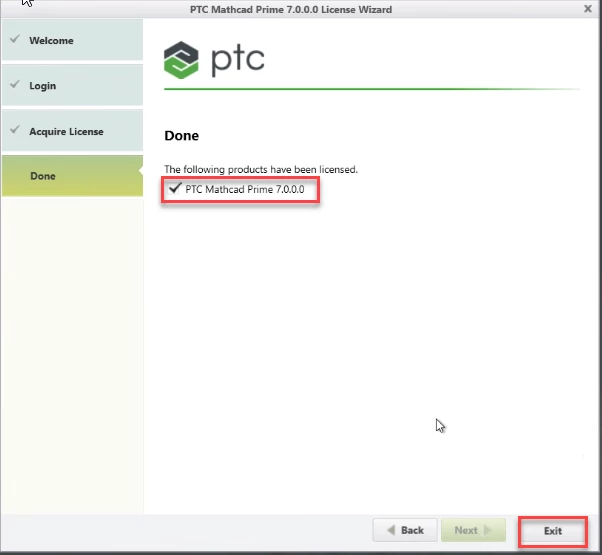
7. Complete the license retrieval process by selecting #Exit
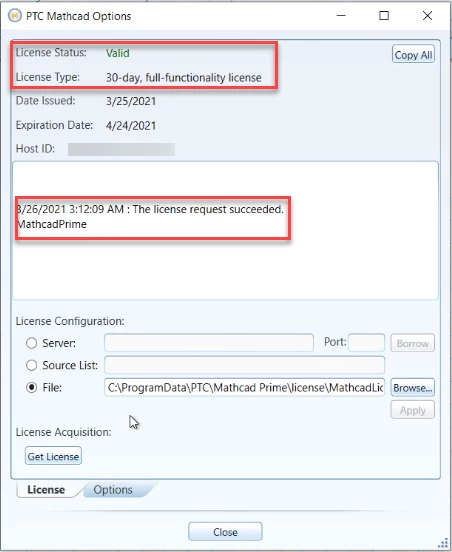
8. Congratulations!! Now you should be able to Launch Mathcad Prime 7.0.0.0 successfully.