Hi,
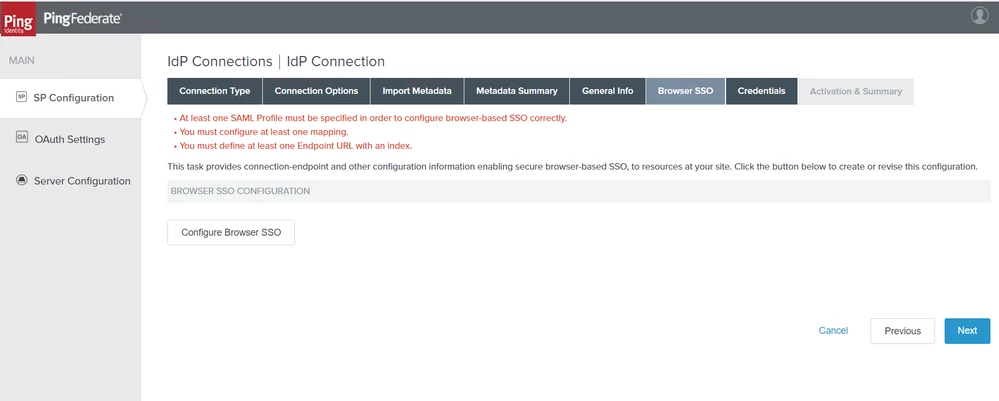
Steps to create a self-signed Application Layer certificate for PingFederate
- On the Digital Signature Settings, click on Manage Certificates
- On the Manage Digital Signing Certificate click on Create New
- Fill in the mandatory fields like
- Common Name = PingFederate
- Organization = your organization
- Validity = 3650
- Leave rest values as default and click Next
- Click Done on the Summary page
- Click Save on the Manage Digital Signing Certificate Page
- You will be now back to Digital Signature Settings Page
- Click on the checkbox “INCLUDE THE CERTIFICATE IN THE SIGNATURE <KEYINFO> ELEMENT.”
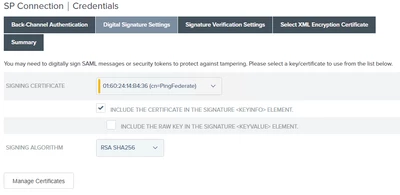
- Click Next on the Digital Signature Settings Page
- On the Signature Verification Settings tab, click on Manage Signature Verification Settings
- On the Trust Model, select “UNANCHORED”
- On the Signature Verification Certificate, select the Thingworx SP Signing Certificate and click Next.
When you visit this tab for the first time, there will be no certificate in the dropdown list. You can import the public part of the Thingworx signing certificate and choose it as Signature Verification Certificate
- Click Done on the Summary page