
13-Aquamarine
June 11, 2025
Solved

Change the format of the information presented when the mouse passes over the points of a Combo Char

  • June 11, 2025
  • 1 reply
  • 465 views

Hello, I am using Thingworx 9.6.4. I have a Combo Chart widget inside a Mashup and I would need to reduce the format of the reference that is presented on each point of the graph.
In particular, the following information is presented to me
Wed Jun 11 2025 08:45:50 GMT +0200 (Central European Summer Time), value:1
and I would like to reduce this information to
2025-06-11 08:45:50, value: 1
Thanks
Dimitri
Best answer by TonyZhang

Hi @dbologna,


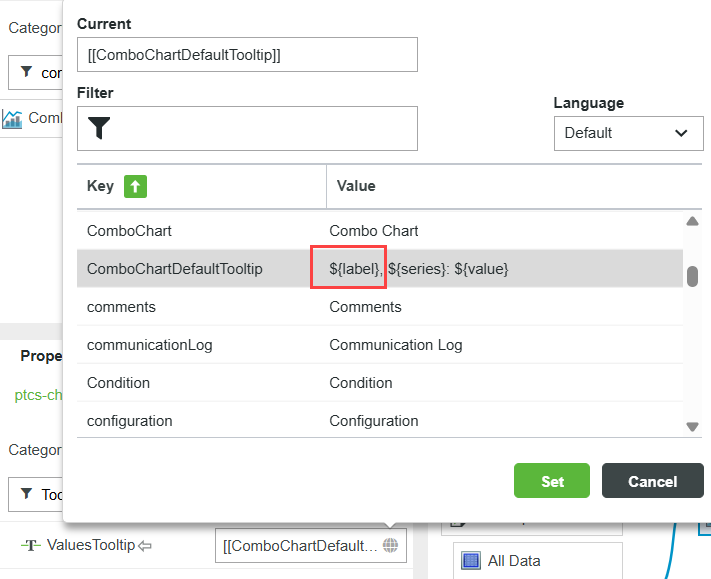
Looks like the ${label} token does not respect the XAxisDateFormatToken property configured in Combo chart.

I think it's a bug which you can report through Support case.

The same issue was reported before for Line Chart: https://www.ptc.com/en/support/article/CS381734

As a workaround, you can add a new column in your Combo Chart data with formatted datetime string and configure that column data using ${Data:< String field>} in the ValuesTooltip property of the Combo Chart.

See the workaround section in https://www.ptc.com/en/support/article/CS369558


Best,

1 reply

17-Peridot
June 12, 2025

The timestamp (Wed Jun 11 2025 08:45:50 GMT +0200 (Central European Summer Time)) at X-axis?

You can use dateFormat function to format the timestamp in the serivice.

// dateValue:DATETIME
let dateValue = new Date();

// dateFormat(dateValue:DATETIME, dateFormat:STRING):STRING
let formattedDate = dateFormat(dateValue, "yyyy-MM-dd HH:mm:ss");


TonyZhang16-PearlAnswer
16-Pearl
June 19, 2025

Hi @dbologna,


Looks like the ${label} token does not respect the XAxisDateFormatToken property configured in Combo chart.

I think it's a bug which you can report through Support case.

The same issue was reported before for Line Chart: https://www.ptc.com/en/support/article/CS381734

As a workaround, you can add a new column in your Combo Chart data with formatted datetime string and configure that column data using ${Data:< String field>} in the ValuesTooltip property of the Combo Chart.

See the workaround section in https://www.ptc.com/en/support/article/CS369558


Best,