
1-Visitor
December 5, 2019
Solved

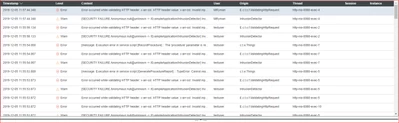
Error occurred while validating HTTP header

  • December 5, 2019
  • 8 replies
  • 3447 views

Hello, I noticed that when I went through our demo for the Lock out tag out sequence that the reports are not showing up.

Please see the snip below displaying the error message from the report log.
 

mryman_1-1575570648194.png


Another thing I noticed was when we go through the checklist and select “I confirm all these steps are complete” in the demo I believe the window would disappear, but now we have to click on something else in order for the display to clear.

Please Advise

-Matt

Best answer by manasvi

Hi Matt,


I had a similar issue, to resolve this I changed the validation.properties file in ThingworxStorage\esapi

.To see quickly if this is working for you, can you try the attached file ?


8 replies

24-Ruby IV
December 6, 2019

What software do you use?

mryman1-VisitorAuthor
1-Visitor
December 10, 2019

ThingWorx & Vuforia

20-Turquoise
December 10, 2019
What is your ThingWorx version?
manasvi1-VisitorAnswer
1-Visitor
December 11, 2019

Hi Matt,


I had a similar issue, to resolve this I changed the validation.properties file in ThingworxStorage\esapi

.To see quickly if this is working for you, can you try the attached file ?


mryman1-VisitorAuthor
1-Visitor
December 17, 2019

I am very sorry, I cannot seem to find where to upload it. It will not let me import that file either. I did unzip it and got this validation.properties file.

1-Visitor
December 18, 2019

Hi,

You dont have to import that file from the composer.

When you installed Thingworx, you must have created 3 folders (mostly in your PC's OS (C:\) drive) namely 'ThingworxPlatform', 'ThingworxStrorage' and 'ThingworxBackupStorage'.

So the validation properties file has to be kept in '..\ThingworxStorage\esapi' path. For example in my case the path is 'C:\ThingworxStorage\esapi'. When you will browse the folder location you will find an already existing validation.properties file, so you just have to replace it with what you have downloaded from the post.

After that remember to restart your Apache Tomcat service, and then possibly you will not see the error anymore.

Hope it helps!

Thanks

Aditya