
14-Alexandrite
March 18, 2022
Solved

How to add scroll bar in X-AXIS in Schedule widget

  • March 18, 2022
  • 1 reply
  • 1225 views

Hi Developers,

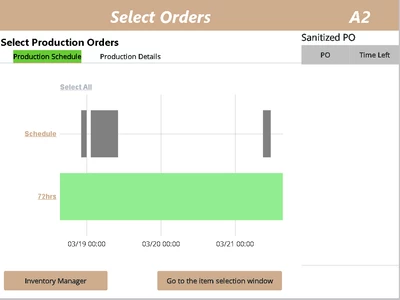
I use schedule widget to see data of 3 days.
as default, we can see all data.
I know we can set start date and end date and once I set both date, I can see restricted amount of data though, I'm not sure on how to add scroll bar in X-Axis to see remaining data.

Could you let me know  we can put scroll bar in X-axis ?


Default  : display all data
YoshihikoN_1-1647584665250.png


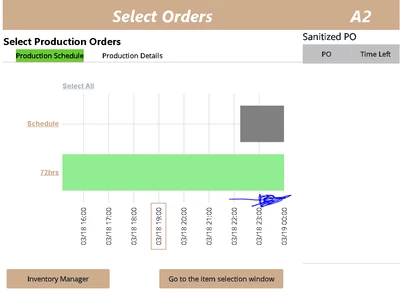
Ideal : can see only data of a day.
scroll to see data of after the day
YoshihikoN_0-1647584531757.png


Best answer by bchaudhary_448008

Hello @Yoshihiko.N , 


Pls check the following article for your reference:

https://www.ptc.com/en/support/article/cs67798


Let me know if you know something else.

Regards

Bhawna

1 reply

5-Regular Member
March 21, 2022

Hello @Yoshihiko.N ,

Unfortunately, this cannot be achieved. But I would like to request you to report the case with the PTC technical team so that RnD can look into it.


Regards

Bhawna

14-Alexandrite
March 25, 2022

Hi Bhawna,

Thank you for your reply.
could you let me know on how to report the case with the PTC technical team ?

5-Regular Member
March 25, 2022

Hello @Yoshihiko.N , 


Pls check the following article for your reference:

https://www.ptc.com/en/support/article/cs67798


Let me know if you know something else.

Regards

Bhawna