

Solved
Create an Infotable Property in a Thing. For the infotable, create a datashape with a Mashup column. Also add a number or string column and set this column as a primary key. Once the datashape and infotable is made, populate the infotable with your list of mashups to select in the mashup column and set a unique identifier in the number/string column.
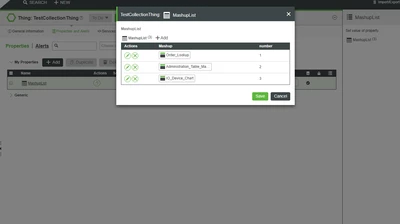 Create Infotable with Mashup and Number List
Next, in your Collection Mashup, add a GetProperties service call for your Infotable Thing. Bind your infotable list to the Data of your Collection. Select MashupHeight and MashupWidth values for your mashups. Select number or string column for your UIDField dropdown. Select the mashup column for the MashupNameField dropdown.
Add a Navigation widget to your Collection Mashup. Under your GetProperties list, click on the + next to your Infotable. A [Selected Row(s)] field should display. Click on the + next to [Selected Row(s)]. You shoud see the column names of your Infotable. Bind the Infotable[Selected Row(s)].Mashup to the MashupName field of the Navigation Widget. Bind the CellWasClicked binding field of the Collection Widget to the Navigate field of the Navigation Widget. Turn off the Navigate Widget Visibility checkbox.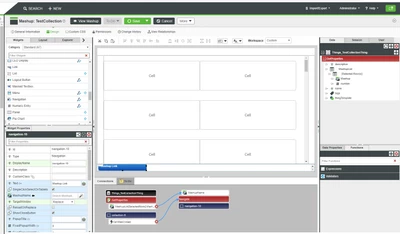
There are numerous other settings that you can play with in both the Collection and Navigation Widgets, but this should get you started. I also found a few more instruction guides from the Developer website.
https://developer.thingworx.com/en/resources/guides/collection-widget-how-to
https://developer.thingworx.com/resources/webinars/reimagine-your-application-UI
Hope this helps,
Tim