16-Pearl
September 2, 2020
Solved

Simple Flow FTP example.

  • September 2, 2020
  • 3 replies
  • 3101 views

Hi all,

I'm trying to test a simple workflow task in flow, using the FTP utility.

My idea was to get connect to my ftp server, upload a text file from one directory, create a directory, and then download that file there.

The documentation doesn't have any examples and all that I'm able to do successfully is create a directory.
Does anybody have an example of how to do this or can anyone point me in the right direction?


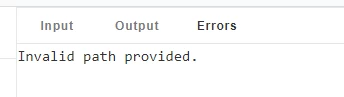
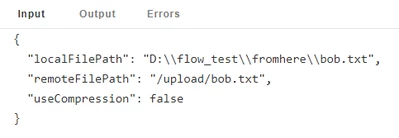
The upload file action gives the following error.
BryanK_0-1599022534265.pngBryanK_1-1599022558855.png

I have tried all the different paths that I can think of.


    Best answer by emscur

    Hi Bryan,

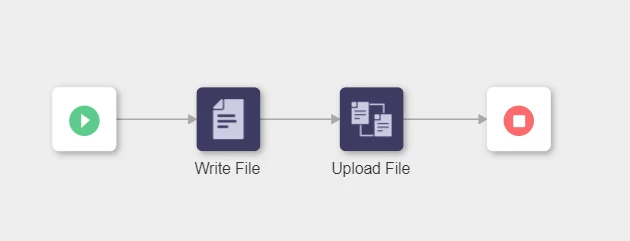
    The file needs to be written first before it can be uploaded to the FTP server. Find an example below:

    1. Drag a File > Write File connector to the screen
      • This connector can have any input to generate the string that will be written to the file
    2. Drag a FTP > Upload File connector to the screen 
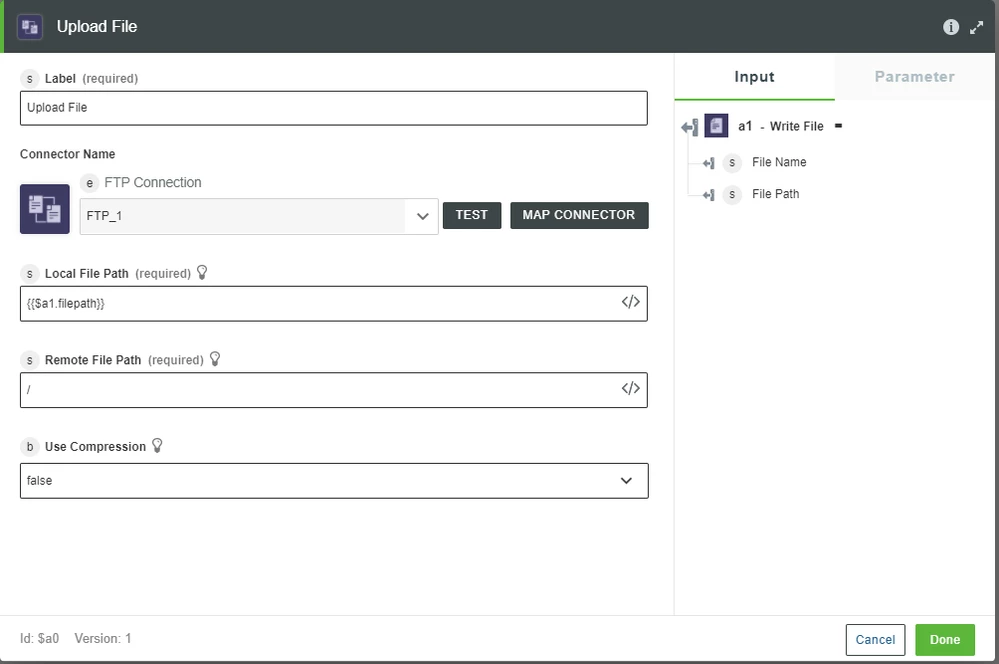
      • Set the Local File Path to the output File Path of the Write File connector
      • Set the Remote File Path to the path you want the file written in the FTP server
        • Keep in mind the file will be written to the specified FTP root directory in the remote server
    3. Hit Save
    4. Execute the workflow


    Find the simple workflow structure example below:


    UploadFileWF.PNG


    Find the Upload File connector details below:


    UploadFileSpecs.PNG


    The Upload File FTP connector is ideal for uploading files written during workflow execution. This explains why you were receiving Invalid path provided errors.

    I hope you find this information helpful.


    Thanks,

    Emmanuel


    3 replies

    5-Regular Member
    October 27, 2020

    Hi Bryan,


    Did you try using copy service from file transfer subsystem and check if paths are correct.


    Thank you,

    Gautham

    BryanK16-PearlAuthor
    16-Pearl
    November 4, 2020

    Hi,

    Yes i did try that.

    I have also tried various other methods to but up to this point nothing has worked. 

    I have placed this into the failed experiment box for now and will return to it once I have at least something working.

    Thanks for the reply.


    emscur5-Regular MemberAnswer
    5-Regular Member
    November 5, 2020

    Hi Bryan,

    The file needs to be written first before it can be uploaded to the FTP server. Find an example below:

    1. Drag a File > Write File connector to the screen
      • This connector can have any input to generate the string that will be written to the file
    2. Drag a FTP > Upload File connector to the screen 
      • Set the Local File Path to the output File Path of the Write File connector
      • Set the Remote File Path to the path you want the file written in the FTP server
        • Keep in mind the file will be written to the specified FTP root directory in the remote server
    3. Hit Save
    4. Execute the workflow


    Find the simple workflow structure example below:


    UploadFileWF.PNG


    Find the Upload File connector details below:


    UploadFileSpecs.PNG


    The Upload File FTP connector is ideal for uploading files written during workflow execution. This explains why you were receiving Invalid path provided errors.

    I hope you find this information helpful.


    Thanks,

    Emmanuel


    Community Manager
    November 16, 2020

    Hi @BryanK.


    If you feel your question has been answered, please mark the appropriate response as the Accepted Solution for the benefit of others with the same question.


    Regards.


    --Sharon