
1-Visitor
April 13, 2020
Question

facing problem while uploading file which is having size more than 100mb

  • April 13, 2020
  • 3 replies
  • 3859 views

Hi @sdidier 


As you have given option for offline pvz optimization which i have run in my system. 


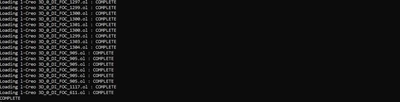
Please find below screen shot for your reference where process is completed in script but i couldn't able to find optimized pvz in my system.
nraichura_0-1586788839634.png


I have written following cmd script in command prompt 


pvaroptimizer.exe -vc1 -p D:\PVZ_oti
-o DiFOCPanel,C:\Users\Admin\Documents\VuforiaStudio\Projects\IMF_2020\src\phone\resources\Uploaded\DiFOC Panel.pvz


3 replies

21-Topaz I
April 13, 2020

Hi @nraichura ,

you can check this post .

So, you need to specify one of the rcp files from the installation directory  / there some RCP definitions (rcp files – you can select one of them) which  are already provided in:


<Windows User>\AppData\Roaming\VuforiaStudio\studio-download.vuforia.io\node_modules\cad-import-filters\import_filters\recipe


 where for creation of the the high, low and med pvz version you can use pvaoptimizer_med.rcp,pvaoptimizer_high.rcp,pvaoptimizer_low.rcp.  (actually if you have advance skills you can create you own rcp file definition)

so example:


C:\Users\rraytchev\AppData\Roaming\VuforiaStudio\studio-download.vuforia.io\node_modules\cad-import-filters\import_filters\bin\pvaroptimizer.exe -r C:\Users\rraytchev\AppData\Roaming\VuforiaStudio\studio-download.vuforia.io\node_modules\cad-import-filters\import_filters\recipe\pvaroptimizer_low.rcp engine_test_exp.pvz


where I called the optimizer executable then I pointed  to the rcp setting (low) and specified the pvz location and name of the new file

nraichura1-VisitorAuthor
1-Visitor
April 14, 2020

hi  @RolandRaytchev  @sdidier 


I have written following script in command prompt can you tell me is there any mistake that i have did in this script 


Path for optimizer

C:\Users\Admin\AppData\Roaming\VuforiaStudio\studio-download.vuforia.io\node_modules\cad-import-filters\import_filters\bin\pvaroptimizer.exe


path of recipe file

-r C:\Users\Admin\AppData\Roaming\VuforiaStudio\studio-download.vuforia.io\node_modules\cad-import-filters\import_filters\recipe\pvaroptimizer_high.rcp

Out put path

-vc1 -p D:\PVZ_oti

input path

     -o DiFOCPanel,C:\Users\Admin\Documents\VuforiaStudio\Projects\IMF_2020\src\phone\resources\Uploaded\DiFOC Panel.pvz


Hence final script will be

C:\Users\Admin\AppData\Roaming\VuforiaStudio\studio-download.vuforia.io\node_modules\cad-import-filters\import_filters\bin\pvaroptimizer.exe -r C:\Users\Admin\AppData\Roaming\VuforiaStudio\studio-download.vuforia.io\node_modules\cad-import-filters\import_filters\recipe\pvaroptimizer_high.rcp -vc1 -p D:\PVZ_oti -o DiFOCPanel,C:\Users\Admin\Documents\VuforiaStudio\Projects\IMF_2020\src\phone\resources\Uploaded\DiFOC Panel.pvz


Thank you 

17-Peridot
April 14, 2020

Hello Nraichura,


I think that pvz has not been generated but the 3D files with data have been generated.

It is all .ol files.

Normally, these files are in the pvz file.


These files should be in the current folder where the command has been ran.


Best regards,

Samuel

nraichura1-VisitorAuthor
1-Visitor
April 14, 2020

Hi @sdidier 


As you said .ol file will be generated find below snap shot where i have found *.ol files which i have generated from script. 

nraichura_0-1586844780977.png

Now how i can use this *.ol file. 


Thank you 


17-Peridot
April 14, 2020

Hello Nraichura,


It is not possible to use them direclty in Vuforia Studio.

The command line provided by @RolandRaytchev is the good one.

It is the same as described in this article also :

https://www.ptc.com/en/support/article/CS309641


It should generates a pvz file.


Alternate solution and more manual, is to pack all files (not only .ol files) generated by pvaroptimizer into . zip archive and rename it into .pvz extension.


I recommend to use the first solution.


Best regards,

Samuel

16-Pearl
August 28, 2020

Hi Folks, 


since using command prompt is a bit annoying, we wrote a bat file, that you can use. Here are the instructions:


1. Make folder on Desktop

2. Crate file with ending .bat (e.g. create textfile and rename ending from .txt to .bat

3. open file with editor and paste code from down below

4. Place desired pvz-file in folder

5. start CAD-optimizer.bat

6. go through steps note: If you want to place it in annother directory click right on bat and open with editor. Change part "C:\Users\%name%\Desktop\pvz_tool" to the desired directory


@echo off color 4a echo pvz optimizer starter tool set name="" set /p name=please enter your windows-username (needed to find directory): set input="" set /p input=type in the file name without data ending: set outputname="" set /p outputname=type in the desired output file name: set aufloesung="" set /p aufloesung=type in resolution (low/med/high): "C:\Users\%name%\Documents\VuforiaStudio\Projects\node_modules\cad-import-filters\import_filters\bin\pvsoptimize" -r "C:\Users\%name%\Documents\VuforiaStudio\Projects\node_modules\cad-import-filters\import_filters\recipe\pvsoptimize_%aufloesung%_vuforia.rcp" -p "C:\Users\%name%\Desktop\pvz_tool" -o "%outputname%" "C:\Users\%name%\Desktop\pvz_tool\%input%.pvz" pause


Of course this is only a workaround if the original file size can't be reduced in any other way.

Cheers

Whity